AvaDevTools 12.1.9
dotnet add package AvaDevTools --version 12.1.9
NuGet\Install-Package AvaDevTools -Version 12.1.9
<PackageReference Include="AvaDevTools" Version="12.1.9" />
<PackageVersion Include="AvaDevTools" Version="12.1.9" />
<PackageReference Include="AvaDevTools" />
paket add AvaDevTools --version 12.1.9
#r "nuget: AvaDevTools, 12.1.9"
#:package AvaDevTools@12.1.9
#addin nuget:?package=AvaDevTools&version=12.1.9
#tool nuget:?package=AvaDevTools&version=12.1.9
AvaDevTools
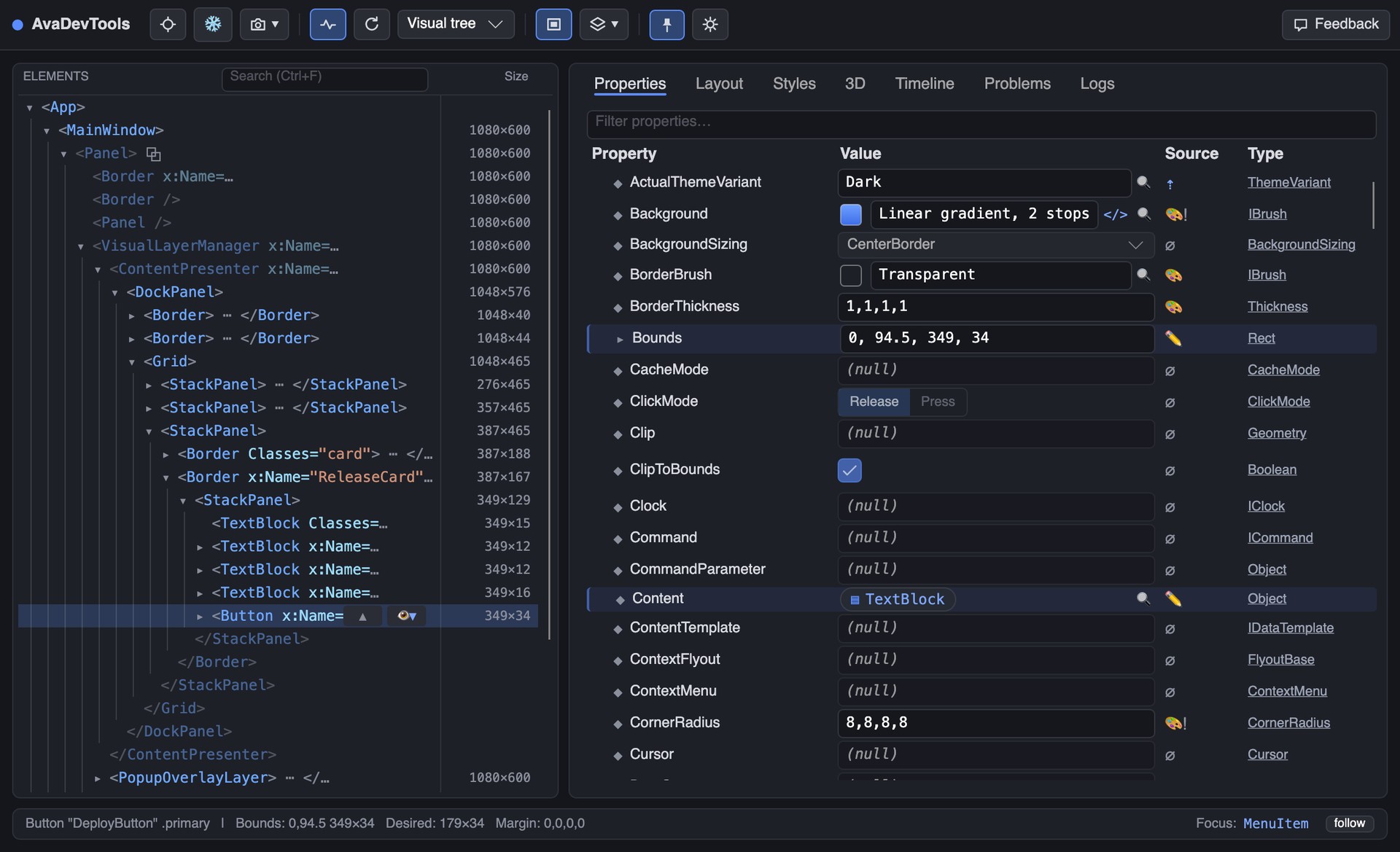
Free in-process developer tools for Avalonia 12. Avalonia 12 no longer ships the built-in F12 tooling (Avalonia.Diagnostics); this package brings it back. Install, attach with one call, press F12.
Installation
dotnet add package AvaDevTools
Getting started
Attach in App.axaml.cs:
public override void Initialize()
{
    AvaloniaXamlLoader.Load(this);
#if DEBUG
    this.AttachAvaDevTools();
#endif
}
Run the application and press F12. To inspect a single window instead:
myWindow.AttachAvaDevTools();
Features
- Live tree: the UI tree as foldable, syntax-colored pseudo-XAML — kept in step with the application, structural changes appear as they happen, with search, scoping and full keyboard control.
- All windows, one DevTools: the tree is rooted at the application; every window is a top-level node and F12 anywhere focuses the same DevTools.
- Properties: styled, attached and CLR properties with live updates and typed editors, including a color picker and a gradient editor.
- Value inspection: any property value opens in a live inspector; drill into nested objects and jump to the C# source.
- Layout: an interactive box model, plus a plain explanation of how the selected element got its size.
- Styles: every style and setter applied to the element, editable in place, each with its XAML source location.
- Timeline: routed events, property changes, view-model notifications and focus changes in one chronological feed.
- Cause capture: records the call stack behind every captured change, so one reproduction answers "who changed this" for every hit — each frame opening in your editor. Break next escalates to your debugger for one change when a live stack is what you need.
- Perf lane: frame cadence and layout-pass times, with the slow ones filed into the feed beside what the app was doing.
- Accessibility: the tree a screen reader walks, beside the one you see — role, announced name and patterns per element — plus a tab-order overlay numbering every keyboard stop over the running app, WCAG contrast measurement, and an audit that files unnamed controls, keyboard traps and unreachable focus stops into Problems.
- Variants: pick a property, pick a value, press Add — theme, text scale, window size, text direction, language — then press Check variants and the application is read again at every value on the list, reporting only what got worse: text cut off, content pushed off the window, contrast lost, text that did not get bigger when the reader turned it up. Every property says what it varies and names a few of the values it varies it at, in the dropdown and behind a ? on its row. Presets from a narrow phone column to 4K, or type the size you actually ship on; the list is remembered against that application rather than carried into the next one. An application can register axes of its own. Read the result three ways — the run itself, a table of variant, problem and the elements it happened to, or one problem at a time with a counter, arrows and its screenshot filling the pane — and save the whole thing as a PDF, pictures and all, for somebody who does not have the application running. Everything is put back exactly as it was found.
- Problems: broken bindings, duplicated resource keys and accessibility findings collected in one tab, each with a reason and links.
- Logs: Avalonia logger output and the application's own log events, with level and text filters.
- 3D view: an exploded, orbitable view of the window's visual layers.
- Search: Ctrl+K finds actions, elements, resources and properties by the words on screen.
- Resources: every definition of a resource key across all scopes, with the winner marked.
- Hold the moment: Shift+F12 freezes popups, flyouts, tooltips and hover styling so they can be inspected.
- Copy as bug report: one click puts a screenshot and a readable element report on the clipboard.
- Go to source: elements, styles and templates open at the exact XAML line in Rider, VS Code or Visual Studio, detected automatically and preferring an IDE that is already open.
- Settings: remap the open and hold gestures, switch the hover-inspect chord, and tune the tool from a settings card.
Let an agent look — and, if you allow it, act (MCP)
DevTools can serve a Model Context Protocol endpoint on loopback, so a coding agent gets the tool itself — headless. Every tab here is a view over an engine that never needed a window, so the agent calls those engines directly and reads the same answers you do. Read-only by default; separate opt-ins let it freeze transient state, read the application under other variants, and send input.
The ⚙ card's MCP page turns it on and off, sets the port and grants or refuses the three permissions that change anything, saved per machine. While it is on, an MCP Server tab shows what is listening, the one line that registers this application with your agent, and every tool with the number of calls made to it. To have it listening before the window is ever opened:
this.AttachAvaDevTools(new DevToolsOptions { McpServer = true });
or, without a code change, run the app with the environment variable AVA_DEVTOOLS_MCP=1. The endpoint is http://127.0.0.1:5171/ — change it with the McpPort option or the AVA_DEVTOOLS_MCP_PORT variable — and it speaks Streamable HTTP, so point an MCP client at that URL:
{ "mcpServers": { "myapp-avadevtools": { "type": "http", "url": "http://127.0.0.1:5171/" } } }
The server introduces itself as "your-assembly-name-avadevtools", so two applications open at once — each on its own port — stay apart in the agent's tool list. For Claude Code:
claude mcp add --transport http myapp-avadevtools http://127.0.0.1:5171/
The documentation walks through Claude Code and Codex step by step.
Twenty-nine tools, every one of them an engine a tab already uses:
| list_windows · get_tree · find_elements | the tree, as the tree tab builds it — text inlines and open popups included, template internals folded away until asked for; ask for the accessibility mode and every row carries its role, announced name and patterns |
| get_element | the properties pane: set values, attached properties, the priority behind each, the XAML line it was declared on |
| get_problems | the Problems tab — failed bindings, duplicated keys and accessibility findings, with a scan that finds the broken ones before they are exercised |
| get_tab_order | where the keyboard goes: every stop in the order Tab visits them, what it never reaches, and what it cannot leave — the one thing an agent has no fingers to try |
| explain_layout · get_styles · get_resources | why it is that size, why it is that color, which definition of the key wins |
| inspect_object | the value inspector: walk into the data context, its collections, the objects inside them |
| watch_element · get_timeline | the Timeline: property changes, events, notifies — each with the call stack behind it |
| list_popups · hold · pin_class | transient UI: what is open right now, freezing it, and forcing the pointerover state on something that has no pointer |
| click · hover · drag · scroll | the pointer, injected as the platform injects it: hit testing decides what is hit, your handlers run, and a covered or disabled target is refused rather than faked |
| press_key · type_text · focus_element | the keyboard: chords, typed text and focus moves, delivered to whatever has focus in the application |
| run_variants | the Variants tab: name a property and the values to run it at — theme, text scale, window size, text direction, language, or any axis this application registered itself — and the same screen is read again at each, reporting only what got worse. It writes the application's own properties while it looks and puts every one back, so it waits on a permission of its own |
| wait_for | wait until something appears, disappears or changes — how an agent knows the application has finished reacting, instead of sleeping and hoping |
| screenshot · get_logs | what the user is looking at, and what the app has been saying |
Three calls, no debugger, nothing changed in the app — a real session against the sample:
$ get_problems  {"scan": true}
  Scanned 266 elements, 455 bindings.
  ERROR Binding  Run #2.Text
        'Aprover' resolves to nothing — the binding never produces a value

$ inspect_object  {"elementId": 2, "path": "DataContext"}
  #2.DataContext  →  AvaDevTools.Demo.MainWindow+ReleaseStatus
  properties:
    Approver = on-call: mira
    DeployWindow = Fri 16:00 UTC

$ get_element  {"elementId": 2}
  declared at: MainWindow.axaml:309
The XAML said Aprover, the view model says Approver, and the third call names the line.
get_problems, watch_element and get_tab_order are the three an agent cannot approximate any other way. One finds broken bindings that have not fired yet; one answers who changed this —
$ get_timeline  {"elementId": 11}
  property Run "StatusRun"  Text  idle → deploying 65%  [LocalValue]  #11
       stack: MainWindow.OnDeployClick  ←  ⋯ 26 framework frames  ←  Program.Main
— and one presses Tab all the way through the window and reports where focus actually went:
$ get_tab_order  {}
  10 tab stops, cycling · 1 focusable but unreachable
    1  #14 Button      eu-central ▾
    2  #15 CheckBox    auto
   ⚠ #31 Button is focusable and enabled, but Tab never reaches it
For an agent that has no debugger to attach, no Record button to press, and no fingers.
Safety. The server binds to 127.0.0.1 only, checks the Origin header, and is off unless asked for. Eighteen of the twenty-nine tools are pure reads, available whenever the server is on. The other eleven each wait on a switch of their own.
hold and pin_class freeze popups and force pseudo-classes — the only way anything without a pointer can look at a hover state. They need the McpAllowHold option, or AVA_DEVTOOLS_MCP_HOLD=1; they change transient UI state and nothing else, carry a deadline that releases them, and put a banner in the app while they last.
The eight acting tools need McpAllowInput, or AVA_DEVTOOLS_MCP_INPUT=1, and they are the ones to think about: a click runs your handlers, and your handlers can do whatever your application can do. Nothing here is synthetic — input goes in as a real platform event through Avalonia's own input manager, so it is refused when the target is covered, disabled, invisible or scrolled out of view rather than reported as a success that did nothing. Every action is written to the Timeline in its own lane, in your feed as well as the agent's, and a marker appears over the application while it happens. The DevTools window itself is never a target.
On iOS and Android. The endpoint runs inside the application, so it runs on a phone too: every tool answers against the view the app is showing. There is no DevTools window there — the agent is the one looking. Turn it on in code:
#if DEBUG
this.AttachAvaDevTools(new DevToolsOptions { McpServer = true, McpAllowInput = true });
#endif
The iOS simulator shares the Mac's loopback, so the address above works as it is. An iPhone connected by USB needs the port forwarded, for example with iproxy from libimobiledevice, and an Android emulator or device with adb:
iproxy 5171:5171
adb forward tcp:5171 tcp:5171
On a touch screen, click taps, drag and scroll move a finger, and hover is refused because a finger does not hover. The Window size axis refuses too: on a phone the operating system sets the size. F12 and Shift+F12 are left to your app, since there is no window to open.
Axes of your own
The axes that ship — the theme, the size of text, the size of the window, the direction text runs, and the language — are the properties true of every Avalonia application. The properties your application actually breaks under are usually its own: the tenant whose brand colour lands on top of the background, the density a table stops being readable at, the hardware profile half your users are on.
An axis is a property with values. Derive from VariantAxis, name the property, say in one sentence what varying it changes, and list the values worth trying — each of which builds a Variant that records every change on the ledger it is handed. Register it before attaching and it appears in the Variants tab with a picker of its own, and answers to its axis name over MCP.
using AvaDevTools.Variants;

sealed class TenantAxis : VariantAxis
{
    public override string Id => "tenant";
    public override string Name => "Tenant";
    public override string Varies => "whose branding this is painted in";

    public override IReadOnlyList<VariantChoice> Suggested { get; } = new[]
    {
        new VariantChoice("meridian", "Meridian", () => new Painted("Meridian", Colors.Teal)),
        new VariantChoice("orbit", "Orbit", () => new Painted("Orbit", Colors.Crimson)),
    };

    sealed class Painted : Variant
    {
        private readonly string _name;
        private readonly Color _brand;

        public Painted(string name, Color brand) => (_name, _brand) = (name, brand);

        public override string Axis => "Tenant";
        public override string Label => _name;

        public override bool TryApply(
            IReadOnlyList<TopLevel> roots, RestoreLedger ledger, out string? refusal)
        {
            refusal = null;
            foreach (var root in roots)
            {
                var had = root.Resources.TryGetValue("BrandBrush", out var was);
                ledger.Record(() =>
                {
                    if (had)
                        root.Resources["BrandBrush"] = was;
                    else
                        root.Resources.Remove("BrandBrush");
                });
                root.Resources["BrandBrush"] = new SolidColorBrush(_brand);
            }

            return true;
        }
    }
}
var options = new DevToolsOptions();
options.ExtraAxes.Add(new TenantAxis());
this.AttachAvaDevTools(options);
Two things the matrix asks of an implementation. Record the undo at the moment you make the change, never afterwards — the ledger is released in a finally, including when a check throws, and a change with no undo written down is a change the developer keeps. And return false with a reason when the change cannot honestly be made: a variant that reports a clean pass it never measured is worse than one that admits it did nothing, because a column of zero findings reads exactly like a screen that survived.
There is also TryConfirm, asked once the layout has caught up, for the case where setting a property succeeds and changes nothing — a window held at its minimum size, a theme variant no resource resolves against. Returning false there is the difference between "nothing broke" and "nothing happened".
If your axis makes text bigger the way the built-in one does, say so by overriding ExpectsTextToScale. That is what turns on the check for text that kept the size written on it — the finding most developers act on first — and an axis that scales text without declaring it is an axis that check never runs on. Caveat is for the pass that took but not everywhere: two windows asked for one size and only one of them able to go there. It is read after the confirmation and printed beside the findings, so a quiet column says what shape it is.
A variant that throws is treated as that variant refusing. The run says so under its own heading and carries on with the rest, and whatever it recorded on the ledger before it threw is put back like anything else.
Values the developer types are yours to read: override TypedHint with a placeholder and TryParse to turn what they typed into a value. That is how window size takes 1024x768 and text scale takes 175, and it is why an axis with a catalogue behind it does not need a list of two hundred suggestions.
Your app's languages
Language is the axis that finds a bug on nearly every screen it is pointed at, and the one no tool can apply on its own: setting a culture is easy and changes nothing, because only your application knows how its strings are looked up. So you supply both halves and the axis does the rest — the culture, the undo, and the right-to-left flip that comes with Arabic and Hebrew whether the app remembered it or not.
var options = new DevToolsOptions();
options.Languages.Add("en-GB");
options.Languages.Add("de-DE");
options.Languages.Add("ar-SA");
options.ApplyLanguage = culture => Strings.Reload(culture);
this.AttachAvaDevTools(options);
Your languages come first in the picker, because they are the ones whose strings change. Two dozen more follow — the ones that cost a layout something, from German compounds to right-to-left to Thai — and any culture at all can be typed. Reading a screen in a language you do not ship still mirrors it, still reformats its numbers and still changes the fonts it falls back to.
Declaring no languages leaves the axis off the tab. Declaring them without ApplyLanguage puts it there and makes it refuse, with a reason — which is the honest answer, and better than a clean pass in a language the screen never rendered.
Documentation
- Documentation — every tab, shortcut and setting.
- Release notes — version history.
Notes
- The DevTools window is desktop only. On iOS and Android the MCP endpoint works without it; browser targets are not supported.
- DevTools brings its own theme — the application's theme, or its absence, does not matter.
| Product | Versions Compatible and additional computed target framework versions. |
|---|---|
| .NET | net8.0 is compatible. net8.0-android was computed. net8.0-browser was computed. net8.0-ios was computed. net8.0-maccatalyst was computed. net8.0-macos was computed. net8.0-tvos was computed. net8.0-windows was computed. net9.0 was computed. net9.0-android was computed. net9.0-browser was computed. net9.0-ios was computed. net9.0-maccatalyst was computed. net9.0-macos was computed. net9.0-tvos was computed. net9.0-windows was computed. net10.0 was computed. net10.0-android was computed. net10.0-browser was computed. net10.0-ios was computed. net10.0-maccatalyst was computed. net10.0-macos was computed. net10.0-tvos was computed. net10.0-windows was computed. |
-
net8.0
- Avalonia (>= 12.1.0)
- Avalonia.Controls.ColorPicker (>= 12.1.0)
- Avalonia.Themes.Fluent (>= 12.1.0)
NuGet packages
This package is not used by any NuGet packages.
GitHub repositories
This package is not used by any popular GitHub repositories.
| Version | Downloads | Last Updated |
|---|---|---|
| 12.1.9 | 0 | 9/14/2026 |
| 12.1.8 | 108 | 9/1/2026 |
| 12.1.7 | 243 | 8/19/2026 |
| 12.1.6 | 100 | 8/18/2026 |
| 12.1.5 | 190 | 8/14/2026 |
| 12.1.4 | 109 | 8/11/2026 |
| 12.1.3 | 105 | 8/6/2026 |
| 12.1.2 | 111 | 8/4/2026 |
| 12.1.1 | 116 | 8/3/2026 |
| 12.1.0 | 120 | 7/30/2026 |
| 12.0.4 | 120 | 7/28/2026 |
| 12.0.3 | 110 | 7/27/2026 |
| 12.0.2 | 119 | 7/24/2026 |
| 0.1.0 | 123 | 7/23/2026 |