ConsoleMonster 2.0.1
dotnet add package ConsoleMonster --version 2.0.1
NuGet\Install-Package ConsoleMonster -Version 2.0.1
<PackageReference Include="ConsoleMonster" Version="2.0.1" />
<PackageVersion Include="ConsoleMonster" Version="2.0.1" />
<PackageReference Include="ConsoleMonster" />
paket add ConsoleMonster --version 2.0.1
#r "nuget: ConsoleMonster, 2.0.1"
#:package ConsoleMonster@2.0.1
#addin nuget:?package=ConsoleMonster&version=2.0.1
#tool nuget:?package=ConsoleMonster&version=2.0.1
ConsoleMonster
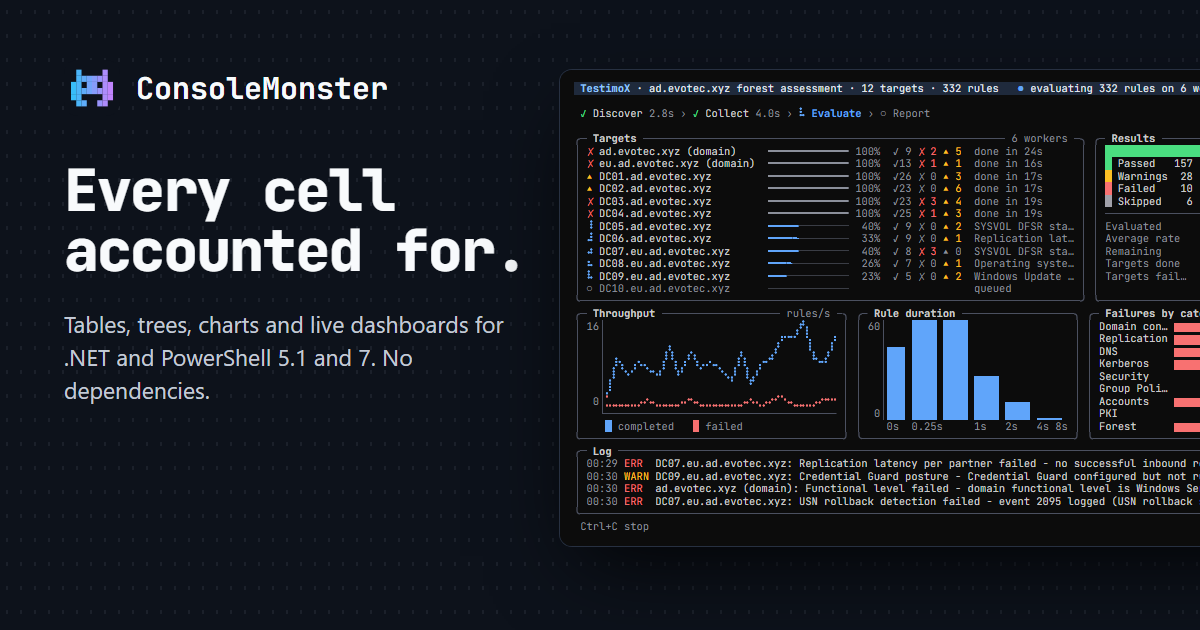
Tables, trees, charts and live dashboards for .NET and PowerShell. ConsoleMonster lays out the screen, fits content to the terminal, and keeps output readable when it goes to a log. The PowerShell cmdlets use the same rendering engine as the C# library.
Website and gallery · Documentation · .NET API · PowerShell commands · Examples and usage guide
Choose your starting point
| What you need | Start here |
|---|---|
| Print objects as readable tables | Tables |
| Compose panels, trees, charts and progress indicators | Widget gallery, with C# and PowerShell examples |
| Show work from several threads or scripts | Live dashboards and replays |
| Ask for input or build a terminal screen | Prompts, menus, forms and grids |
| Replace existing PowerShell formatting | PowerShell guide |
| Save output or play a run again | Recording and export |
The .NET package has no runtime package dependencies. It targets .NET Standard 2.0, .NET Framework 4.7.2, .NET 8 and .NET 10. The module supports Windows PowerShell 5.1 and PowerShell 7. Both are MIT licensed.
Start with PowerShell
Install the module once, then import it in your script:
Install-Module ConsoleMonster -Scope CurrentUser
Import-Module ConsoleMonster
This example uses ordinary objects and works without a Windows-specific data source:
$servers = @(
    [pscustomobject] @{ Name = 'web-01'; Status = 'Pass'; Region = 'Warsaw' }
    [pscustomobject] @{ Name = 'web-02'; Status = 'Warn'; Region = 'Dublin' }
    [pscustomobject] @{ Name = 'web-03'; Status = 'Fail'; Region = 'Dublin' }
)

$servers | Write-ConsoleTable -Title 'Servers' -StatusProperty Status
Use Write-ConsoleTable to print a table, or Format-ConsoleTable -AsWidget when you want to compose or export it.
As with Write-Host, assigning the result of Write-ConsoleTable to a variable does not capture its displayed text.
$servers | Format-ConsoleTable -AsWidget | Export-ConsoleFrame -Path ./servers.html
Get-Help Write-ConsoleTable -Full
The command reference has parameters and examples for every cmdlet.
Start with C#
Add the package to your application:
dotnet add package ConsoleMonster
Create a table and write it to the terminal:
using ConsoleMonster;
using ConsoleMonster.Widgets;

Table table = new Table { Title = "Servers" };
table.AddColumn(new TableColumn("Name") { IsKey = true });
table.AddColumn(new TableColumn("Region"));
table.AddColumn(new TableColumn("Status"));
table.AddValues("web-01", "Warsaw", "Pass");
table.AddValues("web-02", "Dublin", "Warn");
table.AddValues("web-03", "Dublin", "Fail");

Terminal.Write(table);
Widgets support object initializers, fluent With... / Add... methods, and the factories in ConsoleMonster.Ui.
These styles compose the same objects; choose the one that reads best for your application. The fluent methods are
compiled into the library, so consuming projects do not need a source generator.
For typed data, start with Table.For(items) and select columns with expressions. For formatted sizes, durations,
numbers and status cells, use the built-in cell presenters. The table guide
shows both languages and the output at different window widths.
Keep long-running work visible
A dashboard combines named widgets with a session that accepts updates while work runs. In PowerShell, the dashboard captures the script's host output, warnings and errors in its log region:
$dashboard = New-ConsoleDashboard -Title 'Deploy' -Gap 1 {
    New-ConsolePanel -Title 'Servers' { New-ConsoleLanes }
    New-ConsolePanel -Title 'Output' -Fill { New-ConsoleLog }
}

'web-01', 'web-02', 'web-03' | Start-ConsoleDashboard $dashboard -Parallel -ThrottleLimit 3 {
    param($Server)

    Update-ConsoleLane -Key $Server -Status Running -Total 3
    1..3 | ForEach-Object {
        Start-Sleep -Milliseconds 300
        Update-ConsoleLane -Key $Server -Result Pass
    }
    Write-Host "$Server deployed"
    Update-ConsoleLane -Key $Server -Complete
}
In C#, build the screen with DashboardBuilder, run it with LiveSession, and post updates through typed widget
handles. Handles accept updates from worker threads; the session draws the screen and restores the terminal when it
ends. See the live-session guide for a complete C# example,
inline progress, replaceable regions and live tables.
Output that fits its destination
ConsoleMonster detects terminal capabilities and adapts the same widgets to the available space and output host.
- Narrow windows: tables hide lower-priority columns and can turn rows into cards. Paths and other long values wrap at useful separators.
- Colour and fonts: 24-bit, 256-colour, 16-colour and uncoloured output; Full, Basic and ASCII glyph sets. Status includes a symbol or word so colour is not the only signal.
- Logs and CI: redirected output uses plain lines. Live sessions narrate progress instead of emitting a moving screen.
- PowerShell hosts: transcripts and the ISE use host output; jobs and remoting use information records. How those records display colour depends on the receiving host.
- Themes and language: built-in dark and light themes, culture-aware formatting and localized built-in labels.
NO_COLOR and the CONSOLEMONSTER_COLOR, CONSOLEMONSTER_GLYPHS, CONSOLEMONSTER_MODE,
CONSOLEMONSTER_THEME and CONSOLEMONSTER_CULTURE environment variables let you choose an explicit profile.
See capability detection,
environment settings and
hosts and CI for supported values and host behavior.
Save, replay and test your output
Export widgets and frames as self-contained HTML, SVG or plain text. Record live-session events, then replay them through the dashboard or export an HTML player, animated SVG or asciicast recording. The recording guide explains the formats and their limits.
For automated checks, use an in-memory target instead of a real console. Assert-ConsoleOutput checks PowerShell
output, and the .NET testing APIs let you inspect frames and events. The
usage guide
has complete assertions, export examples and hosting patterns.
Compatibility
Version 2 replaces the 0.0.x module's Spectre.Console and Terminal.Gui wrappers with ConsoleMonster's own rendering
engine. The old New-Spectre* and New-Terminal* commands are removed. Use the
installation guide and
migration guides when updating existing scripts.
Windows PowerShell 5.1 loads one version of an assembly per session. Modules that use ConsoleMonster there must use the same library version; restart the session after an upgrade. PowerShell 7 loads the module's binaries in their own assembly load context.
The .NET 8 and .NET 10 targets are marked AOT compatible. When trimming, disable the object inspector's reflection member source
with InspectorOptions.UseReflection = false, or explicitly preserve the members your application inspects.
The general-purpose inspection API still emits a trimming warning because its options are chosen at runtime.
Suppress that call-site warning only when you have verified your inputs use dictionary, JSON or custom member sources
with reflection disabled. Typed tables preserve their public properties; inferred columns use declaration order on
managed runtimes and stable alphabetical order when Native AOT does not expose metadata tokens.
CI publishes and runs a native executable on .NET 8 and .NET 10, checking typed and inferred tables, reflection-free dictionary and JSON inspection, and text, HTML and SVG exports. This applies to the .NET library; the PowerShell module runs inside its PowerShell host and is not a standalone Native AOT application.
Build and release
The repository uses PSPublishModule / PowerForge for C# packaging, module generation and coordinated publication. Run these commands from the repository root with PowerShell 7 and PSPublishModule installed:
# Build the NuGet package and PowerShell module together, without signing or installing locally.
./Module/Build/Build-Module.ps1 -RunMode Build -SignModule $false -SkipInstall $true

# Preview the C# package version without building, updating files or publishing.
./Build/Build-Project.ps1 -ConfigurationGateMode Manifest

# Build only the C# package.
./Build/Build-Project.ps1 -ConfigurationGateMode Build

# Sign the assemblies, NuGet package and module, then publish the coordinated release.
./Module/Build/Build-Module.ps1 -RunMode Publish
The coordinated command builds packages before the module, uses the C# package as the shared version source, and
publishes in this order: NuGet, PowerShell Gallery, GitHub. Both publishers use the ConsoleMonster-v{version}
release identity. GitHub receives the C# release archive and the PowerShell module ZIP, with generated release notes.
The release signs the C# assemblies, NuGet package and PowerShell module with the configured certificate.
Publishing needs the configured signing certificate and destination credentials. Credential file paths can be
configured in Build/project.build.json; the module script also accepts PowerShellGalleryApiKeyPath and
GitHubApiKeyPath. Build mode does not upload packages. Generated packages and coordinated staging are under
Artefacts/; module build reports are under Module/Artefacts/.
For development, build the solution and run the .NET and PowerShell suites:
dotnet build ConsoleMonster.sln -c Release
dotnet test ConsoleMonster.Tests/ConsoleMonster.Tests.csproj -c Release --no-build
Invoke-Pester -Path ./Module/Tests
Run Pester 5 in both Windows PowerShell 5.1 and PowerShell 7 after building the module binaries. CI exercises both
PowerShell hosts and the .NET Framework 4.7.2 / .NET 8 / .NET 10 test targets. The source module can load development binaries
from ConsoleMonster.PowerShell/bin.
Explore the project
- Interactive website: real rendered output, width and colour comparisons, live replays, and examples in both languages.
- Detailed usage guide: rich text, tables, prompts, forms, Pester output, exports and testing APIs.
- C# showcases and PowerShell examples: runnable examples.
- Benchmarks: measured scenarios and their environment.
- Design system: terminal layout, focus, status and interaction conventions.
- Report an issue: include the host, terminal, font, module or package version, and a small reproduction.
ConsoleMonster is maintained by Evotec and distributed under the MIT license.
| Product | Versions Compatible and additional computed target framework versions. |
|---|---|
| .NET | net5.0 was computed. net5.0-windows was computed. net6.0 was computed. net6.0-android was computed. net6.0-ios was computed. net6.0-maccatalyst was computed. net6.0-macos was computed. net6.0-tvos was computed. net6.0-windows was computed. net7.0 was computed. net7.0-android was computed. net7.0-ios was computed. net7.0-maccatalyst was computed. net7.0-macos was computed. net7.0-tvos was computed. net7.0-windows was computed. net8.0 is compatible. net8.0-android was computed. net8.0-browser was computed. net8.0-ios was computed. net8.0-maccatalyst was computed. net8.0-macos was computed. net8.0-tvos was computed. net8.0-windows was computed. net9.0 was computed. net9.0-android was computed. net9.0-browser was computed. net9.0-ios was computed. net9.0-maccatalyst was computed. net9.0-macos was computed. net9.0-tvos was computed. net9.0-windows was computed. net10.0 is compatible. net10.0-android was computed. net10.0-browser was computed. net10.0-ios was computed. net10.0-maccatalyst was computed. net10.0-macos was computed. net10.0-tvos was computed. net10.0-windows was computed. |
| .NET Core | netcoreapp2.0 was computed. netcoreapp2.1 was computed. netcoreapp2.2 was computed. netcoreapp3.0 was computed. netcoreapp3.1 was computed. |
| .NET Standard | netstandard2.0 is compatible. netstandard2.1 was computed. |
| .NET Framework | net461 was computed. net462 was computed. net463 was computed. net47 was computed. net471 was computed. net472 is compatible. net48 was computed. net481 was computed. |
| MonoAndroid | monoandroid was computed. |
| MonoMac | monomac was computed. |
| MonoTouch | monotouch was computed. |
| Tizen | tizen40 was computed. tizen60 was computed. |
| Xamarin.iOS | xamarinios was computed. |
| Xamarin.Mac | xamarinmac was computed. |
| Xamarin.TVOS | xamarintvos was computed. |
| Xamarin.WatchOS | xamarinwatchos was computed. |
-
.NETFramework 4.7.2
- No dependencies.
-
.NETStandard 2.0
- No dependencies.
-
net10.0
- No dependencies.
-
net8.0
- No dependencies.
NuGet packages
This package is not used by any NuGet packages.
GitHub repositories
This package is not used by any popular GitHub repositories.