ContentCalendar.V18
1.0.0
dotnet add package ContentCalendar.V18 --version 1.0.0
NuGet\Install-Package ContentCalendar.V18 -Version 1.0.0
<PackageReference Include="ContentCalendar.V18" Version="1.0.0" />
<PackageVersion Include="ContentCalendar.V18" Version="1.0.0" />
<PackageReference Include="ContentCalendar.V18" />
paket add ContentCalendar.V18 --version 1.0.0
#r "nuget: ContentCalendar.V18, 1.0.0"
#:package ContentCalendar.V18@1.0.0
#addin nuget:?package=ContentCalendar.V18&version=1.0.0
#tool nuget:?package=ContentCalendar.V18&version=1.0.0
📅 Content Calendar For Umbraco 18
See what happens to your content, day by day, right inside the Umbraco backoffice!
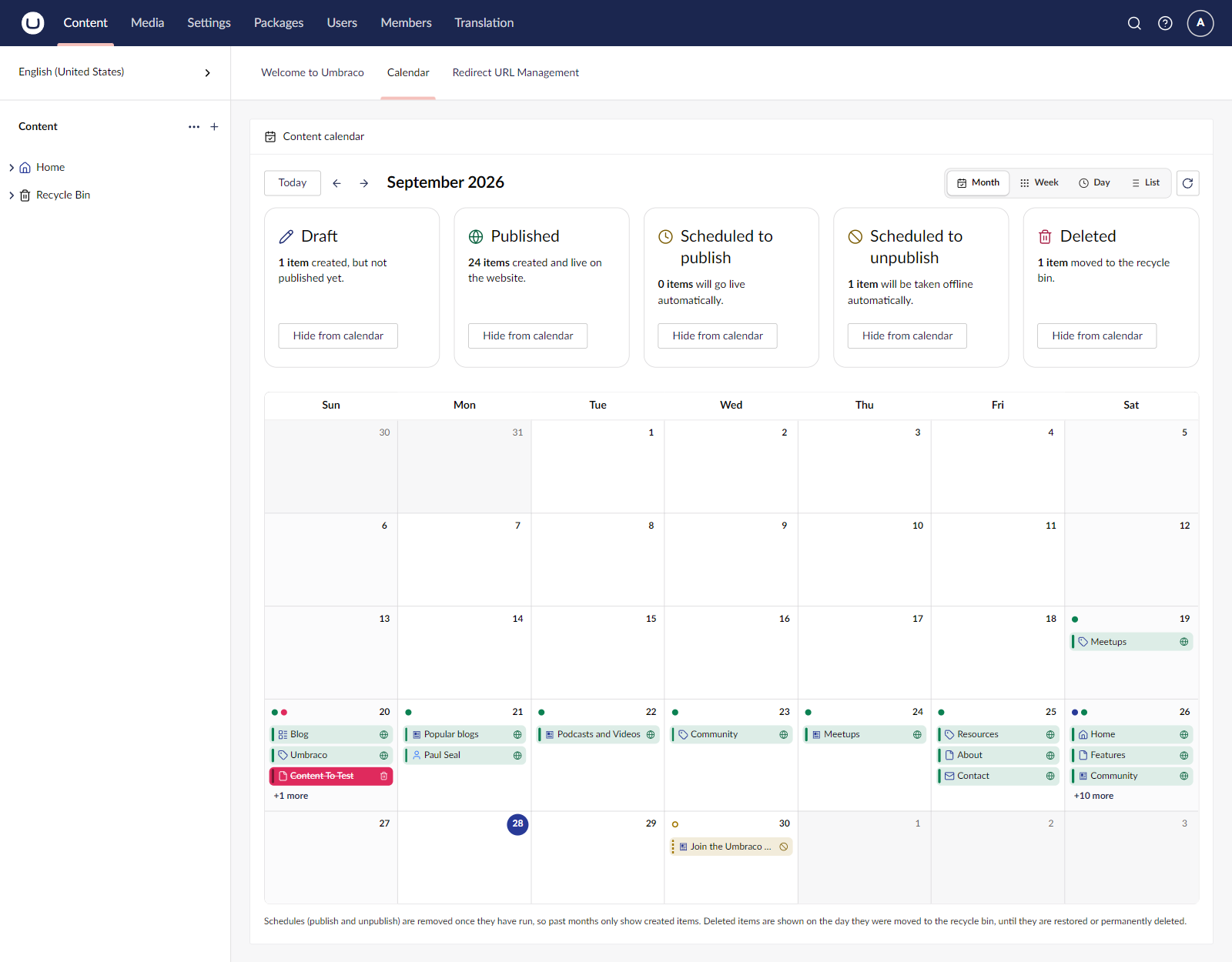
Content Calendar shows which pages were created, are scheduled to publish or scheduled to unpublish, and were deleted, in a calendar that looks and feels like Umbraco itself. Use it as a dashboard in the Content section, or as a Calendar view for the child items of any page.
This package is for Umbraco 18. Using Umbraco 17? Install ContentCalendar.V17 instead.
✨ Features
🗓️ Calendar Dashboard
A Calendar tab in the Content section dashboard with Month, Week, Day and List views. Jump back to Today or move through months with the arrows.
🎨 Colour-Coded States
Every state has its own colour and icon, so you can see at a glance what is going on:
- ✏️ Draft: created, but not published yet
- 🌐 Published: created and live on the website
- ⏰ Scheduled to publish: will go live automatically
- 🚫 Scheduled to unpublish: will be taken offline automatically
- 🗑️ Deleted: moved to the recycle bin
🧮 Summary Tiles
One tile per state shows how many items there are in the current period, for example "1 item created, but not published yet." Use the Hide from calendar button on a tile to hide or show that state.
✍️ Infinite Editing
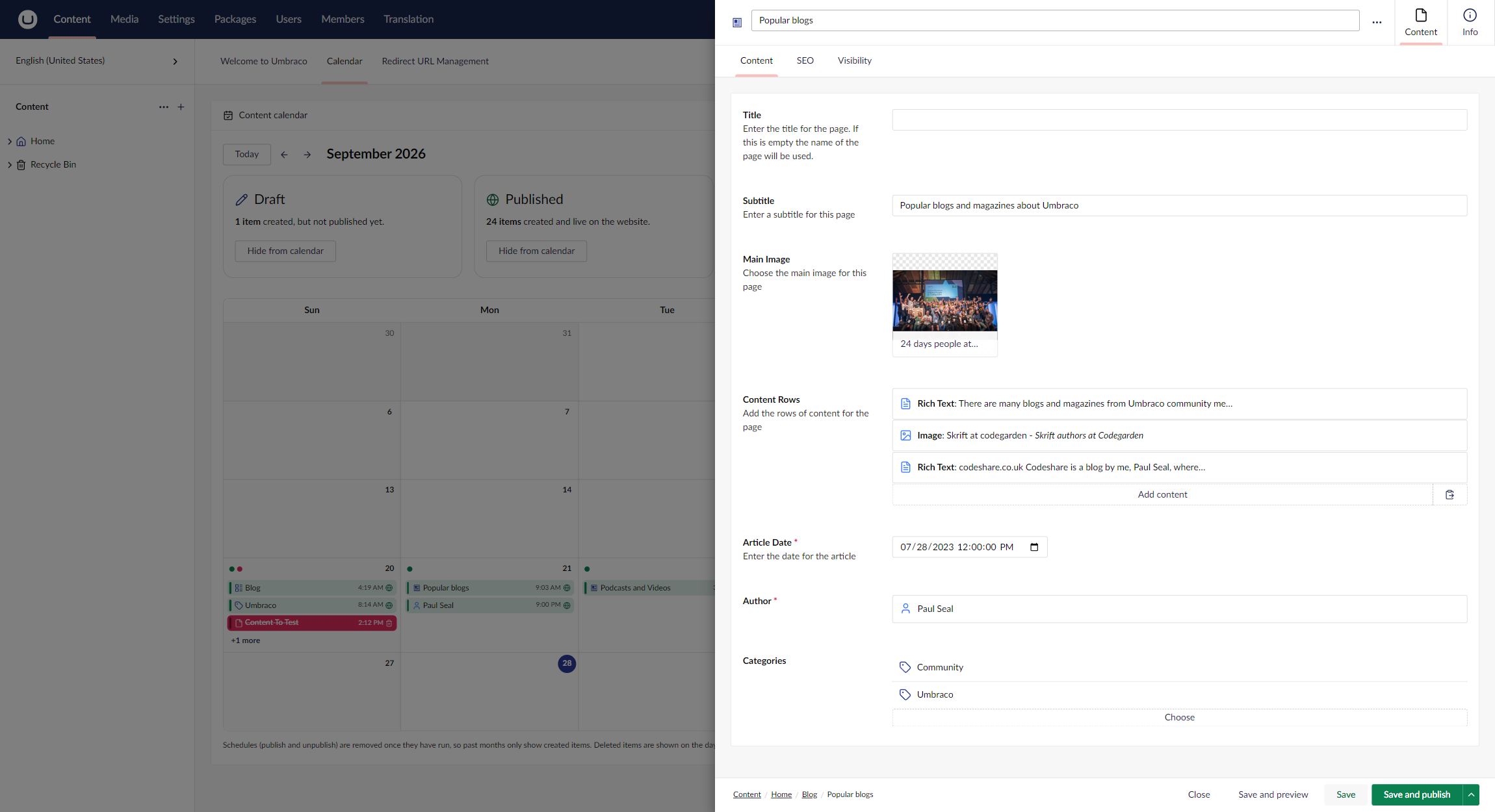
Click an item in the calendar and it opens in a side drawer, just like the content picker. Edit, save and publish without leaving the calendar; the calendar refreshes when you close the drawer.
📋 Busy Days at a Glance
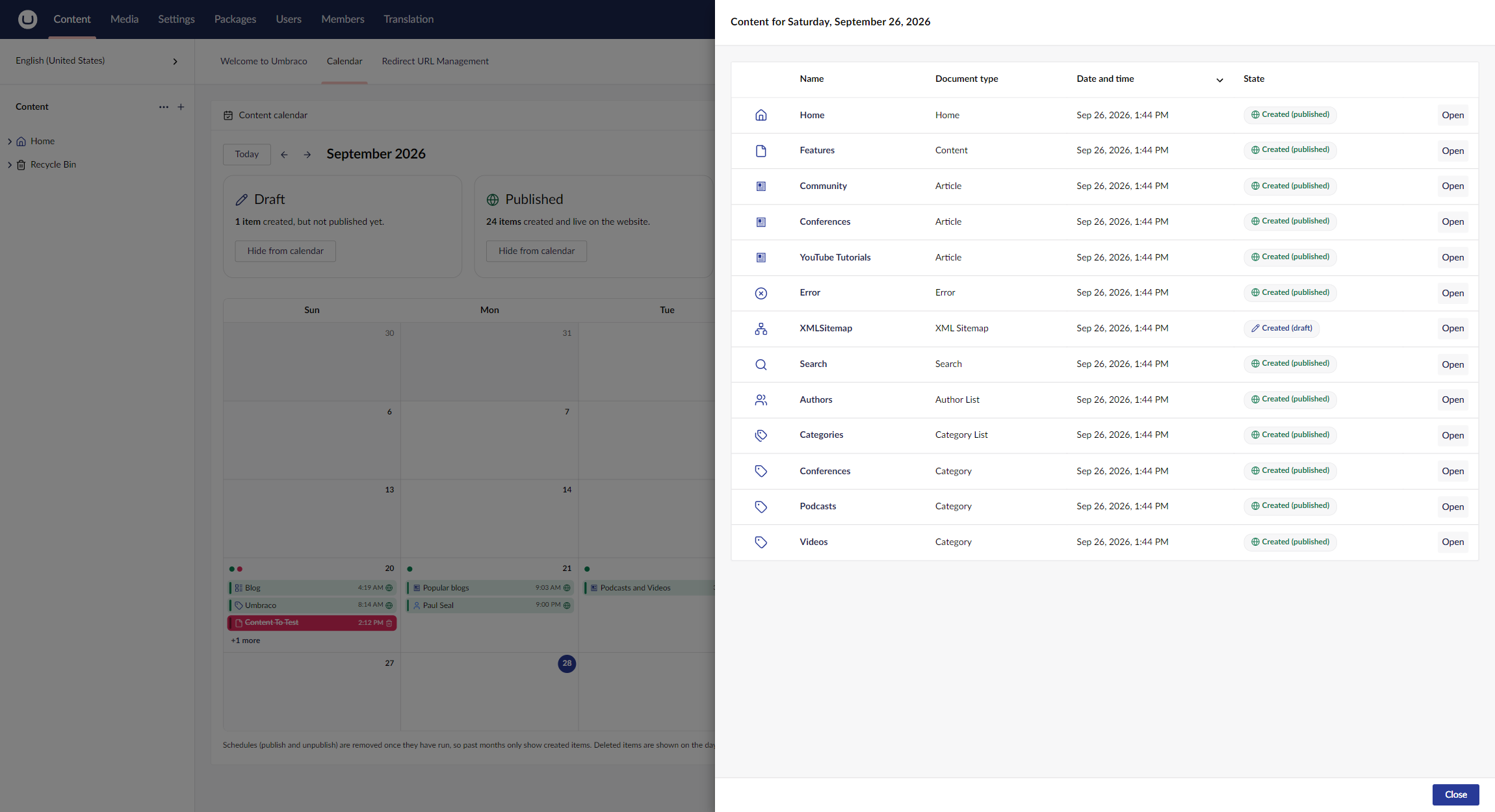
When a day has more items than fit in the cell, click +N more to open a list of everything on that day, with document type, date and time, and state. Click Open to edit an item.
📂 Child Items Calendar
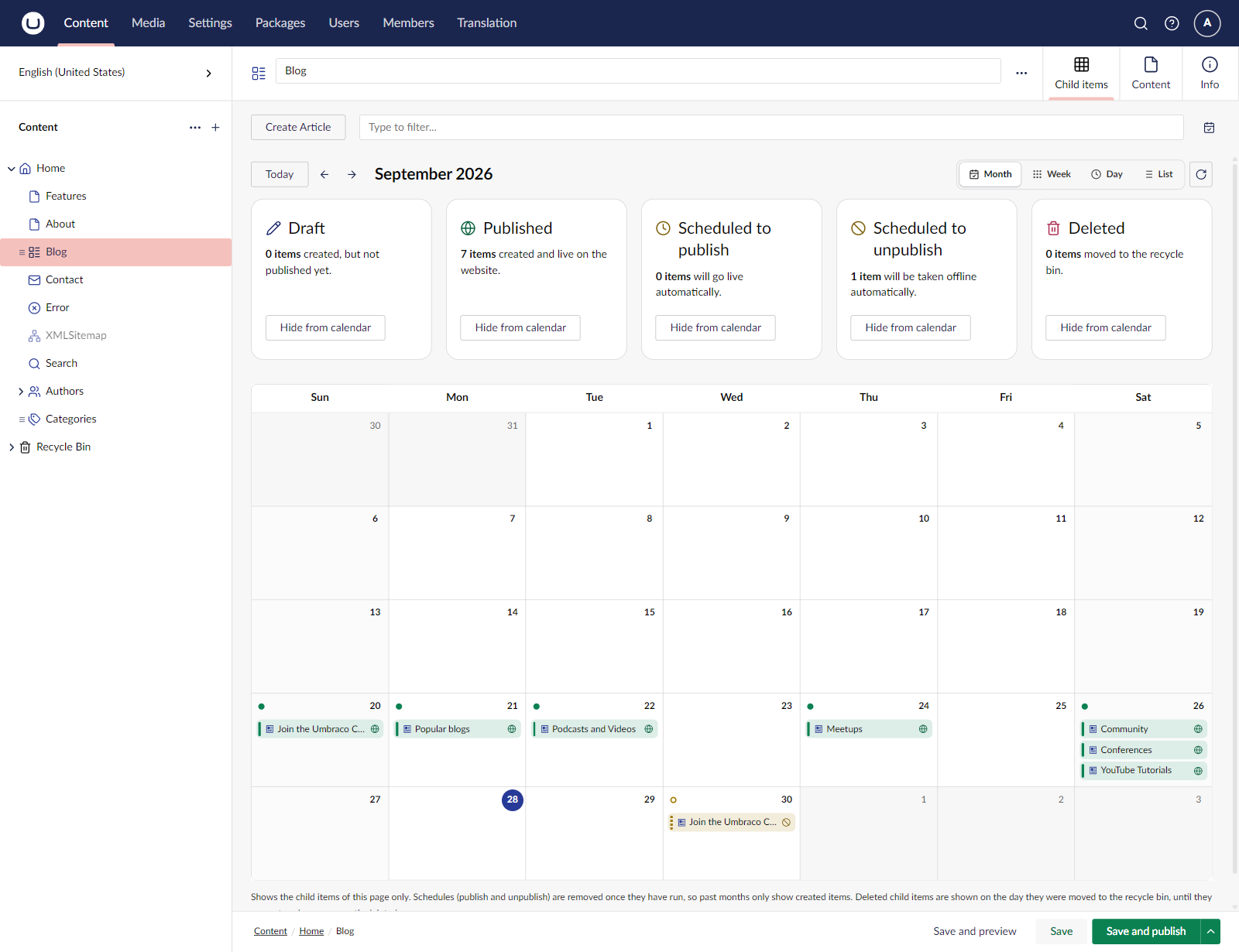
Add Content Calendar as a layout to any Collection data type and a Calendar view appears next to the Grid and List views in Child items. It shows the child items of that page only.
🔒 Respects Permissions
Users only see content they have access to (start nodes and browse permissions). Deleted items are only shown to users with access to the content root, the same rule as the recycle bin.
♿ Accessible and Native
Built with Umbraco's own UI library, so it follows the backoffice look, keyboard navigation and screen reader support.
📦 Installation
Using .NET CLI
dotnet add package ContentCalendar.V18
Using NuGet Package Manager
Install-Package ContentCalendar.V18
Using Visual Studio
- Right-click on your project in Visual Studio
- Click "Manage NuGet Packages..."
- Click the "Browse" tab
- Search for:
ContentCalendar.V18 - Click "Install"
Requirements
- Umbraco CMS 18.0 or later (18.x)
- .NET 10
No database migrations, no extra tables: the calendar reads the data Umbraco already stores.
⚙️ Configuration
Content Calendar works out of the box. All settings are optional.
Step 1: Configure appsettings.json (optional)
Example
{
  "ContentCalendar": {
    "MaxEntriesPerKind": 2000,
    "ShowDeleted": true,
    "ShowScheduledUnpublish": true
  }
}
Default values (if you skip a key)
| Setting | Default |
|---|---|
| MaxEntriesPerKind | 2000 |
| ShowDeleted | true |
| ShowScheduledUnpublish | true |
Settings explained
- MaxEntriesPerKind: Safety cap on how many items of each state are loaded for one period. Protects the backoffice after bulk imports.
- ShowDeleted:
true= show items in the recycle bin on the day they were deleted;false= hide deleted items. - ShowScheduledUnpublish:
true= show pending "Unpublish at" schedules on their date;false= hide them.
Step 2: Add the calendar to Child items (optional)
- Go to Settings → Data Types
- Open the Collection data type your document type uses (for example List View - Content)
- Under Layouts, click Choose, pick Content Calendar and click Save
- Open a page that uses that data type, go to Child items and switch to Calendar
Step 3: Start Using It!
- Start your Umbraco website (press F5 in Visual Studio)
- Log in to the Umbraco backoffice
- Open the Content section
- Click the Calendar dashboard tab
- Switch between Month, Week, Day and List
- Click an item to edit it in the side drawer ✨
Note: Umbraco removes a schedule once it has run, so past months only show created (and deleted) items. Upcoming schedules are shown on the day they will run.
🐛 Issues & Support
Found a bug or have a suggestion? We'd love to hear from you!
👉 Report Issues: GitHub Issues
When reporting an issue, please include:
- What you expected to happen
- What actually happened
- Error messages (if any)
- Your Umbraco and Content Calendar versions
- Steps to reproduce
📜 License
This project is licensed under the MIT License - see the LICENSE file for details.
🙏 Acknowledgments
Built with:
- ❤️ Love for the Umbraco community
- 📆 FullCalendar and the Umbraco UI Library
- ☕ Lots of coffee
Happy planning! 🎉
Made with ❤️ for the Umbraco community by ZAAKS!
| Product | Versions Compatible and additional computed target framework versions. |
|---|---|
| .NET | net10.0 is compatible. net10.0-android was computed. net10.0-browser was computed. net10.0-ios was computed. net10.0-maccatalyst was computed. net10.0-macos was computed. net10.0-tvos was computed. net10.0-windows was computed. |
-
net10.0
- Umbraco.Cms.Api.Management (>= 18.0.0 && < 19.0.0)
NuGet packages
This package is not used by any NuGet packages.
GitHub repositories
This package is not used by any popular GitHub repositories.
| Version | Downloads | Last Updated |
|---|---|---|
| 1.0.0 | 118 | 9/30/2026 |
See https://github.com/ZAAKS/ContentCalendar/releases for the changes in each version.