Squiggly 1.0.0
dotnet add package Squiggly --version 1.0.0
NuGet\Install-Package Squiggly -Version 1.0.0
<PackageReference Include="Squiggly" Version="1.0.0"> <PrivateAssets>all</PrivateAssets> <IncludeAssets>runtime; build; native; contentfiles; analyzers</IncludeAssets> </PackageReference>
<PackageVersion Include="Squiggly" Version="1.0.0" />
<PackageReference Include="Squiggly"> <PrivateAssets>all</PrivateAssets> <IncludeAssets>runtime; build; native; contentfiles; analyzers</IncludeAssets> </PackageReference>
paket add Squiggly --version 1.0.0
#r "nuget: Squiggly, 1.0.0"
#:package Squiggly@1.0.0
#addin nuget:?package=Squiggly&version=1.0.0
#tool nuget:?package=Squiggly&version=1.0.0
Squiggly: play Snake in your compiler errors
Squiggly is a NuGet package that turns your IDE into a game console. Compiler diagnostics are the pixels, the keys you type are the controls, and the whole game lives in comments in the file. Install it, create Game.cs, press <kbd>Ctrl</kbd>+<kbd>.</kbd>, and play Snake in red and yellow squiggles.
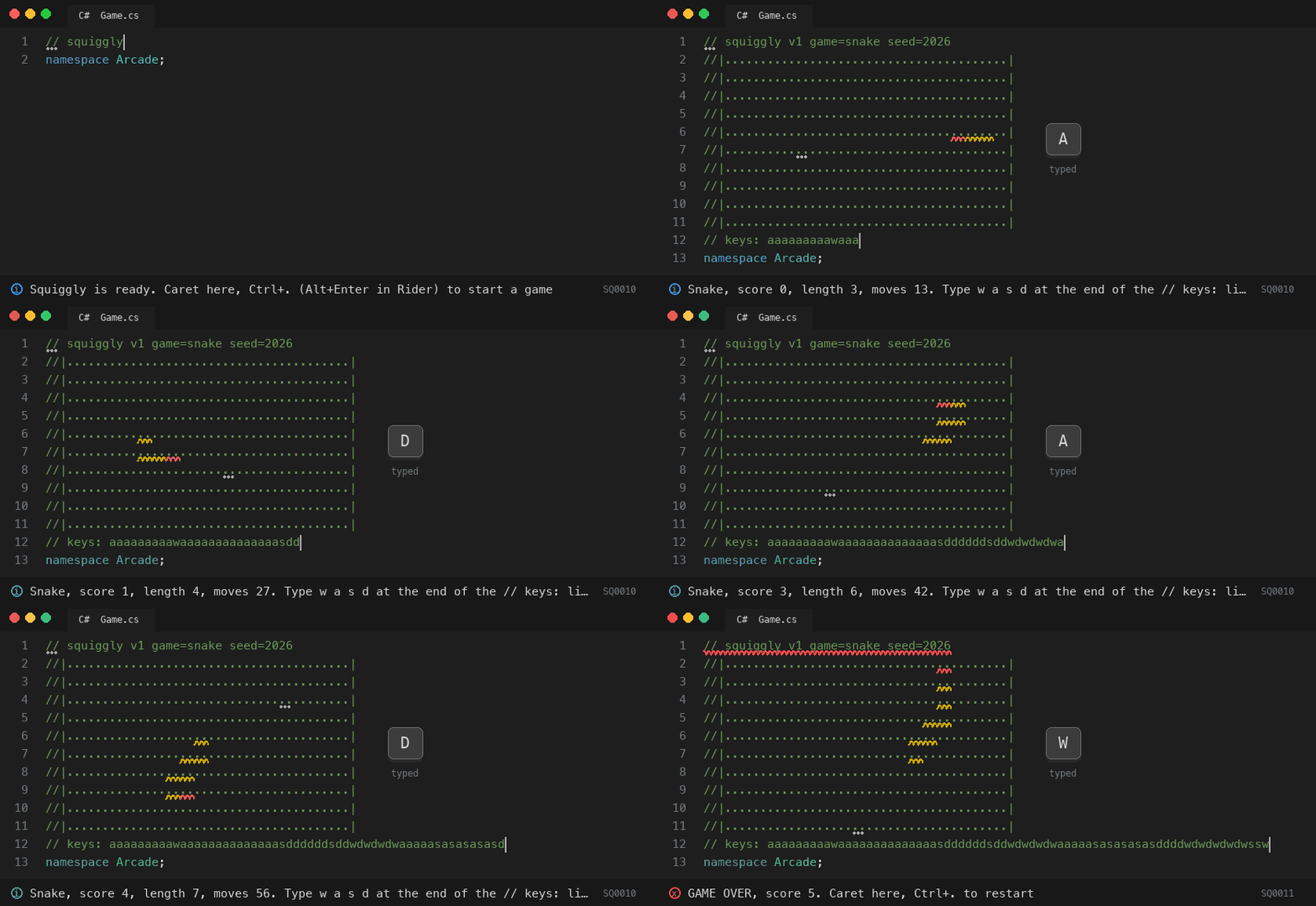
<sub>Snake: start a game from the lightbulb, then steer by typing on the <code>// keys:</code> line. Red is the snake's head, yellow its body, and the dots are food.</sub>
Install
dotnet new console -n Arcade && cd Arcade
dotnet add package Squiggly
echo "// squiggly" > Game.cs
Open Game.cs in your IDE, put the caret on the first line, and press <kbd>Ctrl</kbd>+<kbd>.</kbd>. Pick Squiggly: New game: Snake. Then click at the end of the // keys: line under the board and type <kbd>w</kbd> <kbd>a</kbd> <kbd>s</kbd> <kbd>d</kbd>.
How to play
Steer by typing. Snake and Tetris put a // keys: line under the board. Put the caret at the end of it and type: every key is one move, and the board redraws as you type. Hold a key down and the snake keeps gliding.
| Game | Keys |
|---|---|
| Snake | <kbd>w</kbd> up, <kbd>a</kbd> left, <kbd>s</kbd> down, <kbd>d</kbd> right. Pressing the way you're already going moves one step forward. |
| Tetris | <kbd>a</kbd> / <kbd>d</kbd> move, <kbd>w</kbd> rotate, <kbd>s</kbd> soft drop, <kbd>x</kbd> hard drop |
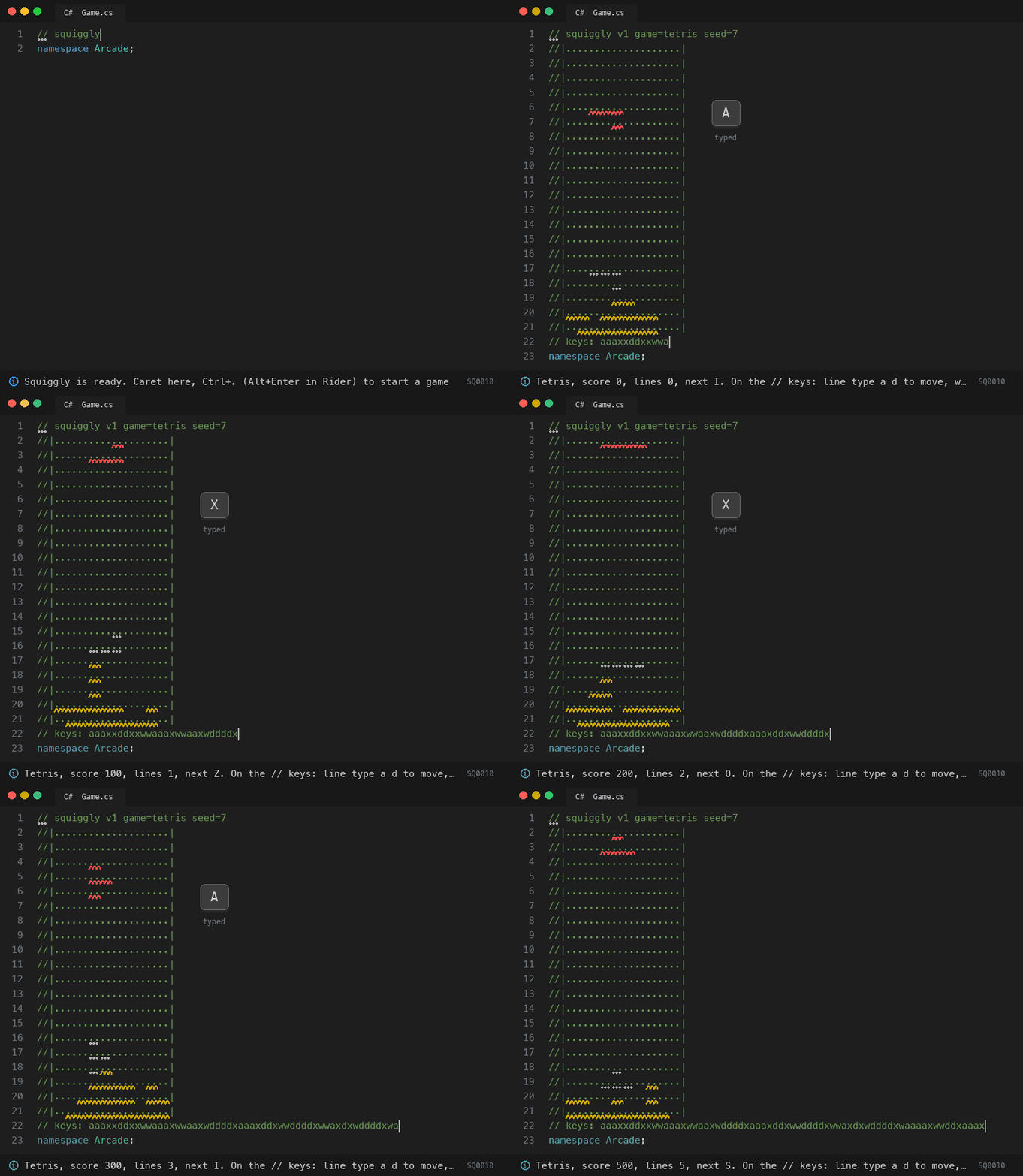
<sub>Tetris: the falling piece is red, locked blocks are yellow, and the dots show where the piece will land. Both animations are drawn from the real analyzer output by <a href="eng/demo">eng/demo</a>, in VS Code's dark-theme colours.</sub>
Other characters are ignored, and moves typed after the game ends do nothing. The keys line is the save game: together with the seed in the header, it replays to exactly the same board on any machine.
Everything else is in the lightbulb menu. New game, Restart, Play again and the Minesweeper cells are code fixes. A move picked from the menu is written onto the keys line, just as if you had typed it. Put the caret on the first line (the header), or on a Minesweeper cell, and open the menu:
| IDE | Open the menu |
|---|---|
| Visual Studio 2022 | <kbd>Ctrl</kbd>+<kbd>.</kbd> |
| VS Code with C# Dev Kit | <kbd>Ctrl</kbd>+<kbd>.</kbd> (<kbd>Cmd</kbd>+<kbd>.</kbd> on macOS) |
| JetBrains Rider | <kbd>Alt</kbd>+<kbd>Enter</kbd> (<kbd>Option</kbd>+<kbd>Enter</kbd> on macOS) |
| Game | Board | Rules |
|---|---|---|
| Snake | 20 x 10 | Eat the food (dots), avoid the walls and yourself. Fill the board to win. The moves are also in the menu. |
| Tetris | 10 x 20 | Every move except hard drop also pulls the piece down one row. Dots show where the piece will land. The moves are also in the menu. |
| Minesweeper | 16 x 8, 16 mines | Put the caret on any dotted cell and open the menu there: Reveal or Flag. The first reveal is always safe. Minesweeper has no keys line: revealed numbers are written into the board text, which only a code fix can change. |
While playing, the header menu also offers Restart. When the game ends, it offers Play again and Switch game. There is no pause: nothing moves until you type.
Why?
Because the Roslyn analyzer pipeline is a perfectly good rendering engine if you squint, and lightbulbs are just buttons. Nothing here is a hack: Squiggly uses only public, supported extension points, with no IDE plugin, no reflection and no editor-specific API. That's why the same package works in Visual Studio, VS Code and Rider.
Limitations
- Turn-based only. Analyzers can't run on a timer, so one key is one tick. Snake waits for you, which some people consider a feature. Holding a key comes close to real time.
- Arrow keys can't steer. They only move the caret, and analyzers only see text changes, so steering is done by typing letters.
- Colours come from your theme, not from Squiggly. See the palette below.
- Your Error List fills up with pixels. That is the display.
- Error pixels fail
dotnet build, so a game in progress turns your build red. See Build safety.
Palette
Each colour is a diagnostic severity, and each IDE draws severities its own way. Verified so far (dark themes):
| Role | ID | Severity | VS Code (C# Dev Kit) | Rider | Visual Studio 2022 |
|---|---|---|---|---|---|
| Snake head, active piece, mines | SQ0001 | Error | red squiggle | not yet verified | not yet verified (expected red) |
| Snake body, locked blocks | SQ0002 | Warning | yellow squiggle | not yet verified | not yet verified (expected green) |
| Food, Tetris landing preview | SQ0003 | Info | grey dots | not yet verified | not yet verified (expected grey dots) |
| Minesweeper covered cell | SQ0020 | Info | grey dots | not yet verified | not yet verified |
| Minesweeper flag | SQ0021 | Warning | yellow squiggle | not yet verified | not yet verified |
How it works
A game file has three parts:
// squiggly v1 game=snake seed=8812      <- which game, and the seed it started from
//|........................................|
//|........................................|   <- the canvas: 10 rows of comment, never edited during play
// keys: ddwwaas                         <- every move so far
A DiagnosticAnalyzer starts a new game from the seed, replays the moves on the keys line, renders the frame, and reports one diagnostic per lit cell, each spanning two characters of the canvas. Typing a key changes the document, so Roslyn re-runs the analyzer and the next frame appears. One more diagnostic sits on the header line, showing the score and anchoring the lightbulb menu, whose entries are CodeFixProvider actions.
The whole game is a pure function, Render(Replay(seed, keys)). The same file always shows the same frame on any machine, because Squiggly uses its own PRNG (SplitMix64), not System.Random. The save game is plain text, so it can be committed, diffed and sent as a pull request.
Minesweeper writes its moves as cell tokens, such as r5,3 (reveal) and f2,2 (flag), and also writes revealed numbers into the canvas. A bare // squiggly means "no game yet". A header that fails to parse shows one warning (SQ9000) with a Reset game fix, and a damaged canvas shows one warning (SQ9001) with a Repair canvas fix.
Cheating
Edit the keys line. Delete the move that killed you, or rewrite history entirely. We can't stop you.
Build safety
Only files with a header are touched. Squiggly checks the first five lines of each file for
// squigglyand returns immediately if it isn't there. Your ordinary code never gets a Squiggly diagnostic.Use a dedicated project. Install Squiggly into a small "Arcade" project, not your production code. The package is a development dependency, so it never flows to anything that references your arcade.
Want a green build mid-game? Lower the error severities in
.editorconfig(your colours change with them):[*.cs] dotnet_diagnostic.SQ0001.severity = warning dotnet_diagnostic.SQ0011.severity = warningTreatWarningsAsErrorsturns every pixel into a build error. My CI is red because I'm losing at Snake.
| ID | Severity | Meaning |
|---|---|---|
| SQ0001 | Error | Pixel, primary colour |
| SQ0002 | Warning | Pixel, secondary colour |
| SQ0003 | Info | Pixel, accent colour |
| SQ0010 | Info | HUD on the header line; also the controller |
| SQ0011 | Error | Game over; also the controller |
| SQ0020 | Info | Minesweeper covered cell; accepts Reveal and Flag |
| SQ0021 | Warning | Minesweeper flag; accepts Unflag |
| SQ9000 | Warning | Header could not be parsed |
| SQ9001 | Warning | Canvas missing or damaged |
Benchmarks
Squiggly runs on every file in every project you install it into, so the miss path has to cost close to nothing. Measured with BenchmarkDotNet (short run) on an Apple M1 Pro, .NET 10:
| Scenario | Mean | Allocated |
|---|---|---|
| Early exit: look for a header in a 5,000-line ordinary file | 90 ns | 0 B |
| Replay a 2,000-move Snake game and render it | 265 µs | 1.0 MB |
| Whole analyzer through Roslyn's driver, 5,000-line ordinary file | 23 µs | 25 KB |
| Whole analyzer through Roslyn's driver, 2,000-move Snake game | 355 µs | 1.1 MB |
Every keystroke replays the whole game from the seed, so cost grows with the length of the keys line; even a 2,000-move game redraws in well under a millisecond. The two "through Roslyn" rows include the analyzer driver's own overhead. Run them yourself with dotnet run -c Release in benchmarks/Squiggly.Benchmarks.
Contributing
dotnet build                       # everything, warnings as errors for Squiggly's own code
dotnet test                        # engine rules, golden replays, analyzer spans, code-fix behaviour
eng/pack-local.sh ~/ArcadeTest     # pack to a local feed and set up a project that uses the real package
samples/Arcade references the analyzers through project references, so you can play while developing. Rider and Visual Studio cache analyzer DLLs, so restart the IDE after rebuilding them. The engine (src/Squiggly.Engine) is pure and has no Roslyn dependency; game rules and their tests live there. The Roslyn layers only find lines, report diagnostics and apply edits.
Licence
MIT © 2026 Muneeb Mughal
Learn more about Target Frameworks and .NET Standard.
This package has no dependencies.
NuGet packages
This package is not used by any NuGet packages.
GitHub repositories
This package is not used by any popular GitHub repositories.
| Version | Downloads | Last Updated |
|---|---|---|
| 1.0.0 | 0 | 11/9/2026 |