ZeppelinForms.Templates
0.19.1
dotnet new install ZeppelinForms.Templates@0.19.1
ZeppelinForms

ZeppelinForms (ZF) is an experimental project aimed at creating a simple, platform-independent UI framework with hardware acceleration (on Windows) and straightforward code-behind UI development.
⚙️ Current Status

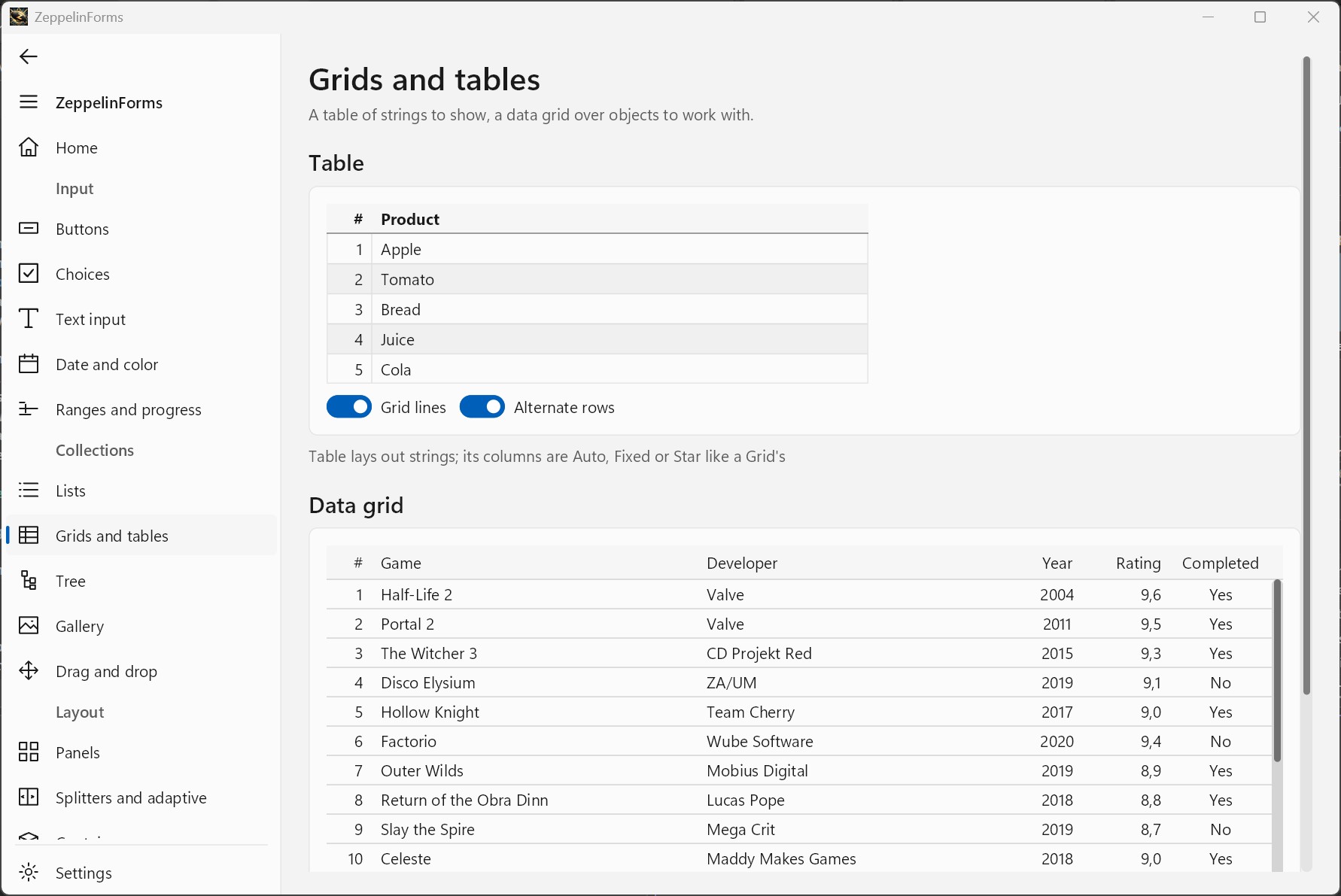
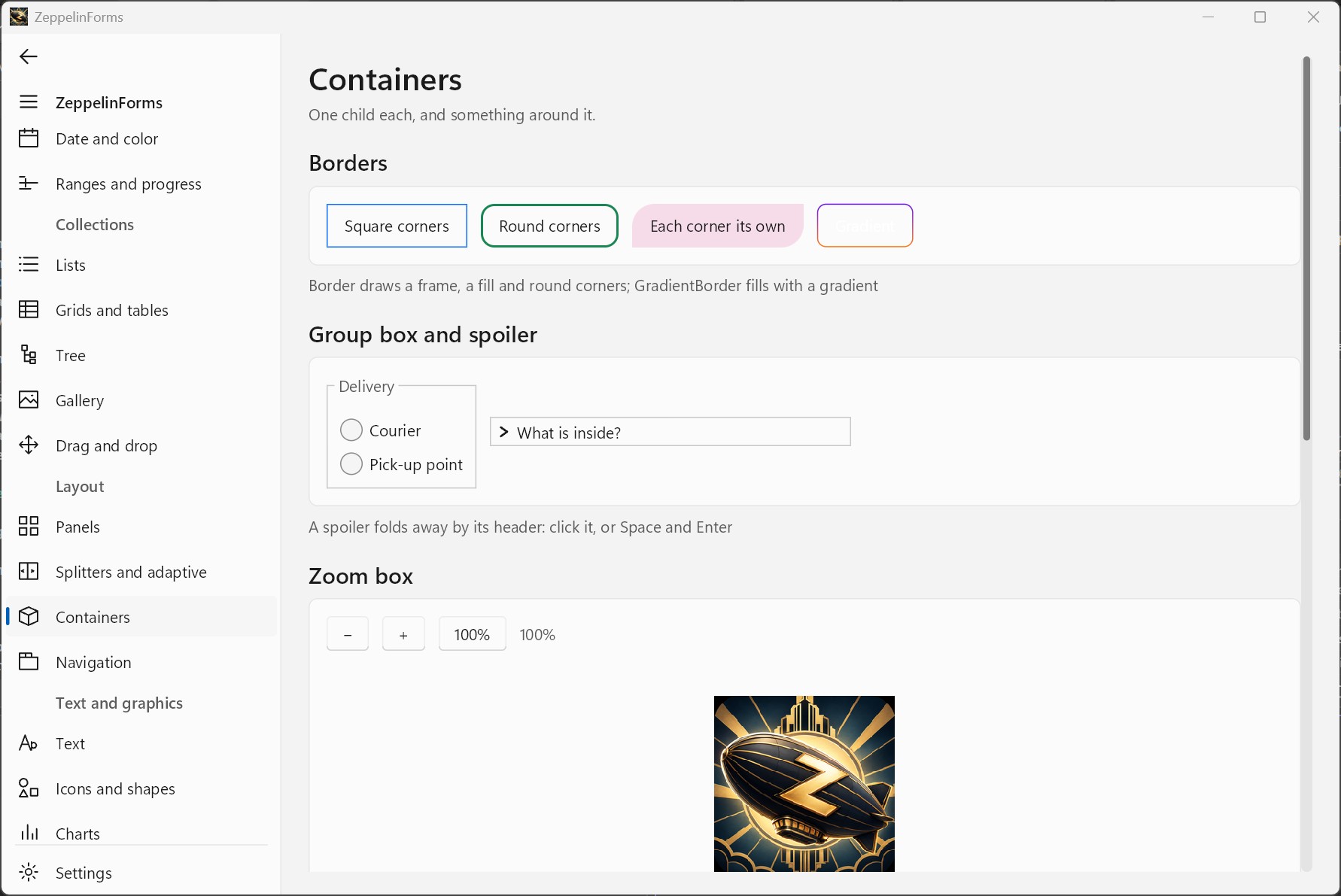
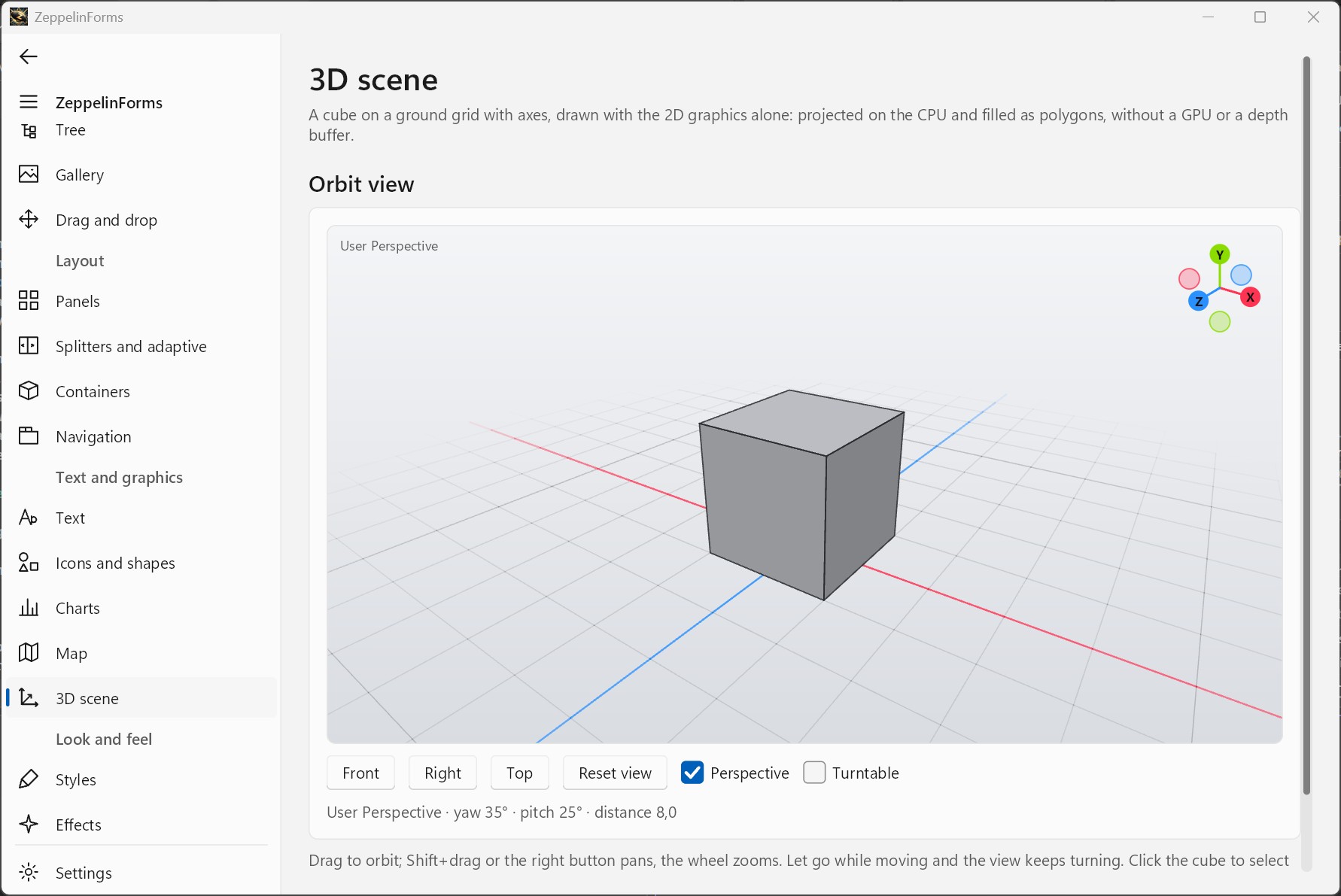
The project is under active development.
The showcase — every control, the styles and the effects — runs in the browser: https://yd359team.github.io/
The documentation is in the wiki
(its source is docs/wiki).
| # | Name | Status |
|---|---|---|
| 1 | Headless | ✅ |
| 2 | Windows | ✅ |
| 3 | Linux (X11) | ✅ |
| 4 | Linux (Wayland) | ✅ |
| 5 | WebAssembly | ✅* |
| 6 | Android | ✅ |
| 7 | macOS | 💡 |
| 8 | iOS | 💡 |
* - WebAssembly: dialogs are async-only, and system drag and drop is not supported — see the browser section below.
Android: dialogs are async-only, and there is no file dialog yet.
🐥 TL;DR
| Reason to choose Zeppelin Forms | WinForms | WPF | Avalonia |
|---|---|---|---|
| Cross-platform UI | ✓ | ✓ | |
| Simple code-first UI | ✓ | ✓ | |
| Modern controls out of the box | ✓ | ✓ |
Completely free. No registration required.
🧠 Philosophy
In short: combine the simplicity of WinForms with selected ideas from WPF and Flutter, the cross-platform capabilities of Avalonia, and get rid of tons of legacy baggage along the way.
- No dependency on a specific platform
- No dependency on a specific graphics stack
And if the project is modern, why not take advantage of the full capabilities of .NET 10 and C# 14?
🖌️ Rendering
| # | Name | Status |
|---|---|---|
| 1 | SkiaSharp | ✅ |
| 2 | GLES | ✅ |
ZeppelinForms itself knows nothing about Skia, because it is implemented in a separate project, ZeppelinForms.Skia. This means that the graphics layer is completely decoupled from the framework logic.
As a result, the framework can be integrated with DirectX or virtually any other graphics stack.
If hardware acceleration is unavailable, the framework falls back to software rendering.
📟 Forms
Forms are the only type of window in ZeppelinForms, just like in WinForms.
| # | Name | Status |
|---|---|---|
| 1 | Debugger | ✅* |
| 2 | Overlays | ✅** |
| 3 | Toast Notifications | ✅*** |
| 4 | ToolTips | ✅ |
| 5 | Dialog Windows | ✅ |
| 6 | Open/Save File Dialog | ✅**** |
| 7 | MessageBox | ✅ |
| 8 | InputBox | ✅ |
| 9 | Clipboard | ✅ |
| 10 | Folder Dialog | ✅**** |
| 11 | Drag&Drop (internal) | ✅ |
* — F12 opens the inspector — the element under the cursor with its margin and padding, and its properties in a property grid — and the accessibility audit
** — the API will be extended further
*** — some limitations and unfinished parts remain
**** - managed implementation by default; a platform may supply a system picker through IFilePicker, as the browser backend does
🛣️ Layout
- Supports
MeasureandArrange - All controls support docking
- Supports horizontal and vertical alignment, including content alignment
🧩 Controls
All controls must inherit from UIElement, either directly or indirectly through UnitControl, PanelControl, or WrapControl.
There are no WinForms-style components that are not considered actual controls, such as Timer or BackgroundWorker.
UIElement
The common base type for all controls. A form is not a UIElement, but its Content can be any UIElement.
Unlike WinForms, all controls support:
- Internal padding
- Transparency
- Shadows (
box-shadow) - Scaling
Base class hierarchy
UIElement defines geometry, input and painting entry points. Decoration —
background, corner radius, border — lives one level down. Inherit the closest
base that already does what you need:
Draw is sealed in every Decorated* class: it fills the background, calls
your content, then draws the border. Override these instead:
| Base | Override | Sealed |
|---|---|---|
DecoratedControl |
DrawContent (required), DrawDecoration |
Draw |
DecoratedPanel |
DrawContent, DrawDecoration, MeasureContentOverride, ArrangeContentOverride |
Draw, MeasureOverride, ArrangeOverride |
DecoratedWrapControl |
DrawContent, DrawDecoration |
Draw |
Decorated* is not a fourth category — it is a decoration layer inside each of
the three. DecoratedControl is a UnitControl, so it inherits every default
UnitControl sets, alignment included.
DrawContent runs before children, DrawDecoration after them and outside
their clip — that is where selection outlines, resize handles and drop
indicators go. For state-dependent colors override CurrentBackground and
CurrentBorderColor rather than painting the background yourself.
Shape is the one deliberate exception: shapes have their own Fill and
Stroke, so an inherited Background would only confuse.
Styled Properties
Any property a theme may set must be declared as a styled property. A plain
auto-property gets overwritten by the theme, is invisible to PropertyGrid
and does not trigger a repaint. A source generator expands three lines into
the registration, the backing field and the accessors:
[Styled(Category = "Menu")]
public partial Color HoverColor { get; set; }

private static Color HoverColorDefault => new(255, 232, 240, 254);
Requirements: the property is partial with a getter and a setter, and the type
declaring it is a partial descendant of UIElement. The default comes from a
static property named <Name>Default; omit it when default(T) will do.
Flags: AffectsLayout = true when the value changes measurement — the setter
then invalidates layout instead of only repainting. Inherits = true when the
value cascades down the tree, as TextColor does.
Value precedence, highest first — GetValueSource tells which one a value came from:
- set from user code
- a binding
- a style — a style sheet, or a
Styleof the application, a form or an element - for inherited properties (
Inherits = true): the nearest ancestor's value of one of the three above - a theme rule
- control default —
SetControlDefaultfrom a constructor - the default — the
<Name>Defaultproperty, ordefault(T)
A constructor must use SetControlDefault: a plain assignment there would mark
the value as user-set and lock the theme out for good. ZF0006 reports this.
External = true when the value lives in another object, as TextBox.Text does
in its TextDocument. The generator then emits only the registration; the
control writes the accessors itself, routing the setter through
SetValue(Property, value) and exposing a Write<Name> method for the
registration to call directly.
Unit Controls
UIElement → UnitControl
Unit controls are similar to Control in WinForms and can be thought of as regular controls. They cannot contain child controls.
| № | Name | Status | № | Name | Status |
|---|---|---|---|---|---|
| 1 | Label | ✅ | 24 | AutoCompleteBox | ✅ |
| 2 | Button | ✅ | 25 | BarChart | ✅ |
| 3 | CheckBox | ✅ | 26 | LineChart | ✅ |
| 4 | PictureBox | ✅ | 27 | PieChart | ✅ |
| 5 | RadioButton | ✅ | 28 | RadarChart | ✅ |
| 6 | TextBox | ✅* | 29 | CandlestickChart | ✅ |
| 7 | ToggleSwitch | ✅ | 30 | RichLabel | ✅ |
| 8 | DateTimePicker | ✅ | 31 | LinkLabel | ✅ |
| 9 | TimePicker | ✅ | 32 | HintLabel | ✅ |
| 10 | ColorPicker | ✅ | 33 | LineShape | ✅ |
| 11 | ScrollBar | ✅ | 34 | RectangleShape | ✅ |
| 12 | SvgIcon | ✅ | 35 | EllipseShape | ✅ |
| 13 | NumericUpDown | ✅ | 36 | PolygonShape | ✅ |
| 14 | ProgressBar | ✅ | 37 | CheckedComboBox | ✅ |
| 15 | CircularProgressBar | ✅ | 38 | ComboBox | ✅ |
| 16 | TrackBar | ✅ | 39 | GridSplitter | ✅ |
| 17 | RangeSlider | ✅ | 40 | MaskedTextBox | ✅ |
| 18 | Calendar | ✅ | 41 | MapControl | ✅ |
| 19 | MenuBar | ✅ | 42 | Loader | ✅ |
| 20 | MenuList | ✅ | 43 | PageIndicator | ✅ |
| 21 | SplitButton | ✅ | 44 | ImageViewer | ✅ |
| 22 | ToggleButton | ✅ | 45 | DataGridView | ✅** |
| 23 | TabStrip | ✅ |
* — contains bugs and is missing part of its API
** — DataGridView: no frozen columns yet
Button has the variants PrimaryButton, SecondaryButton and DangerButton.
Panels
UIElement → PanelControl
Panels are controls that can contain other controls, including other panels.
| # | Name | Status |
|---|---|---|
| 1 | Panel | ✅ |
| 2 | StackPanel | ✅ |
| 3 | Grid | ✅ |
| 4 | DockPanel | ✅ |
| 5 | TabControl | ✅ |
| 6 | UniformGrid | ✅ |
| 7 | VirtualizingStackPanel | ✅ |
| 8 | SplitContainer | ✅ |
| 9 | PageControl | ✅ |
| 10 | WrapPanel | ✅ |
| 11 | Table | ✅ |
| 12 | AttachButton | ✅ |
| 13 | PropertyGrid | ✅ |
| 14 | SplitView | ✅ |
| 15 | TreeView | ✅ |
| 16 | ImageGallery | ✅ |
| 17 | MarkdownViewer | ✅ |
| 18 | NavigationHost | ✅ |
| 19 | AppBar | ✅ |
| 20 | NavigationBar | ✅ |
| 21 | Scaffold | ✅ |
Items Panels
UIElement → PanelControl → ItemsControl
A specialized type of panel capable of working with collections of elements.
| # | Name | Status |
|---|---|---|
| 1 | ListBox | ✅ |
| 2 | CheckedListBox | ✅ |
| 3 | DragList | ✅ |
⭐ All panels can display a scrollbar when their content overflows, and scroll by finger with kinetic flings and rubber-band overscroll on touch devices.
Wrapper Controls
UIElement → WrapControl
Wrapper controls are controls that can contain a single child control. This concept is unusual in the WinForms world, but familiar from XAML-based frameworks.
| # | Name | Status |
|---|---|---|
| 1 | Border | ✅ |
| 2 | Spoiler | ✅ |
| 3 | ZoomBox | ✅ |
| 4 | GroupBox | ✅ |
| 5 | LayoutBuilder | ✅ |
| 6 | Page | ✅ |
| 7 | GradientBorder | ✅ |
| 8 | GripBox | ✅ |
| 9 | AdaptiveLayout | ✅ |
| 10 | RefreshContainer | ✅ |
| 11 | SafeArea | ✅ |
| 12 | SwipeView | ✅ |
| 13 | BottomSheet | ✅ |
⭐ A phone application's frame — a stack of pages with routes, the system's and the browser's back, an app bar, a navigation bar, sheets, swipes and snackbars — works the same on Android, in a browser and in a window. See the wiki's Mobile and navigation.
Your Own Controls
A control of another package — a PDF view, a chart, a code editor — is written
against the public API alone, as the built-in ones are. Reference the
ZeppelinForms package: it brings the generator for [Styled] and lists the
assembly's controls for the style sheets.
public partial class Swatch : DecoratedControl
{
    public static readonly PseudoClass Chosen = PseudoClass.Register("chosen");

    // in every theme, unless the application's theme has a rule of its own
    static Swatch() =>
        Theme.RegisterDefault<Swatch>(static (swatch, theme) => swatch.Fill = theme.Colors.Accent);

    [Styled(Category = "Appearance")]
    public partial Color Fill { get; set; }

    protected override void DrawContent(Graphics g)
    {
        if (g is SkiaGraphics skia)     // draw with Skia itself, at the element's place
            skia.Canvas.DrawRect(/* … */);
        else
            g.FillRectangle(LocalBounds, Fill);
    }
}
| Need | API |
|---|---|
| The form the element is in | FindForm() |
| Take the keyboard focus | Focus(), Form.FocusedElement |
| A flyout or a popup | FindForm()?.ShowFlyout(anchor, content) |
| A theme rule for every theme | Theme.RegisterDefault<T>(…) |
| A state for style sheets | PseudoClass.Register, SetPseudoClass |
| Input method composition | ITextCompositionTarget, ReportTextInputArea(caret) |
| Copy / paste menu of its own | override GetDefaultContextMenu() |
| Draw with Skia directly | SkiaGraphics.Canvas |
tests/ZeppelinForms.ExternalControlTests builds such controls without access to
the framework's internals, so a member they need can't quietly turn internal.
🎄 Themes
Built-in light and dark themes are included. A theme is a set of appliers matched by control type; they are applied from the base type down, so a specific applier extends the base one instead of replacing it.
A theme never overwrites a value set from user code — see Styled Properties
above for the full precedence. ClearValue gives a property back to the theme.
Also available fluent and high contrast themes!
🎞️ Motion
Transitions belong to the property system, not to individual controls. A rule on a property makes assignment the target while the visible value travels to it:
card.Transitions.Add(Transition.Ease(UIElement.BackgroundProperty, 200));
list.ChildrenLayoutTransition = LayoutTransition.Speed();
list.ChildrenEnterTransition = VisibilityTransition.Slide(220, 0f, -12f);
list.ChildrenExitTransition = VisibilityTransition.Fade(160);
Reading a property returns the target — bindings and logic never see a halfway value — while the intermediate value is handed out inside drawing only.
Layout travel works by the FLIP rule: an element the layout moved is already in
its new place but is drawn from the old one. Nothing in the controls knows about
it, because expanding a tree node, reflowing a WrapPanel and inserting into a
DragList are all the same event: a changed position in Arrange.
Motion.Preference follows the system setting where the platform has one, and
reduced motion makes all of the above instant while leaving scroll inertia and
loading indicators alone.
🔗 Bindings
Any styled property can be bound to a property of any object:
nameBox.Bind(TextBox.TextProperty, user, nameof(User.Name), BindingMode.TwoWay);
statusLabel.Bind(Label.TextProperty, user, nameof(User.Status));
saveButton.Bind(UIElement.IsEnabledProperty, user, nameof(User.HasChanges));
OneWay follows the source; TwoWay also writes back. A source implementing
INotifyPropertyChanged pushes its changes to the target — without it a binding
only reads the source once, when it is created.
A binding holds its target weakly, so a model outliving a window does not keep
that window alive. Unbind drops one property, UnbindAll drops them all, and
ClearValue removes the binding together with the value.
Assigning a bound property from code wins over the binding: in TwoWay the
value goes to the source, in OneWay the binding is broken — otherwise the next
source change would silently overwrite what was just written.
MVVM
A view model is an element's or a form's DataContext, inherited down the tree. Markup
says what it is with x:DataType, and every {Bind …} is checked against it at build
time and compiled into plain property reads — no reflection, so trimming and native AOT
keep it:
<StackPanel Class="MyApp.ProfileCard" xmlns:vm="using:MyApp.ViewModels" x:DataType="vm:ProfileViewModel">
  <Label Text="{Bind Greeting}"/>
  <TextBox Text="{Bind Name, Mode=TwoWay}"/>
  <TextBox Text="{Bind Address.City, Mode=TwoWay}"/>
  <PrimaryButton Text="Save" Command="{Bind Save}"/>
</StackPanel>
var card = new ProfileCard { DataContext = new ProfileViewModel() };
Every object on a path is followed: a new Address is read and followed in its turn. In
C#, the same bindings without property names:
status.Bind(Label.TextProperty, (OrderViewModel vm) => vm.Status);
name.Bind(TextBox.TextProperty, (OrderViewModel vm) => vm.Name, (vm, value) => vm.Name = value);
A view model needs INotifyPropertyChanged and ICommand and nothing of the framework:
CommunityToolkit.Mvvm's [ObservableProperty] and [RelayCommand] work as they are.
🛠️ Getting Started
The UI references the ZeppelinForms package; the application references the package
of its platform as well, which brings the framework with it:
| Platform | Package | Started by |
|---|---|---|
| Windows | ZeppelinForms.Windows |
new App(new WindowsPlatform()) (namespace ZeppelinForms.Windows) |
| Linux (X11) | ZeppelinForms.Linux |
new App(new X11Platform()) (namespace ZeppelinForms.Linux) |
| Browser | ZeppelinForms.Browser |
BrowserApp.RunAsync(…) |
| Android | ZeppelinForms.Android |
AndroidApp.Run(activity, …) |
A desktop application is a WinExe (Windows) or Exe project for net10.0; see
ZF_ProcessMonitor for a complete one.
Or the whole application at once — a shared project with the form and its pages, and a project per platform that starts it (Windows and Linux, WebAssembly, Android):
dotnet new install ZeppelinForms.Templates
dotnet new zf-app -n Notes
Creating an application in Windows:
public class Program
{
    [STAThread]   // drag and drop from other applications needs a single-threaded apartment
    static void Main()
    {
        WindowsPlatform windowsPlatform = new();
        App myApp = new(windowsPlatform)
        {
            MainForm = new MainForm(),
            StartupTheme = Themes.FluentLight,   // optional: the theme to start with
            Icon = Icon.FromFile(Path.Combine(Assets.Root, "app.ico")),  // optional
        };
        myApp.Run();
    }
}
Creating an application in Linux (X11):
public class Program
{
    static void Main()
    {
        X11Platform linuxPlatform = new();
        App myApp = new(linuxPlatform)
        {
            MainForm = new MainForm()
        };
        myApp.Run();
    }
}
Creating an application in the browser (WebAssembly):
public class Program
{
    static Task Main() => BrowserApp.RunAsync(
        () => new MainForm(),
        font: "/fonts/Inter-Regular.ttf",
        preload: ["/Assets/Logo.png"]);
}
A factory is passed rather than a form instance: a form measures text in its constructor, and the text measurer only exists once the platform has been created.
The browser has no system fonts and no local file system, so font and preload
name files served from wwwroot. BrowserApp downloads them into the virtual
file system before the first form is built, after which Image.LoadAsset and
Font.WithFile work exactly as they do on the desktop.
Two host files are needed alongside the application. wwwroot/index.html:
<body>
    <canvas id="zf-canvas"></canvas>
    <script type="module" src="main.js"></script>
</body>
and wwwroot/main.js, which loads the runtime and wires up the JavaScript module:
import { dotnet } from "./_framework/dotnet.js";
import * as zf from "./zf.js";

const runtime = await dotnet.create();
runtime.setModuleImports("zf", { ...zf });

const exports = await runtime.getAssemblyExports("ZeppelinForms.Browser");
globalThis.zfExports = exports.ZeppelinForms.Browser.Interop;

await runtime.runMain();
zf.js ships with ZeppelinForms.Browser and has to be copied into the
application's wwwroot. See examples/ZF Wasm for a complete project.
On Android AndroidApp.Run(this, () => new MainForm(), assets: ["logo.png"]) is called
from the activity's OnCreate; the files named in assets are copied out of the APK's
assets so that Assets.Root finds them. See examples/ZF Android.
📁 Files and Assets
| File | What it is | How it is used |
|---|---|---|
.zss |
Style sheet: CSS-like rules over the controls and their properties | App.Styles.Load(path, watch: true), form.Styles.Add(StyleSheet.LoadAsset("app.zss")), StyleSheet.Parse(text) |
.zfml |
Markup: a tree of controls compiled into C# at build time | picked up by the package's build on its own — no project change |
.ico |
Window and application icon | Icon.FromFile(path) — Icon reads ICO files only, not PNG |
.png, .jpg, .webp, .gif, .bmp |
Images | Image.LoadAsset("logo.png"), Image.LoadFromFile, Image.LoadFromUri |
.ttf, .otf |
Fonts | Font.Default.WithFile(path) |
SVG files are not read; vector icons are given as SVG path data, IconSource.FromPath(…).
Assets are looked up in Assets.Root, the Assets folder next to the executable.
They are not copied there by themselves; the project copies them:
<ItemGroup>
  <None Include="Assets\**\*" CopyToOutputDirectory="PreserveNewest" />
</ItemGroup>
Style sheets in short:
$radius: 6;

Button.primary {
    BackgroundColor: @Accent;            /* a theme color */
    CornerRadius: $radius;
    transition: BackgroundColor 150ms ease-out;

    &:hover { BackgroundColor: @AccentHover; }
}

DataGridView { ShowAlternateRows: true; }
Property names are the C# ones (or the same in kebab case), values are written as the
C# would construct them (Padding: 14 6). A mistake skips its declaration and is
reported with its file, line and column; the Visual Studio extension highlights .zss
and lists the problems in the Error List. watch: true reloads a sheet on every save.
The styles of .zfml markup (<Type.Styles>) are checked the same way when the file
is opened or saved: the host parses them as the sheet the application builds from
them, and a value that can't be read, an easing or a pseudo-class nobody has goes to
the Error List at its line of the markup. Their shape and the controls and properties
they name are the build's — ZF2012 and ZF2013 — and aren't reported twice.
Icons. App.Icon is the icon of every form without one of its own and of the
taskbar button; without it the ZeppelinForms logo is used. Form.Icon overrides it
for one window and can be changed while the window is open. The icon of the executable
itself — the one Explorer shows and a pinned taskbar button keeps — is set in the
project file:
<PropertyGroup>
  <ApplicationIcon>Assets\app.ico</ApplicationIcon>
</PropertyGroup>
📺 Previewer
Extensions for Visual Studio 2022 (17.10 and later) and 2026, VS Code and Rider (2025.2.1 and
later) — all three attached to every release, all three running the same previewer and
language server on the machine's .NET 10. See tools/ZeppelinForms.VisualStudio,
tools/ZeppelinForms.VSCode and tools/ZeppelinForms.Rider.
In Visual Studio Ctrl+Alt+Shift+P (View › Other Windows › ZeppelinForms Preview) shows the
preview of the active project: every form with a parameterless constructor, and every
method marked [Preview] (namespace ZeppelinForms.Design). What Main does before
showing a form — loading style sheets, choosing a theme — goes into a [PreviewSetup]
method. The extension also highlights .zss style sheets and reports their problems in
the Error List, and completes .zfml and .zss as you type — elements, attributes,
values, the paths of {Bind …} from x:DataType, the properties a sheet's block can set —
with the summaries on hover, from the ZeppelinForms language server it ships.
VS Code (ZeppelinForms: Open Preview) and Rider (View › Tool Windows › ZeppelinForms Preview)
show the same preview beside the editor, and complete, document and check .zfml and .zss
as you type from the same server.
📝 Markup
Code-first is the main way, and markup is an option for the parts that read better as a
tree — a whole window included. A .zfml file names its class with Class; at build time
the generator turns it into C# — a field for every Name and an InitializeComponent() of
plain new, assignments, += and Add. No reflection, so trimming and native AOT keep it
all.
A form, MainForm.zfml — the root is the Form, with nothing before it but the XML
declaration:
<?xml version="1.0" encoding="utf-8"?>
<Form Class="MyApp.MainForm" Title="Hello" Size="480,320" WindowStartupLocation="CenterScreen">
  <StackPanel Orientation="Vertical" Spacing="10" Padding="24">
    <Label Text="What is your name?"/>
    <TextBox Name="NameBox" Watermark="Your name"/>
    <PrimaryButton Text="Greet" Click="OnGreet"/>
  </StackPanel>
</Form>
and its behaviour, MainForm.cs:
public partial class MainForm
{
    private async void OnGreet(object? sender, MouseClickEventArgs e) =>
        await MessageBox.ShowAsync(this, $"Hello, {NameBox.Text}!");
}
The generator writes the base class, the fields and a constructor that builds the markup;
new MainForm() is run as any form. Any element can be the root as well — a card, a page:
<StackPanel Class="MyApp.SignUpCard" …>.
- Values are written as in style sheets:
Padding="14 6"isnew Thickness(14, 6),Size="260,NaN",Background="#0d6efd", enum members, static members by name - Children go to the first property that takes them — one marked
[Content], thenChildren,Items,Nodes,Content,Child;<Border.Child>names one {Bind Name.Property}binds a styled property to a named element,Mode=TwoWayboth ways;{x:Null}is null;<x:String>is a text item of a listx:Class,x:Nameand thexmlnslines of XAML are understood too, and needed by none;xmlns:my="using:MyApp.Controls"brings the application's controls in as<my:Gauge>- An unknown type, property, event or value is a ZF2xxx error at its line of the markup, and so is a handler of the wrong signature
- A class whose code declares no constructor gets one that calls
InitializeComponent; Hot Reload builds the markup again after an edit
Design apart from code
A form in code can keep its controls apart from what they do, as WinForms does:
MainForm.design.cs holds the fields and an InitializeComponent() that makes, wires and
lays them out, MainForm.cs the handlers. The framework gives the design part what it
gives markup — a constructor when the class declares none, Hot Reload of
InitializeComponent, no CS8618 for the fields it assigns, ZF0007 for a constructor that
forgets to build it — and nests it under MainForm.cs in Solution Explorer and Rider.
// MainForm.design.cs
partial class MainForm
{
    private TextBox _name;
    private PrimaryButton _greet;

    private void InitializeComponent()
    {
        Title = "Hello";

        _name = new TextBox { Watermark = "Your name" };
        _greet = new PrimaryButton { Text = "Greet" };
        _greet.Click += OnGreet;

        Content = new StackPanel { Spacing = 10, Padding = new Thickness(24), Children = { _name, _greet } };
    }
}

// MainForm.cs
public partial class MainForm : Form
{
    private async void OnGreet(object? sender, MouseClickEventArgs e) =>
        await MessageBox.ShowAsync(this, $"Hello, {_name.Text}!");
}
Templates
dotnet new install ZeppelinForms.Templates
dotnet new zf-app -n Notes                 # Notes, Notes.Desktop, Notes.Browser, Notes.Android
dotnet new zf-form -n OrderForm            # OrderForm.cs + OrderForm.design.cs
dotnet new zf-form-markup -n FeedbackForm  # FeedbackForm.cs + FeedbackForm.zfml
dotnet new zf-stylesheet -n app            # app.zss
🔥 Hot Reload
Visual Studio's Hot Reload and dotnet watch work with code-first forms. After every
applied edit the open forms restyle, measure and redraw everything, so an edited Draw,
MeasureOverride or theme rule shows at once, and pages made by factories — the entries
of a SplitView, the pages of a PageControl — are made again when their assembly
changed. A form built in its constructor builds itself again in OnHotReload:
public class MainForm : Form
{
    public MainForm()
    {
        Title = "Orders";
        Content = CreateContent();
    }

    private UIElement CreateContent() => new StackPanel { /* ... */ };

    protected override void OnHotReload(HotReloadEventArgs e) =>
        Content = CreateContent();
}
UIElement.OnHotReload does the same for a control that builds its children itself, and
HotReload.Applied is raised once the forms have caught up. Style sheets loaded from
files with watch: true follow their saves on their own; markup and .design.cs parts are
built again with no code of one's own.
🧪 Snapshot Tests
Reference snapshots are stored in:
tests/ZeppelinForms.UnitTests/Snapshots/Expected/{win,linux}
Text rendering differs between platforms, so separate snapshot sets are maintained for Windows and Linux.
Local snapshot update:
- bash:
ZF_UPDATE_SNAPSHOTS=true dotnet test - PowerShell:
$env:ZF_UPDATE_SNAPSHOTS='true'; dotnet test
ZF_CREATE_SNAPSHOTS=true only adds the missing ones, leaving the existing as they are.
The GLES backend is checked against Skia with no reference images: GlesSkiaParityTests
draw the same forms with both and compare the pictures, in an OpenGL ES context of Mesa's
without a window — on Linux, in CI on every push.
📈 Benchmarks
bench/ZeppelinForms.Benchmarks measures layout, rendering, text and the
scrolling of a virtualized list against a stored baseline:
dotnet run --project bench/ZeppelinForms.Benchmarks -c Release
dotnet run --project bench/ZeppelinForms.Benchmarks -c Release -- --update-baseline
Run-to-run spread on a desktop machine reaches tens of percent, so a single run
proves nothing: take the median of three, and record a baseline only from a quiet
machine. Current numbers are in the release entry in CHANGELOG.md.
✈️ Platform Verification
The following environments have been used for manual testing and validation.
Windows
- Windows 11 Pro 26H2
Linux (X11)
- Debian under WSL2
- Ubuntu 26.04.1 LTS (x86-64, VirtualBox)
WebAssembly (WASM)
- Yandex Browser (desktop)
- Yandex Browser (mobile)
- Brave (mobile)
Android
- Android Emulator (Pixel device profile, Visual Studio)
Continuous Integration
- See the CI workflow configuration for the operating systems and environments used in automated builds and tests.
ZeppelinForms. Fully free. For everyone.
-
net10.0
- No dependencies.
NuGet packages
This package is not used by any NuGet packages.
GitHub repositories
This package is not used by any popular GitHub repositories.