GraphicBox2D 4.5.1
dotnet add package GraphicBox2D --version 4.5.1
NuGet\Install-Package GraphicBox2D -Version 4.5.1
<PackageReference Include="GraphicBox2D" Version="4.5.1" />
<PackageVersion Include="GraphicBox2D" Version="4.5.1" />
<PackageReference Include="GraphicBox2D" />
paket add GraphicBox2D --version 4.5.1
#r "nuget: GraphicBox2D, 4.5.1"
#:package GraphicBox2D@4.5.1
#addin nuget:?package=GraphicBox2D&version=4.5.1
#tool nuget:?package=GraphicBox2D&version=4.5.1
GraphicBox2D ReadMe
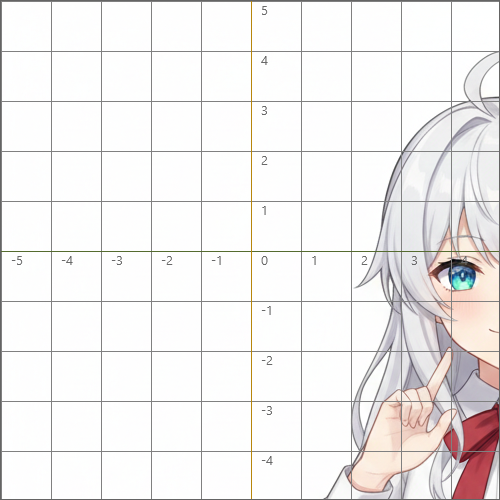
GitHub Repository
https://github.com/kanineko17/GraphicControl2D
Contact information
If you find any bugs or have feature requests, please feel free to contact me here! 「info@kanineko.com」
What's New Version
- (v4.5.0) Improved drawing performance. As a result of this optimization, the mouse position and zoom level indicators have been removed from the screen.
- (v4.1.0) Significantly fixed issues where formula graph generation would fail.
- (v4.0.0) Added Snap Mode.
- (v3.3.8) Add visibility control for each shape Object (introduce an IsVisible property).
- (v3.3.7) Added Image Objects.
- (v3.2.3) Added Group Shape Objects and Layer functionality.
- (v3.2.2) Fixed an issue where the Y-axis grid labels had inverted signs.
- (v3.2.0) Fixed minor bugs and updated README.
- (v3.1.4) Added background image support. Adjusted the grid line width to be thinner.
- (v3.0.0) Changed the rendering engine to SkiaSharp.
English
Usage
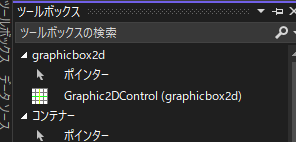
After installation, Drag "Graphic2DControl" from the Toolbox and drop it onto your form.
Use the following sample code to draw shapes inside the
Graphic2DControl.
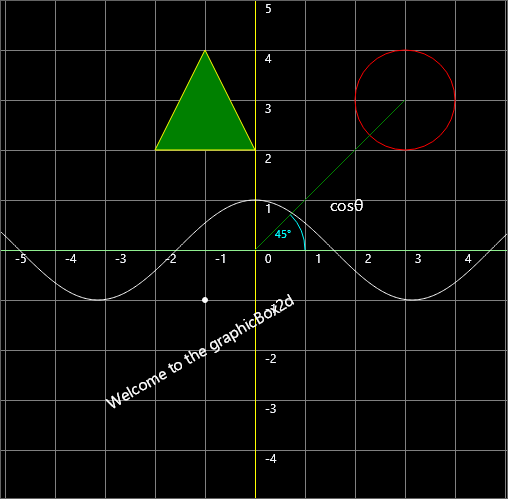
Layer2D layer2D = new Layer2D();
layer2D.LayerName = "Layer1";
layer2D.ZOrder = 0;
layer2D.IsVisible = true;

this.graphic2dControl1.Layers.Add(layer2D);

// Point
Point2D point = new Point2D();
point.X = -1;
point.Y = -1;
this.graphic2dControl1.Layers[0].Points.Add(point);

// Circle
Circle2D circle = new Circle2D();
circle.X = 3;
circle.Y = 3;
circle.R = 1.0f;
circle.IsFilled = false;
circle.LineColor = Color.Red;
this.graphic2dControl1.Layers[0].Circles.Add(circle);

// Polygon
Polygon2D polygon2D = new Polygon2D();
polygon2D.LineColor = Color.Yellow;
polygon2D.LineStyle = LineStyle.Solid;
polygon2D.IsFilled = true;
polygon2D.FillColor = Color.Green;
polygon2D.Points.Add(new PointF(-2, 2));
polygon2D.Points.Add(new PointF(-1, 4));
polygon2D.Points.Add(new PointF(0, 2));
this.graphic2dControl1.Layers[0].Polygons.Add(polygon2D);

// Text : Welcome
Text2D text = new Text2D();
text.X = -3;
text.Y = -3;
text.FontSize = 16.0f;
text.Text = "Welcome to the graphicBox2d";
text.Angle = 30.0f;
this.graphic2dControl1.Layers[0].Texts.Add(text);

Group2D group = new Group2D();

// Arrow
Arrow2D arrow = new Arrow2D();
arrow.Start = new Point(0, 0);
arrow.End = new Point(3, 3);
arrow.Color = Color.Green;
arrow.Style = LineStyle.Solid;
group.ObjectList.Add(new Group2DItem(arrow, 0));

// Text : Angle
Text2D text2 = new Text2D();
text2.X = 0.4f;
text2.Y = 0.4f;
text2.FontSize = 11.0f;
text2.Text = "45°";
text2.Color = Color.Cyan;
group.ObjectList.Add(new Group2DItem(text2, 1));

// Arc
Arc2D arc = new Arc2D();
arc.X = 0;
arc.Y = 0;
arc.R = 1.0f;
arc.StartAngle = 0f;
arc.EndAngle = 45.0f;
arc.IsFilled = false;
arc.LineColor = Color.Cyan;
group.ObjectList.Add(new Group2DItem(arc, 2));

this.graphic2dControl1.Layers[0].Groups.Add(group);

// Text : cosθ
Text2D text3 = new Text2D();
text3.X = 1.5f;
text3.Y = 1.0f;
text3.FontSize = 16.0f;
text3.Text = "cosθ";
this.graphic2dControl1.Layers[0].Texts.Add(text3);

// Graph
MathGraph2D graph = new MathGraph2D();
graph.Susiki = "cos(x)";
graph.StartX = -50.0f;
graph.EndX = 50.0f;
graph.Color = Color.White;
graph.CalculateInterval = 0.05f;
graph.CalculateGraphPoints();
this.graphic2dControl1.Layers[0].MathGraphs.Add(graph);

// Redraw
this.graphic2dControl1.Invalidate();
Mode
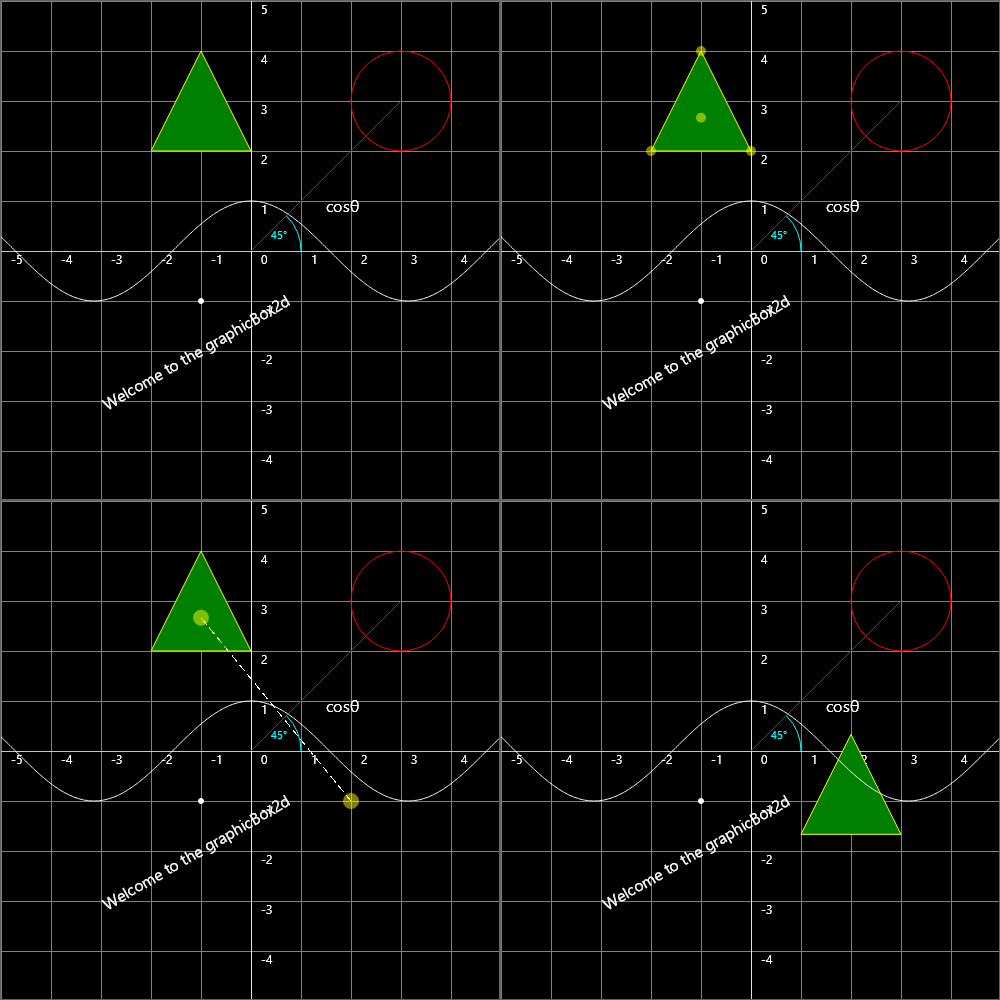
You can switch between a simple drawing mode and multiple interactive modes that allow mouse-based editing operations.
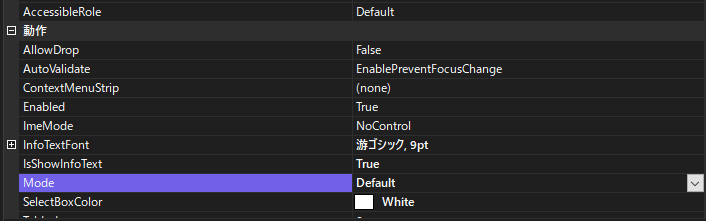
Default Mode
A basic drawing mode. Mouse interactions are not supported.Select Mode
An interactive mode that allows you to select, move, and delete shape objects using the mouse.
You can click shapes to select them, drag to move them, or press the Delete key to remove them.Snap Mode
A precision editing mode that lets you snap shapes to exact positions.
In this mode, you can:- Select a vertex of a shape (e.g., line endpoints, polygon vertices, image corners).
- Then select a grid intersection or a vertex of another shape.
- The selected shape will move so that the chosen vertex aligns perfectly with the target point. This mode is ideal for creating clean, mathematically accurate diagrams where shapes must align precisely with the grid or with each other.
Saving Data
You can save the drawn shape objects in JSON format.
// Save
this.graphic2dControl1.SaveData(@"C:\Users\kani\Desktop\Data\shapes.json");
Loading Data
You can load shape object data from a previously saved JSON file
// Load
this.graphic2dControl1.LoadData(@"C:\Users\kani\Desktop\Data\shapes.json");
Background Image
If you want to use the background image shown in this README, you can download it from the following link: https://raw.githubusercontent.com/kanineko17/GraphicControl2D/main/BACKGROUND.png

Then, set it to the BackgroundImage property of graphicBox2d.

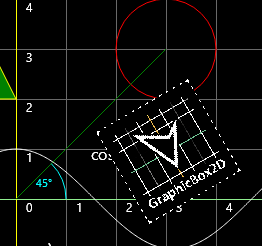
Image2D
You can display images on the canvas using Image2D.
// image
Image2D img = new Image2D();
img.LoadImage("C:\\Users\\kani\\Desktop\\a\\icon.png");
img.X = 2.0f;
img.Y = 2.0f;
img.Width = 2.0f;
img.Height = 2.0f;
img.Angle = 30.0f;

this.graphic2dControl1.Layers[0].Images.Add(img);

// Redraw
this.graphic2dControl1.Invalidate();
UserZoom And GridMousePosition Properties
If you want to know the current zoom level and the mouse position in the grid coordinate system, you can retrieve them using these properties.
// zoom (1.0 = 100%)
float zoom = this.graphic2dControl1.UserZoom;
// Mouse position of the grid
PointF mouseGridPos = this.graphic2dControl1.GridMousePosition;
How to Create a Math Graph
// Graph
MathGraph2D graph = new MathGraph2D();
graph.Susiki = "cos(x)+x^2";
graph.StartX = -50.0f;
graph.EndX = 50.0f;
graph.Color = Color.White;
graph.CalculateInterval = 0.05f;
graph.CalculateGraphPoints();
this.graphic2dControl1.Layers[0].MathGraphs.Add(graph);
※ After setting the formula, be sure to call the CalculateGraphPoints() method to compute the point list.
Overview
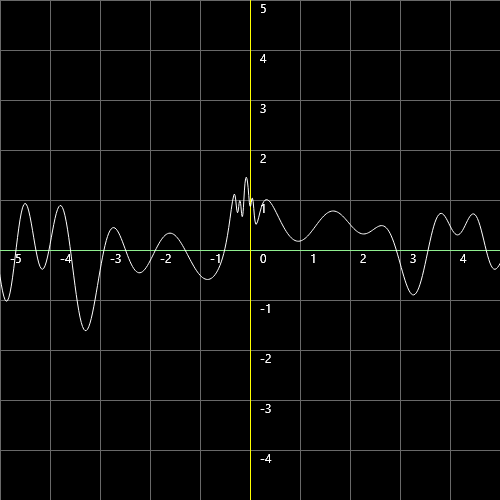
Specify the formula to be graphed as a string in the Susiki property.
Example:
graph.Susiki = "(sin(x^2)*exp(-0.1*x)+cos(3*x))/(1+0.05*x^2)+0.5*sin(1/(x+0.1))";
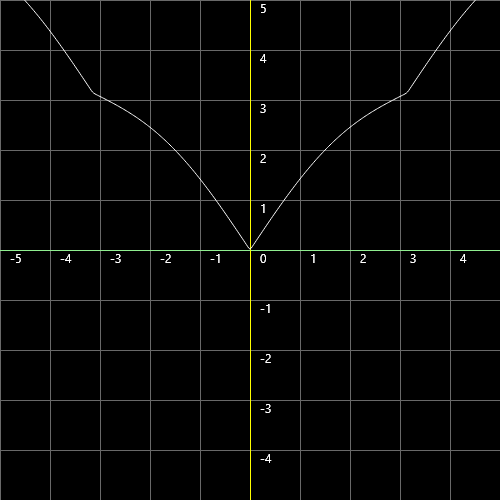
graph.Susiki = "||sin(x)÷2|+|x||";
Variable Name
Only the variable "x" can be used in formulas.
✔ Examples:
- sin(x)
- x^2 + 3×x + 2
✖ Invalid Examples:
- sin(a)
- a^2 + 3×a + 2
Supported Operators
- Multiplication: ×, *
- Division: ÷, /
- Addition: +, +
- Subtraction: -, -
- Power: ^, ^
Supported Symbols
- Square root: √
Supported Constants
- Pi: π
- Napier's constant: e
Supported Functions
- Arc sine: Asin, ArcSin
- Arc cosine: Acos, ArcCos
- Arc tangent: Atan, ArcTan
- Sine: Sin
- Cosine: Cos
- Tangent: Tan
- Hyperbolic sine: Sinh
- Hyperbolic cosine: Cosh
- Hyperbolic tangent: Tanh
- Logarithm (natural log): Log
| Product | Versions Compatible and additional computed target framework versions. |
|---|---|
| .NET | net8.0-windows7.0 is compatible. net9.0-windows was computed. net10.0-windows was computed. |
| .NET Framework | net472 is compatible. net48 was computed. net481 was computed. |
-
.NETFramework 4.7.2
- AngleSharp (>= 1.4.0)
- Microsoft.Bcl.HashCode (>= 6.0.0)
- Microsoft.CodeAnalysis.CSharp.Scripting (>= 5.3.0)
- Newtonsoft.Json (>= 13.0.4)
- SkiaSharp (>= 3.119.1)
- SkiaSharp.NativeAssets.Win32 (>= 3.119.1)
- SkiaSharp.Views.WindowsForms (>= 3.119.1)
- System.Buffers (>= 4.6.1)
- System.Memory (>= 4.6.3)
- System.Numerics.Vectors (>= 4.6.1)
- System.Runtime.CompilerServices.Unsafe (>= 6.1.2)
-
net8.0-windows7.0
- AngleSharp (>= 1.4.0)
- Microsoft.Bcl.HashCode (>= 6.0.0)
- Microsoft.CodeAnalysis.CSharp.Scripting (>= 5.3.0)
- Newtonsoft.Json (>= 13.0.4)
- SkiaSharp (>= 3.119.1)
- SkiaSharp.NativeAssets.Win32 (>= 3.119.1)
- SkiaSharp.Views.WindowsForms (>= 3.119.1)
- System.Buffers (>= 4.6.1)
- System.Memory (>= 4.6.3)
- System.Numerics.Vectors (>= 4.6.1)
- System.Runtime.CompilerServices.Unsafe (>= 6.1.2)
NuGet packages
This package is not used by any NuGet packages.
GitHub repositories
This package is not used by any popular GitHub repositories.
| Version | Downloads | Last Updated |
|---|---|---|
| 4.5.1 | 89 | 5/18/2026 |
| 4.5.0 | 89 | 5/18/2026 |
| 4.1.0 | 97 | 4/30/2026 |
| 4.0.2 | 96 | 4/29/2026 |
| 4.0.1 | 91 | 4/29/2026 |
| 4.0.0 | 94 | 4/29/2026 |
| 3.4.0 | 108 | 4/1/2026 |
| 3.3.9 | 102 | 3/30/2026 |
| 3.3.8 | 104 | 3/29/2026 |
| 3.3.7 | 103 | 3/29/2026 |
| 3.3.6 | 98 | 3/23/2026 |
| 3.3.5 | 96 | 3/23/2026 |
| 3.3.4 | 89 | 3/22/2026 |
| 3.3.3 | 94 | 3/22/2026 |
| 3.3.2 | 95 | 3/22/2026 |
| 3.3.0 | 92 | 3/22/2026 |
| 3.2.9 | 97 | 3/22/2026 |
| 3.2.8 | 91 | 3/22/2026 |
| 3.2.7 | 101 | 3/22/2026 |
| 3.2.6 | 92 | 3/22/2026 |