Dwain.RibbonLib
1.0.34
dotnet add package Dwain.RibbonLib --version 1.0.34
NuGet\Install-Package Dwain.RibbonLib -Version 1.0.34
<PackageReference Include="Dwain.RibbonLib" Version="1.0.34" />
<PackageVersion Include="Dwain.RibbonLib" Version="1.0.34" />
<PackageReference Include="Dwain.RibbonLib" />
paket add Dwain.RibbonLib --version 1.0.34
#r "nuget: Dwain.RibbonLib, 1.0.34"
#:package Dwain.RibbonLib@1.0.34
#addin nuget:?package=Dwain.RibbonLib&version=1.0.34
#tool nuget:?package=Dwain.RibbonLib&version=1.0.34
RibbonWinForms for .NET 10




Please read this first
Not installing from NuGet? Then you must add a reference to both assemblies yourself.
| File | What it is |
|---|---|
RibbonLib.dll |
The ribbon control |
RibbonLib.Design.dll |
The designer and the design-surface glyphs |
RibbonLib.Design.dll has to sit next to RibbonLib.dll in the output folder, and both files have
to come from the same build. Reference the control alone and the designer hosts it as a small grey
Ribbon component that never draws itself - that is the most common first-time symptom.
Recommended: use the NuGet package, which brings both assemblies automatically.
dotnet add package Dwain.RibbonLib --version 1.0.34
From the Package Manager console or the NuGet UI, search for Dwain.RibbonLib instead. The package
adds RibbonLib.dll and RibbonLib.Design.dll together, so there is nothing to copy into bin by hand
- and it is the only way to get the ribbon into the toolbox.
Versions change a lot. 1.0.34 is just the version that was current when this was written. For the
current one, open the package page on nuget.org or
the Releases page on GitHub. Always prefer the package page over any version number quoted in this
file.
An Office-style ribbon control for Windows Forms, ported to .NET 10 and repaired so it works both at runtime and inside the out-of-process WinForms designer that current Visual Studio uses.
This is a fork of WindowsRibbon and
RibbonWinForms (MS-PL, originally
by Jose Menendez Poo) - great work by harborsiem and the RibbonWinForms contributors.
Upstream targets .NET Framework 4.8; this fork moves the library to
net10.0-windows (and also builds net8.0-windows for hosts that have not moved yet) and fixes the
things that port broke.
What's new in 1.0.34
README-only release. The package ships this README with the install commands pointing at 1.0.34
and the Support this project section, so the package page on nuget.org shows
commands that match the version it is publishing. Assemblies and behaviour are identical to 1.0.33.
What was new in 1.0.33
README-only release. The package ships this README with a Support this project section, so the package page on nuget.org shows where to send a tip. Assemblies and behaviour are identical to 1.0.32.
What was new in 1.0.32
Deleting an orb entry no longer takes the designer down. The delete ran through the designer host with
the returned transaction committed unchecked and the ribbon's drop-down read without a check, so when the
host handed back no transaction the null reference escaped the design surface's mouse handling and the
design tools server reported it as a modal error. The transaction is optional now, the entry still leaves
its collection when the host path fails, and a failure is written to RibbonLibDesign.log instead of
escaping; the design surface's click guard is the last resort.
The orb menu is two panes again - on the design surface and at runtime. Menu items sit in the left
pane; the recent-items caption and list, then the option buttons, sit in the right one. Both panes are
sized to their content, a pane with nothing in it takes no space, entries with no caption show
(menu item) / (recent item) / (option button) instead of an invisible row, and the same item
listed twice in a collection is shown once.
The runtime drop-down sizes itself again. It laid its panes and items out only when it already had a window handle, but the call that sizes it runs before the handle exists, so it opened at its default size with empty panes. It now measures without a handle and lays out again as soon as the handle is created.
Editing an orb entry is one gesture. Left or right click opens the same item menu (Add Image...,
Add from Resources..., Clear Image, Delete), anchored to the clicked row and kept clear of
the footer's add buttons. Separators, recent items and option buttons are selectable like any other
entry, and Delete really removes the entry from its collection and from Form1.Designer.cs.
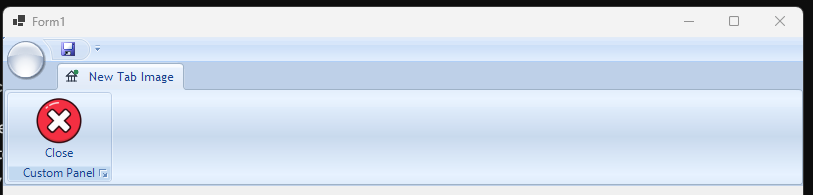
Tab icons (RibbonTab.Image, scaled to fit the tab) and the quick access toolbar's image fix arrived in
1.0.27 and 1.0.28 - see the releases.
What this fork changes
It runs. The ribbon paints its tabs, panels, items, quick access toolbar, contexts and orb, and it handles mouse input — the same as on .NET Framework.
It designs. The old fixed-in-process designer is gone. This fork implements a designer against the out-of-process design server:
- Click a tab, a panel or an item on the design surface to select it and edit it in the Properties window.
- Three pills on the surface add structure without hunting through verbs: Add Tab, Add Panel, and Add Control (which opens a menu of Button, Combo Box, Text Box, Check Box, Up Down, Label, Button List, Item Group, Color Chooser, Host and Separator).
- Ribbon-aware collection editing lives on the design surface: the pills add tabs, panels and items, and the orb menu's own item menu adds entries, deletes them and sets their images. The Properties grid also edits these collections, but only through Visual Studio's generic collection editor - the ribbon's own editor classes never run there - so it can add and remove the collection's plain item type and offers nothing ribbon-specific (why).
- Everything written into
Form1.Designer.csis ordinary, readablenew RibbonTab()/Panels.Add(...)code — no custom serialization to unpick later.
It keeps design-time code out of your app. A deployed app must never load
Microsoft.DotNet.DesignTools.Server, which only exists inside Visual Studio, so the designers and
design-surface glyphs live in a separate assembly, RibbonLib.Design.dll. RibbonLib.dll
itself references no design-tools assembly: it names its designers by string in attributes and
reaches them through a plain object handshake (Classes/RibbonDesignTime.cs). The design assembly
is copied next to your application — that is where the design server looks for it — but it is not a
compile-time reference and nothing loads it at runtime.
That split also fixes an inspection problem: enumerating the shipping assembly used to throw
FileNotFoundException: Could not load file or assembly 'Microsoft.DotNet.DesignTools.Server, Version=1.6.0.0' in any process without design tools (Visual Studio's toolbox discovery, for one),
because the designers were public types inside it.
Requirements
| Runtime | Windows 10 1607 or later, on .NET 8 (net8.0-windows) or .NET 10 (net10.0-windows) |
| Design-time | Visual Studio with the WinForms designer (the out-of-process design server) |
| Build | .NET 8 SDK or later (the solution builds both target frameworks) |
Why the assemblies say windows7.0. The 7.0 in net10.0-windows7.0 is the Windows API surface
the compiler targets, not a runtime floor — it is what the project's Target OS version shows. The
control itself uses only user32, gdi32, uxtheme and dwmapi, and its OS checks are "Vista or
later", so Windows 7 would satisfy the control. It cannot satisfy the runtime: .NET 8 and .NET 10 are
supported on Windows 10 1607+ and Windows 11 only, so that is the real floor
(supported OS list).
Supporting Windows 7 would mean .NET Framework 4.x, which is what upstream targets.
A host targeting a newer platform version, such as net8.0-windows10.0.19041.0, still resolves these
builds: a higher platform version accepts a package built for a lower one.
RibbonLib.Design compiles against Microsoft.WinForms.Designer.SDK 1.6.0, which supplies the
design-time types at compile time only. At design time the code runs against whichever design-tools
build your Visual Studio hosts; nothing from that package is shipped to your application.
Quick start
using RibbonLib;

var ribbon = new Ribbon { Dock = DockStyle.Top };

var tab = new RibbonTab { Text = "Home" };
var panel = new RibbonPanel { Text = "Clipboard" };

var paste = new RibbonButton
{
    Text = "Paste",
    Image = Properties.Resources.Paste,
    LargeImage = Properties.Resources.PasteLarge
};
paste.Click += (s, e) => MessageBox.Show("Paste");

panel.Items.Add(paste);
tab.Panels.Add(panel);
ribbon.Tabs.Add(tab);

Controls.Add(ribbon);
Use RibbonForm instead of Form if you want the ribbon merged into a glass caption bar.
Working in the designer
- Drop a
Ribbonon the form (it docks to the top). - Click Add Tab, then Add Panel on the tab you just made.
- Click Add Control on a panel and pick the item type from the menu.
- Select any tab, panel or item to edit it in the Properties window.
- The orb collections are edited on the surface: the + buttons in the orb menu's footer add a menu item, a separator, a recent item or an option button, and clicking an entry opens its menu (Add Image..., Add from Resources..., Clear Image, Delete).
The Properties grid's collection editor is Visual Studio's generic one. The out-of-process designer
always opens its default collection editor, so the ribbon's editor classes in
RibbonLib.Design/Editors never run. What opens is a plain list of the collection's item type: it can
add and remove those items - the collections advertise a concrete item type for exactly that reason -
but it carries no ribbon-specific behaviour, so it has no orb or quick-access handling, no image picker
and no separator-aware editing. Use the design surface for those;
RibbonLib.Design/Editors/README.md records why those classes are
still in the tree.
Choosing the visible tab
ActiveTab is an object reference, so it is hidden from the Properties window and a form cannot pick
a tab at design time and keep the choice. SelectedIndex fills that gap and mirrors TabControl: it
is the index of the visible tab, -1 when the ribbon has no tabs, and setting it clamps to the tabs
that exist.
ribbon.SelectedIndex = 2;           // show the third tab
var current = ribbon.SelectedIndex;  // -1 when there are no tabs
At design time, select the ribbon, open the Behavior category and set SelectedIndex. It is
ordinary designer code — ribbon1.SelectedIndex = 1; in Form1.Designer.cs — so the form reopens in
the designer on that tab, the same way a TabControl remembers its page.
SelectedIndexChanged fires whenever the visible tab changes: from code, from a mouse click and from
a change made in the designer. ActiveTabChanged still fires as well, so either event can drive a
page swap:
ribbon.SelectedIndexChanged += (s, e) =>
{
    switch (ribbon.SelectedIndex)
    {
        case 0: ShowPage(productPage); break;
        case 1: ShowPage(filesPage); break;
    }
};
Both members ship from 1.0.3-net10 and later; ActiveTab and ActiveTabChanged are unchanged.
Spacing and padding
The ribbon's spacing is editable. Select the ribbon and every value appears under the Padding
category in the Properties window; each one takes effect as you type it and is written into
Form1.Designer.cs like any other property.
| Property | What it pads |
|---|---|
Padding |
The content area below the tabs — the ribbon's own padding |
TabsPadding |
Inside each tab, around its text |
OrbsPadding |
Inside the orb, around its text |
TabTextMargin |
Between a tab's text and the tab edge |
PanelPadding |
Around each panel, between it and its neighbours |
PanelMargin |
Inside each panel; the bottom value is the caption height |
ItemPadding |
Around each control (button, combo box…) inside a panel |
ItemMargin |
Inside each control, between its content and its edge |
ribbon.Padding = new Padding(12, 4, 12, 6);   // breathing room around the panel area
ribbon.ItemPadding = new Padding(6);          // space around every control in every panel
Padding you set by hand survives a change of OrbStyle: the style change still updates colours,
roundness and everything else, but leaves your spacing alone. A ribbon you have not touched keeps
taking the style's own spacing defaults.
Per-panel spacing
A panel can use its own spacing instead of the ribbon's. Select the panel and set any of these. A blank value means use the ribbon's, and clearing the cell goes back to inheriting.
| Panel property | Overrides | Notes |
|---|---|---|
ItemPadding |
the ribbon's ItemPadding |
Space around the controls of this panel |
ItemMargin |
the ribbon's ItemMargin |
Space inside the controls of this panel |
PanelMargin |
the ribbon's PanelMargin |
Space inside the panel; the bottom value is this panel's caption height |
roomyPanel.ItemPadding = new Padding(14, 6, 14, 6);   // only this panel gets air
busyPanel.ItemPadding = new Padding(2, 0, 2, 0);     // and this one stays tight
busyPanel.ItemPadding = null;                        // back to the ribbon's value
PanelPadding — the gap between panels inside a tab — stays ribbon-wide, because it belongs to
the space between panels rather than to any one of them.
The toolbox
Ribbon carries [ToolboxItem(true)]; the tabs, panels, items, contexts and popups that only make
sense inside a ribbon are marked DesignTimeVisible(false), so the toolbox offers the ribbon and
nothing that would be wrong to drop on a form.
A control appears in the toolbox, with no registration, when the project you are designing
references its assembly. With Tools → Options → Windows Forms Designer → General → Automatically
populate the toolbox enabled (the default), a solution containing a project that references
RibbonLib — by project reference or by the NuGet package — shows a RibbonLib Components tab
while that solution is open. The tab follows the reference: no reference, no tab.
Choose Toolbox Items → Browse → RibbonLib.dll does not work for .NET, and no change to this
library can make it. Visual Studio answers "RibbonLib.dll targets a platform whose toolbox items
cannot be enumerated dynamically" because the toolbox only deploys controls that come from the open
solution or from a NuGet package; adding a bare .NET assembly by path is not supported
(dotnet/winforms#8077, and the same is true of
any .NET WinForms control library, not just this one).
To have the ribbon in the toolbox of a project that is not in this solution, install it as a package — that is the supported route:
dotnet add package Dwain.RibbonLib --version 1.0.34
The package is on nuget.org, so no local feed is needed. Releases are ordinary (not prerelease)
versions, so dotnet add package Dwain.RibbonLib without a version takes the newest one - see the package
page if you want a specific one; a local build can still be packed into your own feed
with
dotnet pack RibbonLib.csproj -c Release -o %USERPROFILE%\RibbonLibFeed.
Doing it for a whole folder at once. tools\Add-RibbonToolbox.ps1 adds the package to every
Windows Forms project it finds and leaves everything else alone — console apps, class libraries,
WPF projects, and projects that already have it:
.\tools\Add-RibbonToolbox.ps1                  # every project in this repository
.\tools\Add-RibbonToolbox.ps1 -Path D:\Suite   # any other folder, or one project file
.\tools\Add-RibbonToolbox.ps1 -WhatIf          # list what it would change
It is the same dotnet add package call per project, so the toolbox ends up with the same reference
it would have had; it just saves doing it by hand sixteen times. Pass -NoRestore to skip the
download and let the next build restore.
A script cannot register the control in the toolbox without that reference. The automation
third-party control vendors run from their "install to toolbox" buttons is Visual Studio's own
DTE toolbox API, and driving it from PowerShell does add a tab and an item — for a .NET project
Visual Studio then reports "the controls were successfully added to the toolbox but are not enabled
in the active designer", and the entry stays greyed out. The .NET designer only deploys controls
from the open solution or from a package, which is the same rule that refuses a DLL added through
Choose Toolbox Items. (For a .NET Framework target the DTE route does work; this package does
not target .NET Framework.)
Reopen the form afterwards; the RibbonLib Components tab appears with the reference. Inside this solution the project reference already does it — check that Automatically populate the toolbox is on, and use the toolbox's Reset/Refresh if a stale list is in the way. If the tab stays missing while the reference is definitely there, the toolbox list is cached: see Troubleshooting.
Building
dotnet build RibbonLib.slnx
Open RibbonLib.slnx in Visual Studio to work on the designer itself. Design-time behaviour can only be
exercised inside Visual Studio; the runtime behaviour can be tested from any app that references the
project.
Starting a new sample
Do not build one by hand. This creates the project with the SDK, wires the ribbon and its design
assembly, adds a form that already hosts a ribbon (tab, panel, button) and registers it in
RibbonLib.slnx:
powershell -ExecutionPolicy Bypass -File tools\New-Sample.ps1 -Name RibbonGallery
-Framework net8.0-windowstargets .NET 8 instead of .NET 10 (defaultnet10.0-windows).-PackageVersion 1.0.34references the published package instead of the project, so the sample sees the library exactly as a consumer does.-SkipBuildscaffolds without compiling; the build runs by default so a broken sample fails there rather than in the designer.
The new project goes in samples/<Name>/, which RibbonLib.csproj excludes from its own compile —
without that exclusion the sample's sources are globbed into the library and the build fails.
Releasing
Push a v* tag and the Publish NuGet package workflow packs Dwain.RibbonLib and pushes it to
nuget.org, along with its symbol package:
git tag -a v1.0.1 -m "1.0.1" && git push origin v1.0.1
v1.2.3publishes package version1.2.3;v2.0.0-beta.1publishes2.0.0-beta.1. A tag that is notv<major>.<minor>.<patch>[-prerelease]fails the run instead of publishing a guessed version.- No API key is needed by default. Publishing uses
Trusted Publishing: the job
presents a GitHub OIDC token and nuget.org exchanges it for a temporary key that lives for an hour.
The policy that allows it is RibbonLib publish on nuget.org — owner
Dwains, repository ownerDwainSnickles, repositoryRibbonWinForms, workflowpublish.yml, environmentWindowsForms Ribbon. Every field the policy names must match the token, environment included, so the job declaresenvironment: WindowsForms Ribbon; a policy created without an environment needs that line removed. A policy starts with 7 days of temporary activation, so one successful publish is needed inside that window to make it permanent; if it goes inactive, re-activate it from the policy's page. - Fallback: if a
NUGET_API_KEYrepository secret exists, the workflow pushes with it instead and skips the OIDC login entirely. Use that when the policy cannot be made to match; delete the secret to go back to the keyless path. The key needs scope Push new packages and package versions and a glob matchingDwain.RibbonLib. - The package id and version both come from
RibbonLib.csproj(<PackageId>,<Version>), so the workflow packsDwain.RibbonLib— the id is not repeated in the workflow or in this section. - Run it by hand from Actions → Publish NuGet package → Run workflow with
dry_run: trueto pack and verify a package without publishing it. The.nupkgand.snupkgare attached to the run either way. - Packing locally needs a restore first.
dotnet pack RibbonLib.csprojbuilds the designer as part of packing, and a fresh clone has no assets file for that project, so the pack stops witherror NETSDK1004: Assets file 'RibbonLib.Design\obj\project.assets.json' not found. Rundotnet restore RibbonLib.Design/RibbonLib.Design.csprojonce first. The workflow restores on its own, so this only bites a local pack.
How the design-time support is put together
Two assemblies, so the boundary is a compile-time fact rather than a convention:
| Assembly | Contents |
|---|---|
RibbonLib.dll |
The control itself. No reference to Microsoft.DotNet.DesignTools.* |
RibbonLib.Design.dll |
Everything that only runs inside the designer |
| Piece | Role |
|---|---|
RibbonLib.Design/Designers/RibbonDesigner.cs |
The ribbon designer: selection, the Add pills, the Add Control menu, the Properties verbs |
RibbonLib.Design/Editors/ |
Collection editor classes, kept for reference only. The designer always uses its own default editor, so these never run — see that folder's README.md |
RibbonLib.Design/Glyphs/ |
Design-surface decorations (orb, quick access toolbar, Add pills) |
Classes/RibbonDesignToolsResolver.cs |
Answers design-tools assembly requests with the copy the IDE has loaded, whatever its version. It sits in the runtime assembly so it is registered before the design assembly's types are resolved; it names no design-tools type itself |
Classes/RibbonDesignTime.cs |
The runtime-safe bridge, in the runtime assembly. Runtime code talks to the designer as a plain object, so no design-time type is ever named on a runtime path |
The pieces talk to each other through InternalsVisibleTo("RibbonLib.Design"), and every designer or
editor is referenced from an attribute as "…, RibbonLib.Design".
The package keeps the designer out of your compile references: RibbonLib.Design.dll ships under
lib/<tfm>/Design/WinForms/Server/, the folder the Visual Studio design server loads server-side
designers from, and the build copies it next to RibbonLib.dll in the consuming project's output. That
is deliberate - shipping it as an ordinary reference beside the runtime assembly made applications
compile against design-time types. The runtime assembly still carries no design-tools reference, and
nothing loads RibbonLib.Design.dll at run time.
Troubleshooting
Almost every problem with this library in the designer is stale state, not a missing feature. Three caches matter, and all belong to Visual Studio rather than to the ribbon:
| Where | Why it hurts |
|---|---|
%LOCALAPPDATA%\Microsoft\VisualStudio\<instance>\ComponentModelCache |
Per-type metadata for components. A stale entry keeps a previous build's properties, attributes and designers alive — a new Padding property never appears, or an old one still does |
toolbox.tbd, toolboxIndex*.tbd, ToolboxItemDiscoveryCache*.dat |
The discovered toolbox list. A stale entry is why the RibbonLib Components tab is missing in one project while a fresh one shows it |
%LOCALAPPDATA%\Microsoft\VisualStudio\<instance>\WinFormsDesigner\<random>\UserAppData |
Shadow copies of your assemblies, loaded by the out-of-process design server. Replace RibbonLib.dll without clearing this and the server keeps hosting the old one |
Reset the caches
tools\nuke-vs-caches.cmd does all three, for every Visual Studio instance on the machine:
tools\nuke-vs-caches.cmd
It asks once, then does everything; pass /y for a scripted run. It closes devenv.exe, because the
caches are held open while Visual Studio runs — this is the one step you cannot do from another
process, which is why rebuilding or reinstalling the package can appear to change nothing.
Two side effects worth knowing: your custom toolbox tabs (button, card, panel, …) are removed
with the toolbox state and have to be recreated, and the first start afterwards is slower. Source
files, project files and NuGet credentials are untouched.
Afterwards delete bin and obj in the project that consumes the ribbon, then reopen the form. That
last part makes Visual Studio re-resolve the package assets instead of reusing an old copy.
The script is a file in this repository and is not shipped in any package, so without a clone, the
same thing by hand — with Visual Studio closed, and <instance> being the folder whose name looks
like 18.0_2d888849:
taskkill /f /im devenv.exe
rmdir /s /q "%LOCALAPPDATA%\Microsoft\VisualStudio\<instance>\ComponentModelCache"
rmdir /s /q "%LOCALAPPDATA%\Microsoft\VisualStudio\<instance>\WinFormsDesigner"
del /q      "%LOCALAPPDATA%\Microsoft\VisualStudio\<instance>\toolbox*.tbd"
del /q      "%LOCALAPPDATA%\Microsoft\VisualStudio\<instance>\ToolboxItemDiscoveryCache*.dat"
Symptoms and what they mean
- A small grey component glyph named
ribbon1instead of a drawn ribbon. The design server could not load or construct the designer and fell back to component mode. EitherRibbonLib.Design.dllis not next toRibbonLib.dllin your output, or it is there but stale. Checkbin\<Configuration>\<tfm>\for both files, then reset the caches. If you reference the package, a plaindotnet restorefixes a half-installed one; if you use the package from a local feed, bump its version rather than relying on the cache to notice a repack of the same version. - The ribbon draws, but there are no tabs, no orb and none of the Add Tab / Add Panel / Add Control pills. The designer loaded from an older build. Reset the caches.
- The pills are there but a click does nothing. They are design-time objects on the ribbon's
surface; a build in which the designer and the runtime assembly disagree loses the hit-testing.
Make sure
RibbonLib.dllandRibbonLib.Design.dllare the same version, then reset. - A design-surface edit does not stick — an orb entry keeps coming back after Delete, or a new
pill item never appears. The design assembly writes the change into the collections, so a mismatch
between
RibbonLib.dllandRibbonLib.Design.dllleaves the two disagreeing. Match the versions, then reset the caches and reopen the form. - A property you just added is not in the Properties grid. The properties are read through the
type metadata in
ComponentModelCache, which was written when you first dropped the control. Tools → Choose Toolbox Items → Browse → RibbonLib.dllsays the platform cannot be enumerated. Expected — see The toolbox. Use a project or package reference.ObjectDisposedExceptiononRibbonLib.Ribboninside the design server, usually when the orb dropdown closes. Design-time only, and fixed for the paths the designer uses; if you can still reproduce it, report the call stack — a runtime app does not take that path.
Restarting Visual Studio does not clear any of this; the caches survive a restart by design. Neither does Build → Clean. If a fix seems not to have landed, run the script before looking for another cause.
Known limitations
- The Properties grid offers only Visual Studio's generic collection editor. The out-of-process
designer always runs its default editor, so
RibbonLib.Design/Editorsnever runs: the grid can add and remove the collection's item type, but ribbon-specific editing - images, orb entries, quick access- happens on the design surface (details).
- Design-time only features. Selection, pills, the Add Control menu and the orb item menu exist only in the Visual Studio designer. Applications use the plain runtime API.
- Design-tools versions are independent of this package. The package that provides the compile-time designer types (1.6.0) and the design server inside Visual Studio carry different assembly versions; the resolver in this fork bridges that. If a future Visual Studio changes the designer API, the designer code may need updating — the runtime will be unaffected.
- Two assemblies to reference without the package. A hand-made setup needs both
RibbonLib.dllandRibbonLib.Design.dllin the output folder, or the ribbon never draws in the designer. The NuGet package supplies both, which is why it is the recommended route. - Binding a runtime
PropertyGridto aRibboncan throwArgumentNullExceptionwhile it walks the ribbon's collections (observed during this port). The designer's own property grid is not affected.
Support this project
The library is free, and stays free. If it saved you a week of work, or you shipped something commercial on top of it, a one-off tip is a decent way to say thanks.
Tip via Ko-fi (cards, no account needed) or Tip via PayPal.Me
Tipping does not buy priority, a support contract or a feature promise - issues and pull requests are just as welcome and every bit as useful.
Credits and license
This library is the work of Jose Menendez Poo and the RibbonWinForms contributors, with later maintenance by the OfficeRibbon project. This fork adds the .NET 10 port and the out-of-process designer support described above.
Licensed under the Microsoft Public License (Ms-PL) — see LICENSE.
| Product | Versions Compatible and additional computed target framework versions. |
|---|---|
| .NET | net8.0-windows7.0 is compatible. net9.0-windows was computed. net10.0-windows was computed. net10.0-windows7.0 is compatible. |
-
net10.0-windows7.0
- No dependencies.
-
net8.0-windows7.0
- No dependencies.
NuGet packages
This package is not used by any NuGet packages.
GitHub repositories
This package is not used by any popular GitHub repositories.
| Version | Downloads | Last Updated |
|---|---|---|
| 1.0.34 | 0 | 11/18/2026 |
| 1.0.33 | 0 | 11/18/2026 |
| 1.0.32 | 88 | 11/15/2026 |
| 1.0.31 | 88 | 11/15/2026 |
| 1.0.30 | 89 | 11/15/2026 |
| 1.0.29-net10 | 82 | 11/14/2026 |
| 1.0.28-net10 | 86 | 11/14/2026 |
| 1.0.27-net10 | 83 | 11/14/2026 |
| 1.0.20-net10 | 82 | 11/13/2026 |
| 1.0.19-net10 | 84 | 11/13/2026 |
| 1.0.18-net10 | 80 | 11/13/2026 |
| 1.0.17-net10 | 78 | 11/13/2026 |
| 1.0.16-net10 | 78 | 11/13/2026 |
| 1.0.15-net10 | 82 | 11/13/2026 |
| 1.0.12-net10 | 88 | 11/13/2026 |
| 1.0.11-net10 | 84 | 11/13/2026 |
| 1.0.10-net10 | 81 | 11/13/2026 |
| 1.0.9-net10 | 81 | 11/13/2026 |
| 1.0.8-net10 | 89 | 11/13/2026 |
| 1.0.7-net10 | 89 | 11/13/2026 |
README-only release. The install commands in the packaged README now point at 1.0.34, so the commands on the nuget.org page match the version being published, and the Support this project section still carries the Ko-fi (ko-fi.com/dwainhsnickles) and PayPal.Me (paypal.me/YTDPlatinum) links. Assemblies and behaviour are unchanged from 1.0.33.