EasyCheckBoxList 2.0.1
dotnet add package EasyCheckBoxList --version 2.0.1
NuGet\Install-Package EasyCheckBoxList -Version 2.0.1
<PackageReference Include="EasyCheckBoxList" Version="2.0.1" />
<PackageVersion Include="EasyCheckBoxList" Version="2.0.1" />
<PackageReference Include="EasyCheckBoxList" />
paket add EasyCheckBoxList --version 2.0.1
#r "nuget: EasyCheckBoxList, 2.0.1"
#:package EasyCheckBoxList@2.0.1
#addin nuget:?package=EasyCheckBoxList&version=2.0.1
#tool nuget:?package=EasyCheckBoxList&version=2.0.1
EasyCheckBoxList - Tag Helper for ASP.NET Core
Source Code 🔗 GitHub Repository →
Shared Field for All Selected Values Across Multiple Controls (optional)
The source list supports customizable column names. Default column names are: Name, Value, Checked, and Info.
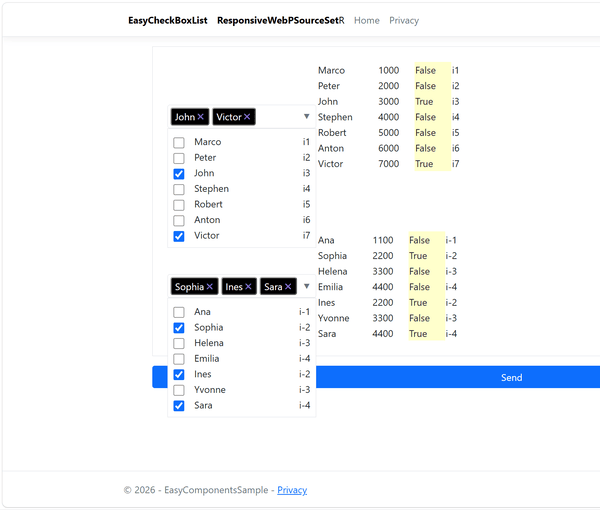
🎥 Watch the video on YouTube →
Features
- Multi-select checkbox dropdown
- Super easy integration using
asp-items - ASP.NET Core MVC support
- Razor Pages support
- Bootstrap-friendly appearance
- Built-in CSS and JavaScript support
- Optional custom CSS and JavaScript
- Preselected values
- Custom text
- Additional information column
- Validation support
- Easy integration using
asp-items
Installation
Package Manager
Install-Package EasyCheckBoxList
.NET CLI
dotnet add package EasyCheckBoxList
Example Code and Model
using EasyComponentsSample.Models;
using Microsoft.AspNetCore.Mvc;
using Microsoft.AspNetCore.Mvc.RazorPages;
namespace EasyComponentsSample.Pages
{
    public class EasyCheckBoxListModel : PageModel
    {
        public EasyCheckBoxListModel()
        {

        }

        [BindProperty]
        public TestModel testModels { get; set; } = new();


        public async Task OnGetAsync()
        {

            var list0 = new List<TestModel0>();
            list0.Add(new TestModel0 { Name = "Red", Value = "x100", Info = "ix1", Checked = false });
            list0.Add(new TestModel0 { Name = "Blue", Value = "x2000", Info = "ix2", Checked = false });
            list0.Add(new TestModel0 { Name = "White", Value = "x3000", Info = "ix3", Checked = false });
            list0.Add(new TestModel0 { Name = "Black", Value = "x4000", Info = "ix4", Checked = false });
            list0.Add(new TestModel0 { Name = "Green", Value = "x5000", Info = "ix5", Checked = false });

            var list1 = new List<TestModel1>();
            list1.Add(new TestModel1 { Name_1 = "Marco", Value_1 = "1000", Info_1 = "i1", Checked_1 = false });
            list1.Add(new TestModel1 { Name_1 = "Peter", Value_1 = "2000", Info_1 = "i2", Checked_1 = false });
            list1.Add(new TestModel1 { Name_1 = "John", Value_1 = "3000", Info_1 = "i3", Checked_1 = false });
            list1.Add(new TestModel1 { Name_1 = "Stephen", Value_1 = "4000", Info_1 = "i4", Checked_1 = false });
            list1.Add(new TestModel1 { Name_1 = "Robert", Value_1 = "5000", Info_1 = "i5", Checked_1 = false });
            list1.Add(new TestModel1 { Name_1 = "Anton", Value_1 = "6000", Info_1 = "i6", Checked_1 = false });
            list1.Add(new TestModel1 { Name_1 = "Victor", Value_1 = "7000", Info_1 = "i7", Checked_1 = false });

            var list2 = new List<TestModel2>();
            list2.Add(new TestModel2 { Name_2 = "Ana", Value_2 = "1100", Info_2 = "i-1", Checked_2 = false });
            list2.Add(new TestModel2 { Name_2 = "Sophia", Value_2 = "2200", Info_2 = "i-2", Checked_2 = false });
            list2.Add(new TestModel2 { Name_2 = "Helena", Value_2 = "3300", Info_2 = "i-3", Checked_2 = false });
            list2.Add(new TestModel2 { Name_2 = "Emilia", Value_2 = "4400", Info_2 = "i-4", Checked_2 = false });
            list2.Add(new TestModel2 { Name_2 = "Ines", Value_2 = "2200", Info_2 = "i-2", Checked_2 = false });
            list2.Add(new TestModel2 { Name_2 = "Yvonne", Value_2 = "3300", Info_2 = "i-3", Checked_2 = false });
            list2.Add(new TestModel2 { Name_2 = "Sara", Value_2 = "4400", Info_2 = "i-4", Checked_2 = false });

            testModels.List0 = list0;
            testModels.List1 = list1;
            testModels.List2 = list2;
        }

        public async Task OnPostAsync(string? action)
        {
            var actuel = testModels;
        }
    }
}
Basic Usage - with default Column Names and inline CSS and JavaScript
@page
@model EasyCheckBoxListModel
@addTagHelper *, EasyCheckBoxList

<main>
    <form method="post" id="f1">
        <br /><br /><br /><br /><br />

                    <check-box-combo asp-items="testModels.List0"
                        add-css="true"
                        add-javascript="true"
                        asp-title="Colors">
                    </check-box-combo>

        <div style="text-align:center;">
            <button type="submit" class="btn btn-primary btn-lg px-3 my-3">
                Send
            </button>
        </div>
    </form>
</main>
Custom Usage - Three EasyCheckBoxList Components with Shared Results After Server Postback
@page
@model EasyCheckBoxListModel
@addTagHelper *, EasyCheckBoxList

<main>
    <form method="post" id="f1">
        <br /><br /><br /><br /><br />
        <div id="id_easycblist_All" style="border: 1px solid black; padding: 10px;min-height:149px; margin-bottom:30px; background-color:#ccc">
        </div>

        <table>
            <tr>
                <td style="width:250px">
                    <check-box-combo asp-items="testModels.List0"
                        asp-title="Colors">
                    </check-box-combo>
                    <br /><br />
                    <table style="width:100%;">
                        @foreach (var item in Model.testModels.List0)
                        {
                            <tr>
                                <td>@item.Name</td>
                                <td>@item.Value</td>
                                <td>
                                    @if (item.Checked)
                                    {
                                        <strong>@item.Checked</strong>
                                    }
                                    else
                                    {
                                        @item.Checked
                                    }
                                </td>
                                <td>@item.Info</td>
                            </tr>
                        }
                    </table>
                </td>
                <td style="width:100px"></td>
                <td style="width:250px">
                    <check-box-combo asp-items="testModels.List1"
                        @*     add-javascript="true"
                          add-css="true" *@
                                     button-textcolor="#fff"
                                     button-backgroundcolor="#dc3545"
                                     column-name="Name_1"
                                     column-value="Value_1"
                                     column-checked="Checked_1"
                                     column-info="Info_1"
                                     asp-title="Example 1">
                    </check-box-combo>
                    <br /><br />
                    <table style="width:100%;">
                        @foreach (var item in Model.testModels.List1)
                        {
                            <tr>
                                <td>@item.Name_1</td>
                                <td>@item.Value_1</td>
                                <td>
                                    @if (item.Checked_1)
                                    {
                                        <strong>@item.Checked_1</strong>
                                    }
                                    else
                                    {
                                        @item.Checked_1
                                    }
                                </td>
                                <td>@item.Info_1</td>
                            </tr>
                        }
                    </table>
                </td>
                <td style="width:100px"></td>
                <td style="width:250px">
                    <check-box-combo asp-items="testModels.List2"
                        button-textcolor="#fff"
                        button-backgroundcolor="#198754"
                        column-name="Name_2"
                        column-value="Value_2"
                        column-checked="Checked_2"
                        column-info="Info_2"
                        asp-title="Example 2">
                    </check-box-combo>
                    <br /><br />
                    <table style="width:100%;">
                        @foreach (var item in Model.testModels.List2)
                        {
                            <tr>
                                <td>@item.Name_2</td>
                                <td>@item.Value_2</td>
                                <td>
                                    @if (item.Checked_2)
                                    {
                                        <strong>@item.Checked_2</strong>
                                    }
                                    else
                                    {
                                        @item.Checked_2
                                    }
                                </td>
                                <td>@item.Info_2</td>
                            </tr>
                        }
                    </table>
                </td>
            </tr>
        </table>

        <div style="text-align:center;">
            <button type="submit" class="btn btn-primary btn-lg px-3 my-3">
                Send
            </button>
        </div>
    </form>
</main>

<link href="~/css/easycheckboxlist.css" rel="stylesheet" />
<script src="~/js/easycheckboxlist.js"></script>
Available Attributes
| Attribute | Description |
|---|---|
| asp-items | Data source collection |
| column-name | Display text property, default name is "Name" |
| column-value | Value property, default name is "Value" |
| column-checked | Boolean selected property, default name is "Checked" |
| column-info | Additional information property, default name is "Info" |
| asp-title | Dropdown title |
| add-css | Inject built-in CSS |
| add-javascript | Inject built-in JavaScript |
| button-textcolor | Button text color, default is "#fff" |
| button-backgroundcolor | Button background color, default is "#000" |
| button-add-to-shared-field | Adds selected values to the shared field (default: true) |
Using Custom CSS and JavaScript
1.Set add-css and add-javascript to true () to automatically inject the built-in CSS and JavaScript files.
If multiple EasyCheckBoxList controls are used on the same page, enable add-css and add-javascript for only one control.
Oder
2.You can use your own CSS and JavaScript files by setting add-css and add-javascript to false and including your custom files manually on the page.
The .css and .js files are located in the wwwroot/ folder of the sample project on GitHub.
| Product | Versions Compatible and additional computed target framework versions. |
|---|---|
| .NET | net8.0 is compatible. net8.0-android was computed. net8.0-browser was computed. net8.0-ios was computed. net8.0-maccatalyst was computed. net8.0-macos was computed. net8.0-tvos was computed. net8.0-windows was computed. net9.0 was computed. net9.0-android was computed. net9.0-browser was computed. net9.0-ios was computed. net9.0-maccatalyst was computed. net9.0-macos was computed. net9.0-tvos was computed. net9.0-windows was computed. net10.0 was computed. net10.0-android was computed. net10.0-browser was computed. net10.0-ios was computed. net10.0-maccatalyst was computed. net10.0-macos was computed. net10.0-tvos was computed. net10.0-windows was computed. |
-
net8.0
- Microsoft.AspNetCore.Mvc.ViewFeatures (>= 2.3.13)
- Microsoft.AspNetCore.Razor (>= 2.3.13)
NuGet packages
This package is not used by any NuGet packages.
GitHub repositories
This package is not used by any popular GitHub repositories.
Youtube video tutorial added: https://www.youtube.com/watch?v=7BUQLeoMaSg