EmailKitchen 1.0.0
dotnet add package EmailKitchen --version 1.0.0
NuGet\Install-Package EmailKitchen -Version 1.0.0
<PackageReference Include="EmailKitchen" Version="1.0.0" />
<PackageVersion Include="EmailKitchen" Version="1.0.0" />
<PackageReference Include="EmailKitchen" />
paket add EmailKitchen --version 1.0.0
#r "nuget: EmailKitchen, 1.0.0"
#:package EmailKitchen@1.0.0
#addin nuget:?package=EmailKitchen&version=1.0.0
#tool nuget:?package=EmailKitchen&version=1.0.0
EmailKitchen
Preview and test Razor email templates inside your ASP.NET Core app.
Move email markup scattered across C# strings into readable .cshtml views. Keep the copy and markup together, supply message data through typed C# models, and share headers, footers, and branding through Razor layouts.
EmailKitchen adds a browser workspace for email templates. Pick a recipe to preview welcome emails, receipts, and password resets with realistic sample data, then send a test through your existing mail provider.
How it works · Installation · Configuration guides
View the full workspace screenshot
How it works
Render a template with sample data
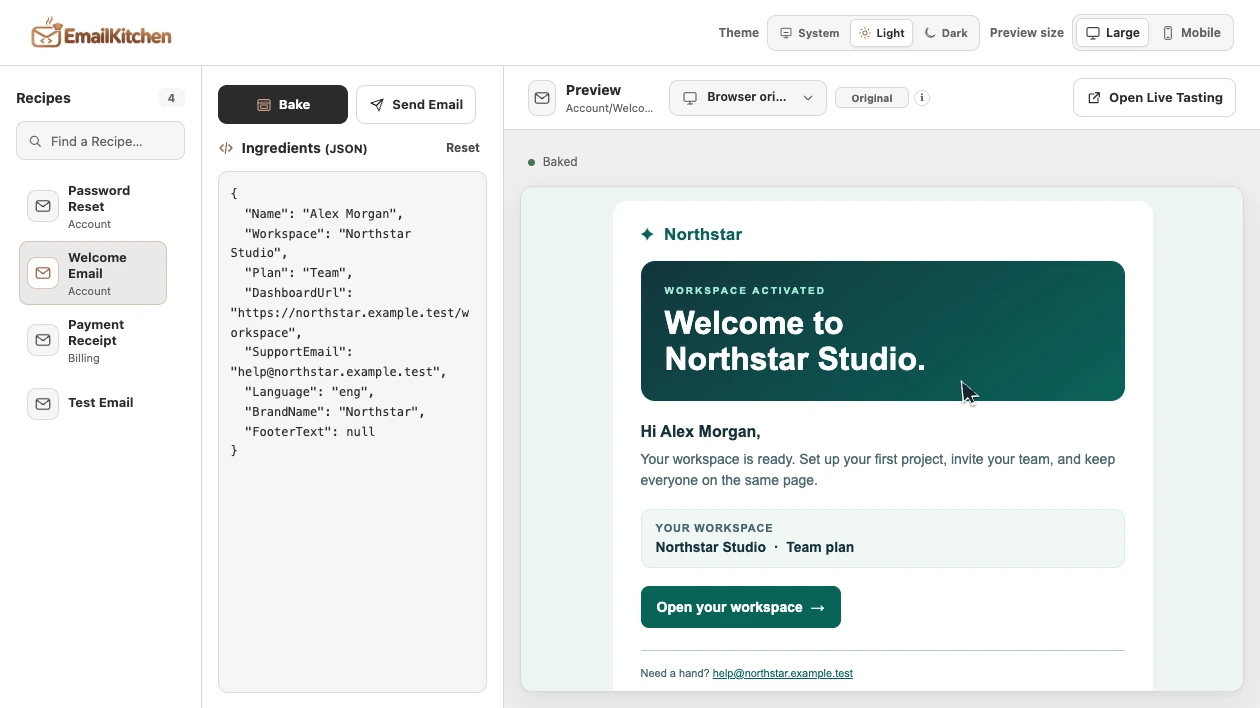
Find a Razor email template in the searchable Recipes list. Search by its name or folder as your catalog grows. Ingredients (JSON) starts with sample values from your C# model. Change a recipient name, adjust an amount, or switch the language, then choose Bake to render the preview. Razor runs your view with its layout and injected services, so you can see what your application would produce with those values.
Press Ctrl+Enter or Cmd+Enter to render from the editor. The JSON draft belongs to the selected recipe in the current workspace session. Reset restores sample data. Edit the template or its CreateDefaultModel() factory in your IDE.
Use JSON translations to preview the same template in different languages. Application services and background jobs can call IRazorViewRendererService to render the view to HTML with a typed model.
Check desktop, mobile, and dark-mode layouts
Switch between Large and Mobile to check the same email at different viewport sizes. Use Theme to choose the preview theme: Light, Dark, or System (follows your device). On desktop, drag the mobile resize handle from 320 to 760 px and watch the email reflow. Emailens simulates the selected client's dark-mode adjustments when available.
On a phone, browse recipes, edit the model, render a quick preview, and send a test email if a sender is configured.
Preview Gmail, Outlook, and Apple Mail with Emailens
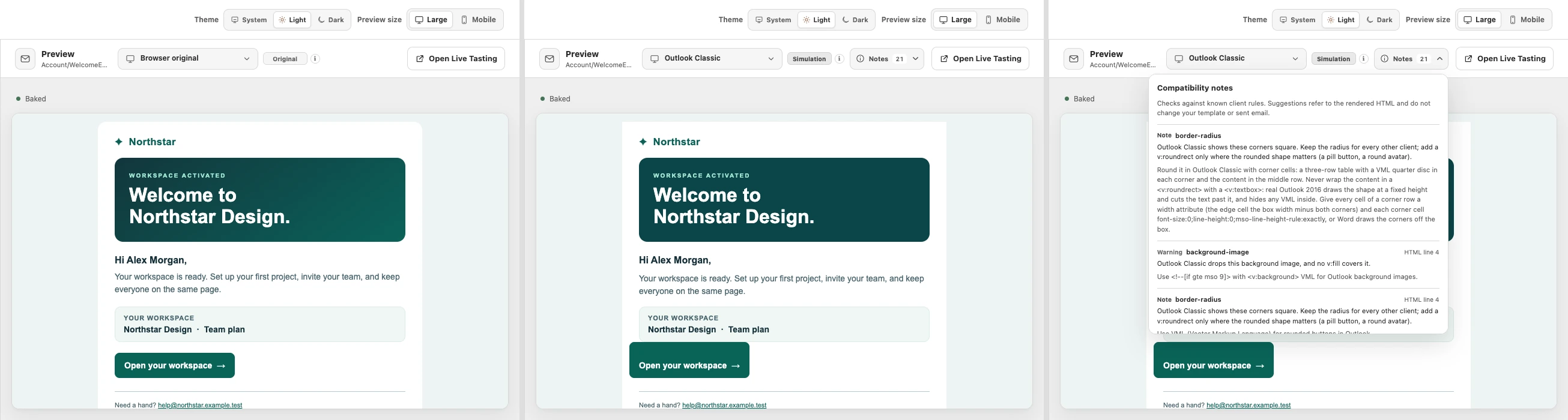
Choose a client under Preview as to see how your email is likely to look in that inbox. Emailens applies that client’s HTML and CSS rules locally in your browser. Explore 21 profiles, including desktop and mobile versions of Gmail, Outlook, and Apple Mail. Switch back to Browser original to compare with the Razor output.
The three previews below show Browser original, Outlook Classic, and Outlook Classic with Notes open. The simulated Outlook view uses the solid fallback color for the gradient header. Notes explain which CSS rules may cause those differences. Emailens engine documentation
Watch edits in Live Preview
Click Open Live Tasting to open the Live Preview beside your IDE. With dotnet watch, it renders template changes with your selected model, updating the preview in place.
If a Razor edit lags behind Hot Reload, refresh the preview once the build picks it up.
Send a test email
Click Send Email and enter a recipient and subject. EmailKitchen renders fresh HTML from the current model and hands it to your registered IEmailSender. Client simulation and theme affect the preview only. Open the message in a real inbox to verify how it arrives.
Installation
In an ASP.NET Core web project targeting net10.0, use the .NET 10 SDK to install the package.
dotnet package add EmailKitchen
Register the services and map the workspace in Development in Program.cs.
using EmailKitchen.Kitchen;
using EmailKitchen.Services;

var builder = WebApplication.CreateBuilder(args);
builder.Services.AddEmailKitchen();

var app = builder.Build();

if (app.Environment.IsDevelopment())
{
    app.MapEmailKitchen();
}

app.Run();
Run dotnet watch in Development, open /email-kitchen on the app's URL, and choose TestEmail to render the starter template. When the template folder has no Razor views, the build creates an example view, its model, a shared layout, and English translations. The default folder is EmailKitchen/Templates. You can preview templates without a mail sender, an API key, or Node.js.
Configuration guides
- Use your template folder and typed sample models
- Localize messages using JSON translations
- Connect a sender for test email delivery
- Render Razor email to HTML from C#
- Protect the workspace in a shared environment
- Build and install from a local NuGet feed
License
| Product | Versions Compatible and additional computed target framework versions. |
|---|---|
| .NET | net10.0 is compatible. net10.0-android was computed. net10.0-browser was computed. net10.0-ios was computed. net10.0-maccatalyst was computed. net10.0-macos was computed. net10.0-tvos was computed. net10.0-windows was computed. |
-
net10.0
- No dependencies.
NuGet packages
This package is not used by any NuGet packages.
GitHub repositories
This package is not used by any popular GitHub repositories.
| Version | Downloads | Last Updated |
|---|---|---|
| 1.0.0 | 92 | 11/24/2026 |