Esatto.Umbraco.Backoffice.Accessibility
1.0.1
dotnet add package Esatto.Umbraco.Backoffice.Accessibility --version 1.0.1
NuGet\Install-Package Esatto.Umbraco.Backoffice.Accessibility -Version 1.0.1
<PackageReference Include="Esatto.Umbraco.Backoffice.Accessibility" Version="1.0.1" />
<PackageVersion Include="Esatto.Umbraco.Backoffice.Accessibility" Version="1.0.1" />
<PackageReference Include="Esatto.Umbraco.Backoffice.Accessibility" />
paket add Esatto.Umbraco.Backoffice.Accessibility --version 1.0.1
#r "nuget: Esatto.Umbraco.Backoffice.Accessibility, 1.0.1"
#:package Esatto.Umbraco.Backoffice.Accessibility@1.0.1
#addin nuget:?package=Esatto.Umbraco.Backoffice.Accessibility&version=1.0.1
#tool nuget:?package=Esatto.Umbraco.Backoffice.Accessibility&version=1.0.1
Esatto.Umbraco.Backoffice.Accessibility
Accessibility for Umbraco 18: a dashboard that tells developers and editors how accessible the site is and what to do about it, plus optional accessibility features for visitors.
What it does
- Scans your published pages with axe-core, the open-source engine behind most accessibility checkers, against the WCAG version and level you choose: 2.0, 2.1 or 2.2, at A, AA or AAA.
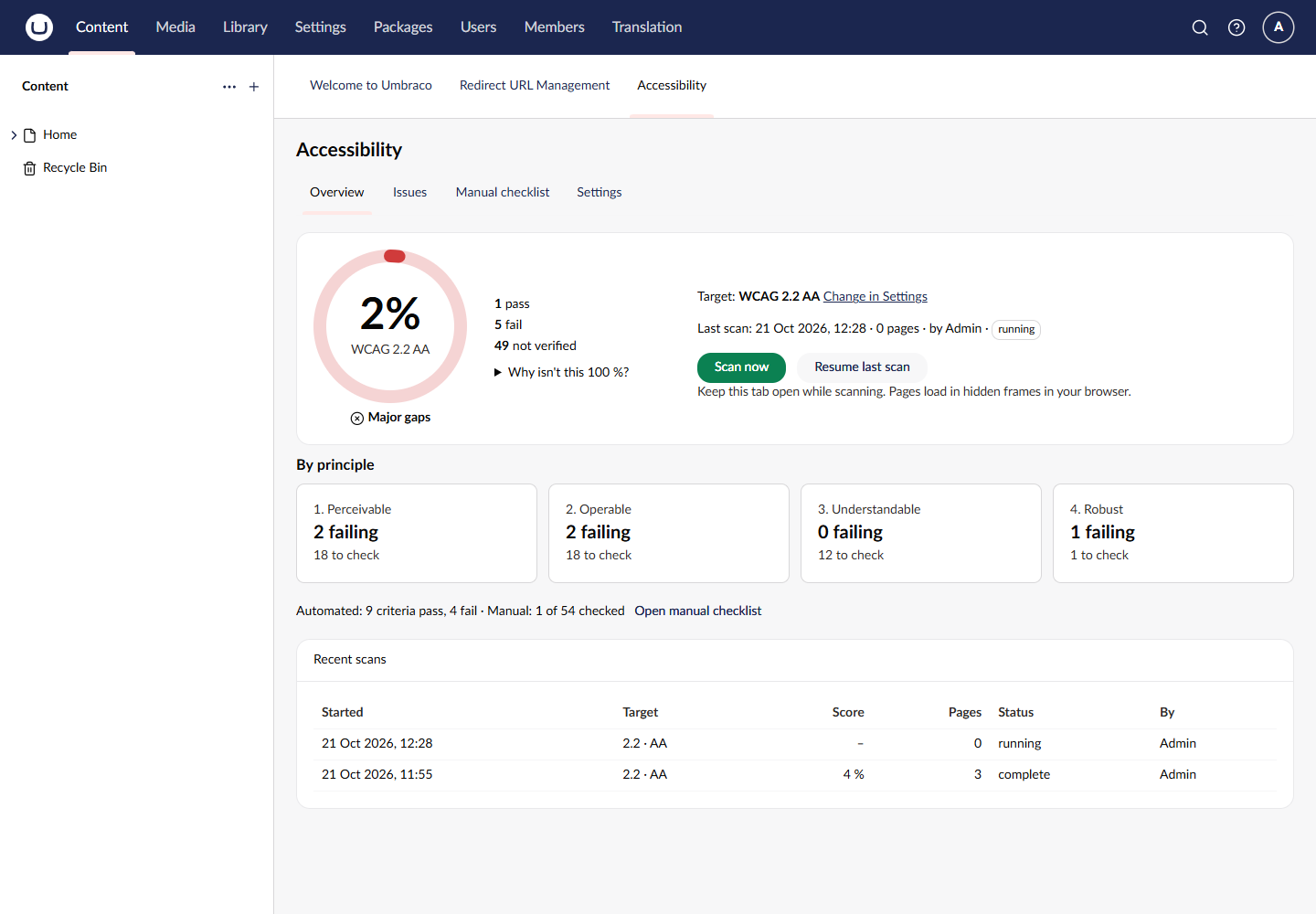
- Scores the site honestly and breaks it down by the four WCAG principles (Perceivable, Operable, Understandable, Robust).
- Explains every issue: why it matters, how to fix it (in Umbraco terms where it applies, like "open the media item and fill in Alternative text"), caveats, and who usually fixes it (editor, developer or both). Each issue links to the page or the image in Umbraco and to W3C's "Understanding" page.
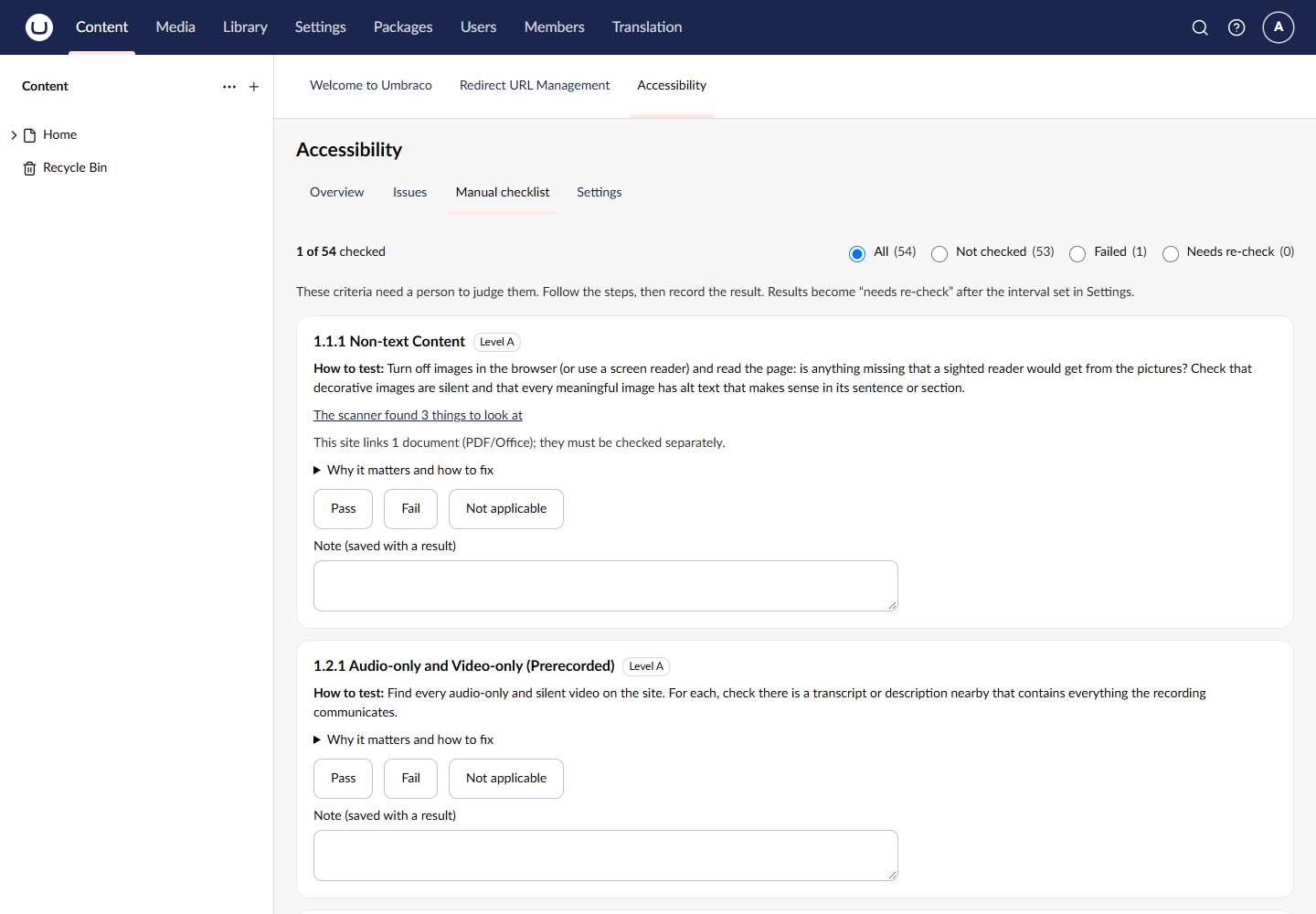
- Keeps a manual checklist for everything a machine can't judge (is the alt text meaningful? does the keyboard order make sense?), with plain "how to test" steps and saved results.
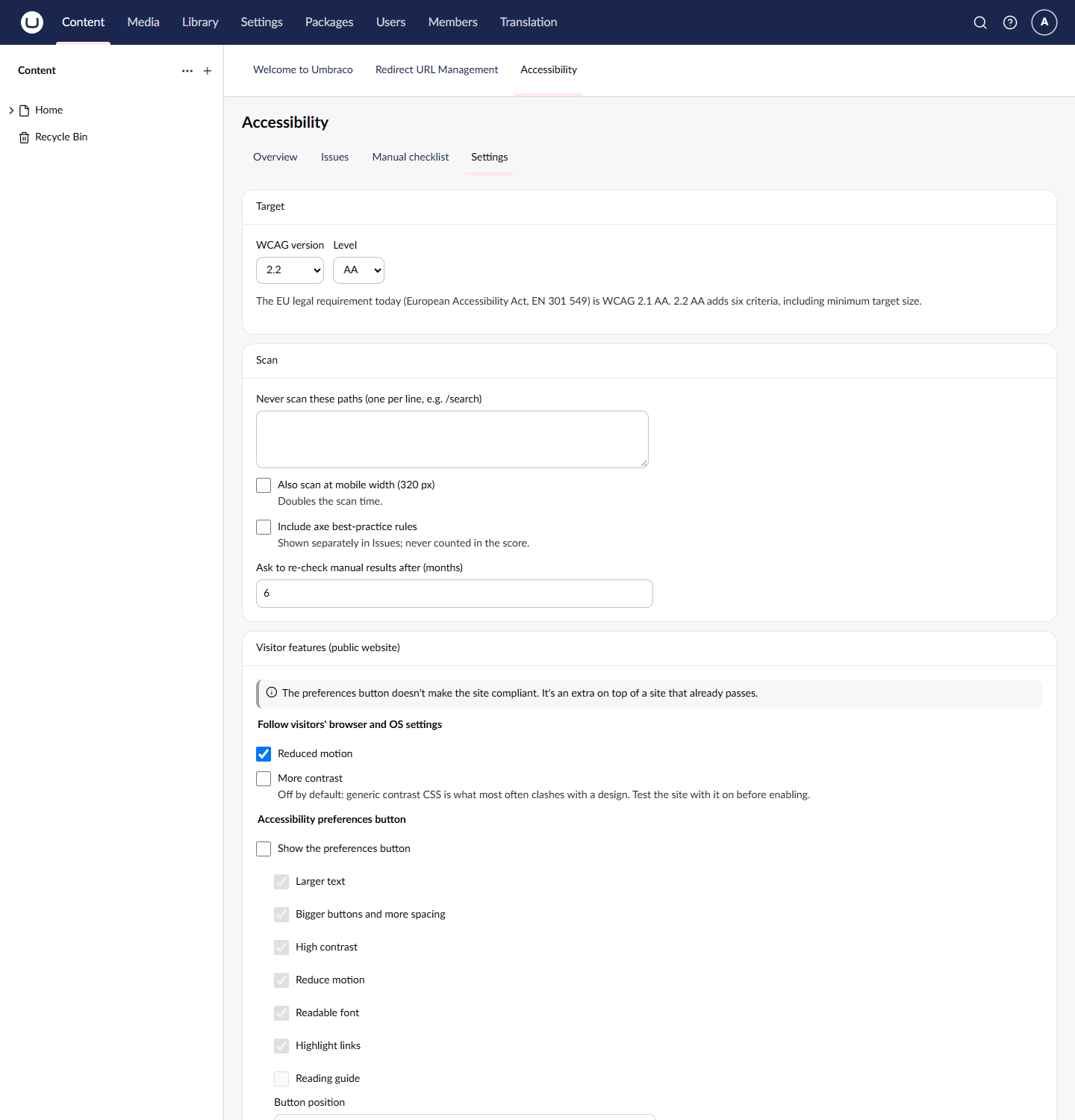
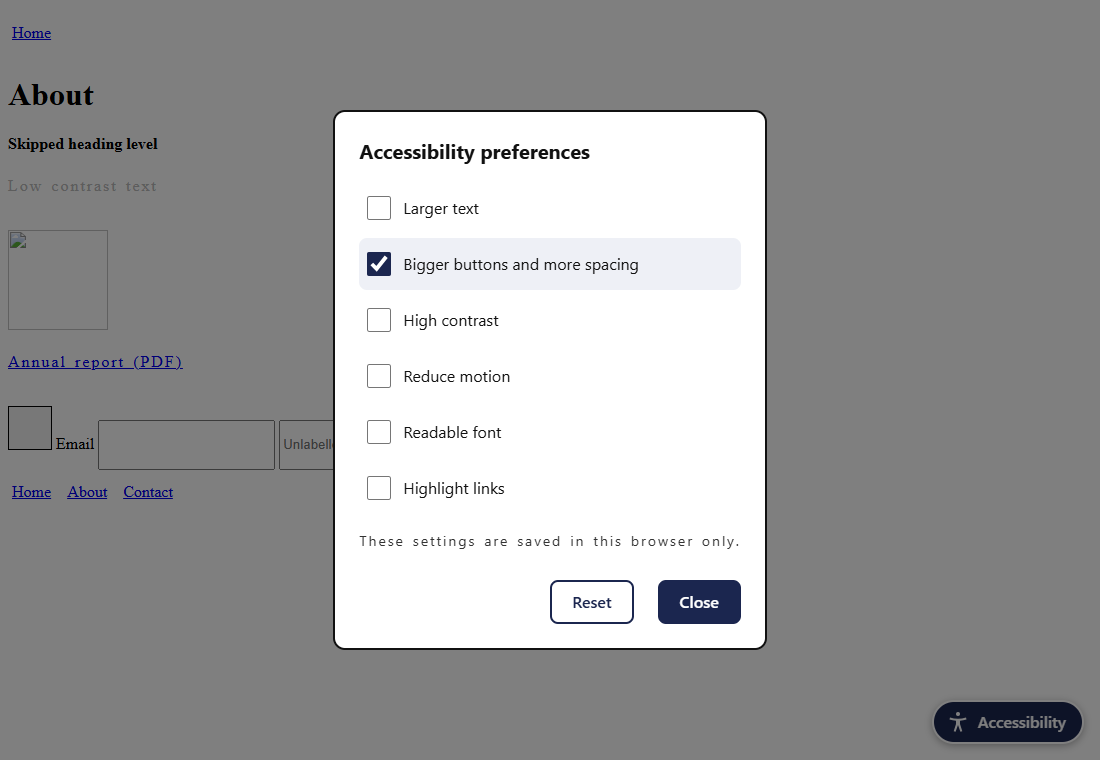
- Visitor features, each switchable on and off: following visitors' reduced-motion and contrast settings, and an accessibility preferences button (larger text, bigger buttons and more spacing, high contrast, reduced motion, readable font, highlighted links, reading guide).
What it does not do
- It does not make a site compliant. Automated testing finds only part of the problems (roughly a third to a half). The rest needs a person, which is what the manual checklist is for.
- The preferences button is not an "accessibility overlay". It doesn't rewrite your HTML or claim automatic compliance; it's an extra on top of a site that already passes. Overlays that promise automatic compliance are widely criticised, and in 2025 the US FTC fined one vendor $1M over those claims.
- No scheduled scans: a scan runs in the browser of whoever clicks Scan now (see below).
Install
dotnet add package Esatto.Umbraco.Backoffice.Accessibility
Restart the site. The dashboard appears in the Content section as Accessibility. The package creates its own database tables on first start.
For the visitor features, add the tag helpers to Views/_ViewImports.cshtml:
@addTagHelper *, Esatto.Umbraco.Backoffice.Accessibility
and two tags to your layout:
<head>
    …
    <a11y-head />
</head>
<body>
    …
    <a11y-panel />
</body>
Each tag renders nothing when its features are switched off, so it's safe to add them right away.
The dashboard
Overview: the score for your target (e.g. "WCAG 2.2 AA"), pass / fail / not verified counts, failing criteria and criteria still to check per principle, and the last 10 scans. Scan now scans every published page; Resume last scan continues an interrupted one.
Issues: every problem the scanner found, most severe first, filterable by principle, level, who fixes it and impact, and exportable as CSV.
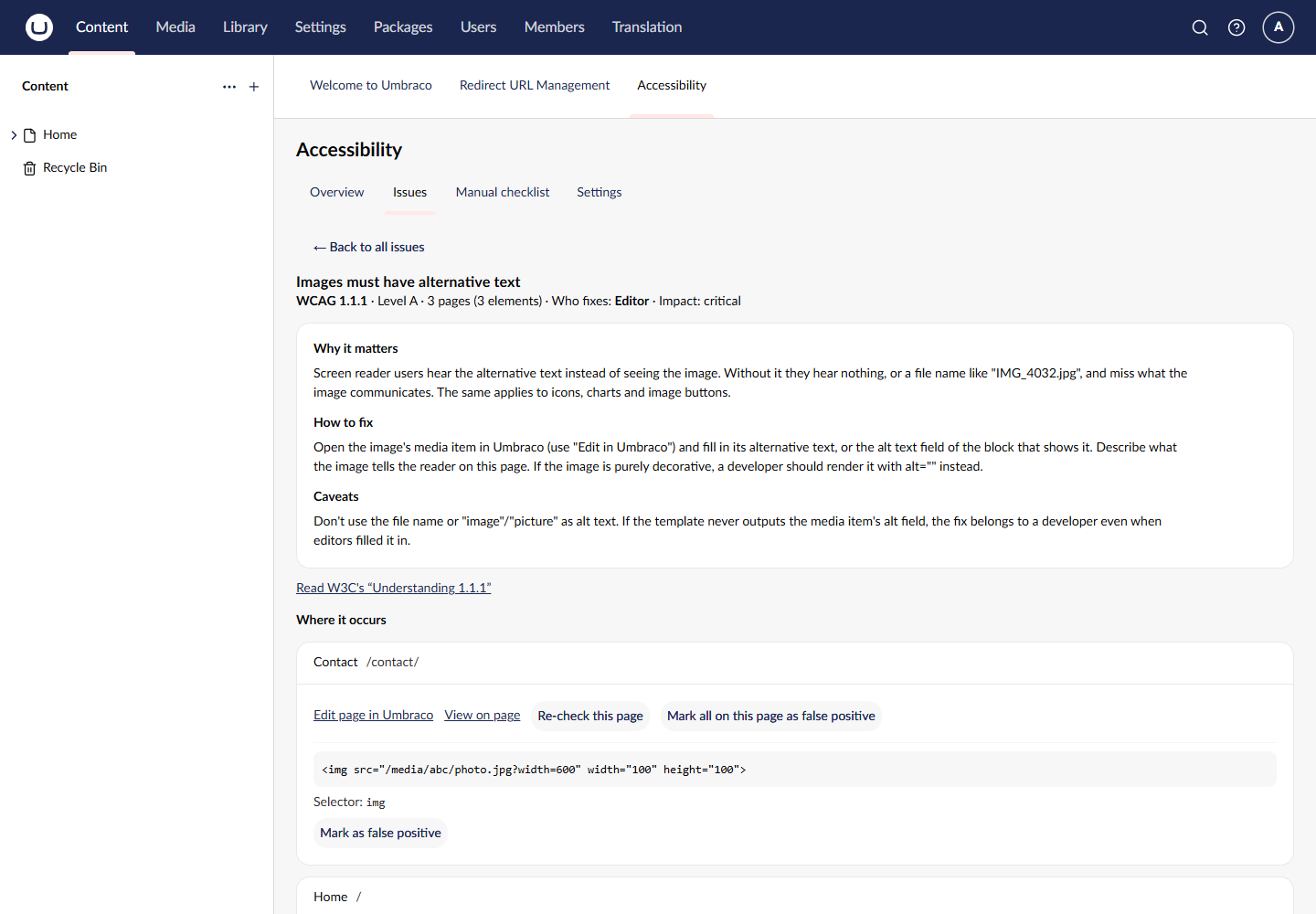
Open an issue to see each affected element with Edit page in Umbraco, Edit image in Umbraco (when the image is a media item), View on page, Re-check this page after a fix (at every width the scan used), and Mark as false positive (with a required note; it stays marked in later scans and can be undone).
Manual checklist: the criteria a machine can't fully check. Record Pass, Fail or Not applicable with an optional note; the name and date are saved. Clear result undoes one recorded by mistake. A result is flagged Needs re-check after six months (configurable). The checklist also shows how many things the scanner found for a criterion, and how many linked documents (PDF, Word…) need checking separately.
Settings (users with access to the Settings section): the target, scan options and visitor features.
Versions and levels
WCAG 2.0, 2.1 and 2.2 are versions; A, AA and AAA are levels inside each version. Each new version keeps the earlier criteria and adds more (2.2 removed only 4.1.1 Parsing). So "2.2 AA" means every A and AA criterion from 2.0, 2.1 and 2.2. The EU legal requirement today (European Accessibility Act, via EN 301 549) is 2.1 AA; 2.2 AA is the sensible target for new work. W3C does not recommend AAA as a requirement for whole sites.
How the score works
Each criterion of your target is:
- Fail: the scanner found a violation (not marked as a false positive), or someone recorded Fail.
- Pass: someone recorded Pass, or it's one of the very few criteria the scanner can check completely (3.1.1 Language of Page).
- Not applicable: recorded as Not applicable (e.g. captions on a site without video). Left out of the score.
- Not verified: everything else. The Overview splits it in two:
- checked by the scanner: its rules for the criterion found nothing wrong. They test only the mechanical part (that an image has alt text, not that the text describes it), so a person still confirms it. In the checklist these items are tagged "Checked by the scanner" and have their own view. Start there.
- only a person can check: the scanner has no rules for it (captions, keyboard traps, reading order…).
Score = Pass ÷ (all − not applicable). A clean scan alone therefore never reads 100 %: most criteria need a person to confirm them. That's deliberate.
How scanning works
There's no server-side browser. When someone clicks Scan now, the dashboard loads each published page into hidden frames in their browser (three at a time), runs axe-core in each, and saves the results page by page. Keep the dashboard open while it runs; a typical page takes 1–3 seconds, and browsers slow down background tabs, so it runs fastest in front. If you leave the dashboard or close the tab, the scan stops: what was scanned is kept and shown as not finished, Resume last scan continues it (at the same widths), and starting a new scan closes it as incomplete. Until a scan completes, the report shows the latest unfinished one.
Requirements on the site:
- The site must allow same-origin framing:
X-Frame-Options: SAMEORIGINorContent-Security-Policy: frame-ancestors 'self', notDENY/'none'. The dashboard explains it if a page refuses. - Pages are scanned on the backoffice's own origin (scheme, host and port). In a multi-site installation, pages on other domains are listed as skipped; open the backoffice on that domain to scan them. If the pages' URLs use
httpwhile the backoffice useshttps, set the domain withhttps://in Culture and Hostnames. Each site (root node) has its own report and checklist. - Pages behind member login are skipped.
- Scanned pages are loaded with
?esatto-a11y-scan=1, and with<a11y-head />in placewindow.esattoA11yScanistrueon them, so you can keep them out of analytics.
Visitor features
| Setting | Default | What it does |
|---|---|---|
| Follow OS: reduced motion | on | Visitors who ask their OS for reduced motion get near-zero animations and transitions, and autoplaying videos are paused. |
| Follow OS: more contrast | off | Applies the generic high-contrast styles for visitors who ask their OS for more contrast. Test your design with it before enabling. |
| Preferences button | off | A button (bottom right or left) opening a dialog with the options below. Choices are saved in the visitor's browser (localStorage, no cookie). |
| Options | all on except Reading guide | Larger text, bigger buttons and more spacing, high contrast, reduce motion, readable font (Atkinson Hyperlegible), highlight links, reading guide. |
The panel itself is built to WCAG 2.2 AAA: a 48 px button with a visible label, a modal dialog that takes and returns focus, native checkboxes, Escape closes it, it never covers the element that has keyboard focus (it scrolls that element clear, or steps aside at the end of the page), and it works at 400 % zoom and in Windows contrast themes. Its texts ship in English and Swedish, follow the page's culture, and can be overridden per language in Settings.
Refining the styles: the data-a11y-* contract
The package's styles are deliberately conservative, because generic CSS can't know your design. Every visitor feature works by setting an attribute on <html>, which your own CSS can build on:
| Attribute | Set when |
|---|---|
data-a11y-text="large" |
Larger text (root font size 125 %; works when your CSS uses rem/em) |
data-a11y-spacing="wide" |
Bigger buttons and more spacing (WCAG 1.4.12 text spacing, 44 px targets) |
data-a11y-contrast="high" |
High contrast, or the OS asks for more contrast (when followed) |
data-a11y-motion="reduce" |
Reduce motion, or the OS asks for reduced motion (when followed) |
data-a11y-font="readable" |
Readable font |
data-a11y-links="highlight" |
Highlight links |
data-a11y-guide="on" |
Reading guide |
html[data-a11y-contrast="high"] .hero { background: #000; color: #fff; }
html[data-a11y-spacing="wide"] .card-grid { gap: 2rem; }
html[data-a11y-motion="reduce"] .carousel { scroll-snap-type: none; }
Configuration
Everything is editable on the Settings tab and stored in the database. Any value you also set under Esatto:Accessibility in configuration wins and is shown read-only ("Set in configuration"). Use it to pin the public-facing switches so they travel with your code from Test to Live:
"Esatto": {
  "Accessibility": {
    "Version": "V22",
    "Level": "AA",
    "Scan": { "ExcludePaths": [ "/search" ], "MobileWidth": false, "BestPractice": false, "RecheckMonths": 6 },
    "Visitor": {
      "FollowOsMotion": true,
      "FollowOsContrast": false,
      "Panel": {
        "Enabled": true,
        "Position": "bottom-right",
        "ReadingGuide": false,
        "Texts": { "sv": { "ButtonLabel": "Tillgänglighet" } }
      }
    }
  }
}
A configured list replaces the one in the database; "ExcludePaths": [] pins "exclude nothing". Text override keys are matched without regard to case (sv-se matches sv-SE).
The visitor CSS and scripts are linked with a content hash (?v=…), so browsers pick up a package upgrade straight away.
Scan results, manual results and false positives stay per environment: they describe that environment's content.
Permissions
- Users with the Content section see the dashboard, run scans, record manual results and mark false positives (editors are half the audience).
- Only users with the Settings section see the Settings tab and can change settings.
Requirements
- Umbraco 18, .NET 10.
- A modern browser for the backoffice user running scans (scanning uses iframes and runs axe-core in them).
Licenses
- This package: MIT.
- axe-core (bundled, unmodified): MPL-2.0. Its license ships next to it as
axe-core.LICENSE.txt. - Atkinson Hyperlegible (bundled for the readable-font option): SIL Open Font License 1.1, shipped as
atkinson-hyperlegible.LICENSE.txt.
Source
| Product | Versions Compatible and additional computed target framework versions. |
|---|---|
| .NET | net10.0 is compatible. net10.0-android was computed. net10.0-browser was computed. net10.0-ios was computed. net10.0-maccatalyst was computed. net10.0-macos was computed. net10.0-tvos was computed. net10.0-windows was computed. |
-
net10.0
- MailKit (>= 4.16.0)
- MessagePack (>= 3.1.12)
- Microsoft.OpenApi (>= 2.7.5)
- MimeKit (>= 4.16.0)
- System.Security.Cryptography.Pkcs (>= 10.0.13)
- Umbraco.Cms.Api.Management (>= 18.0.0)
- Umbraco.Cms.Web.Common (>= 18.0.0)
NuGet packages
This package is not used by any NuGet packages.
GitHub repositories
This package is not used by any popular GitHub repositories.