Plugin.Maui.SignaturePad
0.2.0
dotnet add package Plugin.Maui.SignaturePad --version 0.2.0
NuGet\Install-Package Plugin.Maui.SignaturePad -Version 0.2.0
<PackageReference Include="Plugin.Maui.SignaturePad" Version="0.2.0" />
<PackageVersion Include="Plugin.Maui.SignaturePad" Version="0.2.0" />
<PackageReference Include="Plugin.Maui.SignaturePad" />
paket add Plugin.Maui.SignaturePad --version 0.2.0
#r "nuget: Plugin.Maui.SignaturePad, 0.2.0"
#:package Plugin.Maui.SignaturePad@0.2.0
#addin nuget:?package=Plugin.Maui.SignaturePad&version=0.2.0
#tool nuget:?package=Plugin.Maui.SignaturePad&version=0.2.0
Plugin.Maui.SignaturePad


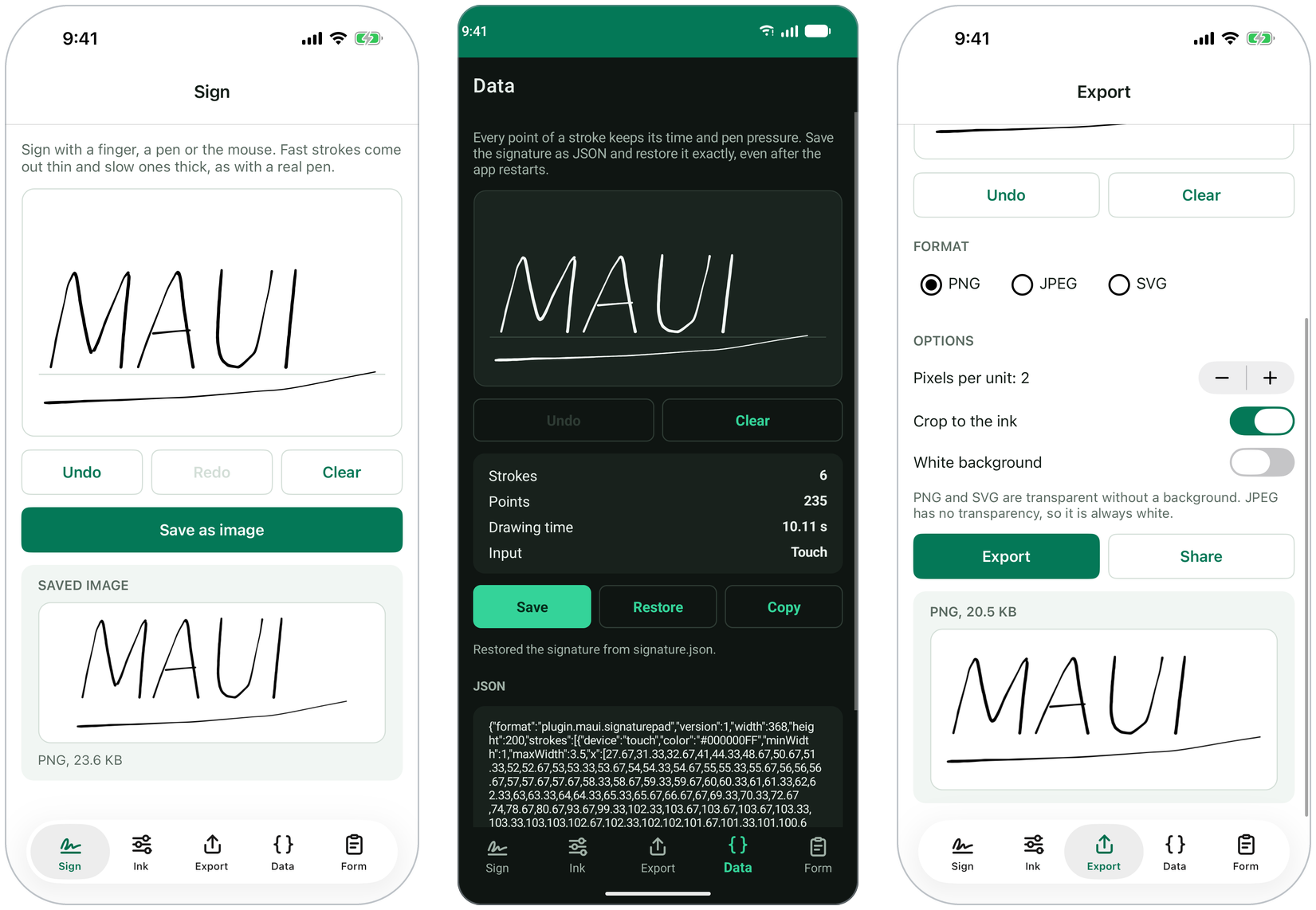
A signature pad for .NET MAUI with ink that behaves like a pen: strokes get thinner when drawn fast and thicker when drawn slowly or pressed harder with a pen. Every stroke keeps its points with their timing and pressure, and a signature exports as PNG, JPEG, SVG or JSON. It runs on Android, iOS, Mac Catalyst and Windows, with touch, pen and mouse, in pure managed code.
Before 1.0. The API can still change between minor versions until 1.0.
Features
- Pen-like ink. The width follows the speed of each stroke and, with a pen, its pressure: Apple Pencil, Windows pen and Android stylus. Fast strokes stay round even when the device reports few samples.
- Every input sample. Android's batched samples, iOS coalesced touches and Windows intermediate points are all used, so quick strokes keep their shape.
- Signature essentials.
- Undo, redo and clear, as methods and as commands for buttons.
IsEmptyto validate a form.- A "Sign here" placeholder and a signature line. Exports leave both out.
- Export.
- PNG and JPEG at any scale, cropped to the ink or covering the whole pad.
- SVG with exactly the shape on screen.
- JSON that restores the signature exactly.
- Stroke data. Every point has its time and, from a pen, its pressure, and every stroke knows the device that drew it.
- Works inside layouts.
- Drawing on the pad inside a
ScrollViewdoes not scroll the page, and swiping outside the pad still does. - The ink survives Shell tabs and navigation.
IsEnabled="False"turns input off.
- Drawing on the pad inside a
- MVVM-friendly.
Signaturebinds two-way, andStrokeCompletedCommandreports every stroke. - Light. No native binaries and no dependency besides .NET MAUI. The library is compatible with trimming and Native AOT.
Installation
dotnet add package Plugin.Maui.SignaturePad
Register the control in MauiProgram.cs:
var builder = MauiApp.CreateBuilder();
builder
    .UseMauiApp<App>()
    .UseSignaturePad();
The package needs .NET 10 with .NET MAUI 10, and supports these platform versions:
| Platform | Minimum version |
|---|---|
| Android | 5.0 (API 21) |
| iOS | 15 |
| Mac Catalyst | 15 |
| Windows | 10 version 1809 (10.0.17763) |
Quick start
<ContentPage xmlns="http://schemas.microsoft.com/dotnet/2021/maui"
             xmlns:x="http://schemas.microsoft.com/winfx/2009/xaml"
             xmlns:sp="clr-namespace:Plugin.Maui.SignaturePad;assembly=Plugin.Maui.SignaturePad"
             x:Class="MyApp.SignPage">

  <VerticalStackLayout Padding="16" Spacing="12">
    <Border BackgroundColor="White" Stroke="LightGray" StrokeShape="RoundRectangle 12">
      <sp:SignaturePadView x:Name="Pad" Placeholder="Sign here" />
    </Border>


    <HorizontalStackLayout Spacing="8">
      <Button Text="Undo" Command="{Binding UndoCommand, Source={x:Reference Pad}, x:DataType=sp:SignaturePadView}" />
      <Button Text="Clear" Command="{Binding ClearCommand, Source={x:Reference Pad}, x:DataType=sp:SignaturePadView}" />
    </HorizontalStackLayout>
  </VerticalStackLayout>

</ContentPage>
Save the signature as a PNG image:
if (!Pad.IsEmpty)
{
    await using var png = await Pad.ExportImageAsync();
    await using var file = File.Create(Path.Combine(FileSystem.CacheDirectory, "signature.png"));
    await png.CopyToAsync(file);
}
With a view model
Bind Signature and work with the data. The view model needs no reference to the view:
<sp:SignaturePadView Signature="{Binding Signature}" Placeholder="Sign here" />
<Button Text="Submit" Command="{Binding SubmitCommand}" />
public partial class ReceiptViewModel : ObservableObject
{
    [ObservableProperty]
    [NotifyCanExecuteChangedFor(nameof(SubmitCommand))]
    public partial SignatureData Signature { get; set; } = SignatureData.Empty;

    [RelayCommand(CanExecute = nameof(CanSubmit))]
    private async Task SubmitAsync()
    {
        await using var png = await Signature.ToImageAsync();   // the image
        var json = Signature.ToJson();                          // or the strokes themselves
        // Send them with the form.
    }

    private bool CanSubmit() => !Signature.IsEmpty;
}
This example uses CommunityToolkit.Mvvm; any
INotifyPropertyChanged view model works.
The pad: SignaturePadView
Properties
All are bindable properties.
| Property | Type | Default | Description |
|---|---|---|---|
Signature |
SignatureData |
SignatureData.Empty |
The signature on the pad, updated after every stroke, undo, redo and clear. Setting it shows that signature and forgets the undo history; null clears the pad. Binds two-way by default. |
StrokeColor |
Color |
black | The color of new strokes. Strokes already drawn keep their color. |
MinStrokeWidth |
double |
1.0 | The narrowest ink in device-independent units, for fast strokes and light pen pressure. Values below 0.1 become 0.1. |
MaxStrokeWidth |
double |
3.5 | The widest ink, for slow strokes and firm pen pressure. When it is less than MinStrokeWidth, strokes have the width of MinStrokeWidth. |
Placeholder |
string? |
none | The text on an empty pad, such as "Sign here". |
PlaceholderColor |
Color |
#9E9E9E |
The color of the placeholder. |
ShowSignatureLine |
bool |
true |
Whether a line to sign on crosses the pad, three quarters of the way down. |
SignatureLineColor |
Color |
#BDBDBD |
The color of the signature line. |
DisplayStrokeColor |
Color? |
none | The color the pad shows every stroke in, instead of the strokes' own colors. It changes only the screen; see Dark theme. |
StrokeCompletedCommand |
ICommand? |
none | Executed with the SignatureStroke when a stroke is finished. |
IsEmpty |
bool |
true |
Read-only. Whether the pad has no strokes. |
CanUndo |
bool |
false |
Read-only. Whether there is something to undo. |
CanRedo |
bool |
false |
Read-only. Whether there is something to redo. |
IsEnabled="False"turns input off. A stroke being drawn at that moment ends and keeps its ink.- The pad itself is transparent: set
BackgroundColor, or put it in aBorderas above. - The pad fills the space its layout gives it. Where the layout leaves the height open, as a
VerticalStackLayout, aScrollViewor anAutorow does, it is 200 tall, and where it leaves the width open, 300 wide.HeightRequestandWidthRequestgive it another size.
Dark theme
A signature is usually dark ink for paper, while a dark theme needs light ink on the screen. Keep StrokeColor dark and
show the strokes in a light color while the theme is dark:
<Border BackgroundColor="{AppThemeBinding Light=White, Dark=#18211C}" StrokeShape="RoundRectangle 12">
  <sp:SignaturePadView Placeholder="Sign here"
                       DisplayStrokeColor="{AppThemeBinding Light={x:Null}, Dark=White}"
                       SignatureLineColor="{AppThemeBinding Light=#BDBDBD, Dark=#3A4A41}" />
</Border>
The strokes in Signature stay black, so exports and saved JSON stay dark ink, and switching the theme recolors the ink
already on the pad. Setting StrokeColor to white instead would store white strokes, which then export as white ink.
Methods, commands and events
| Member | What it does |
|---|---|
Undo(), UndoCommand |
Removes the last stroke. After Clear(), it brings back every stroke that was cleared. Returns false when there is nothing to undo. |
Redo(), RedoCommand |
Applies again what Undo() took back. A new stroke clears what could be redone. |
Clear(), ClearCommand |
Removes every stroke. Does nothing on an empty pad. |
ExportImageAsync(options, cancellationToken) |
The signature as a PNG or JPEG image (see Export). |
ExportSvg(options) |
The signature as SVG. |
StrokeStarted |
Raised when a stroke starts. |
StrokeCompleted |
Raised with the SignatureStroke when a stroke is finished, after Signature includes it. |
The commands can execute exactly when CanUndo, CanRedo and !IsEmpty are true, so bound buttons enable and
disable themselves.
Export
PNG and JPEG
SignaturePadView.ExportImageAsync and SignatureData.ToImageAsync draw the signature with the same ink as the pad.
They draw on a background thread and return a stream positioned at its start; dispose it when you are done.
await using var jpeg = await pad.Signature.ToImageAsync(new SignatureImageExportOptions
{
    Format = SignatureImageFormat.Jpeg,
    Scale = 3,                     // 3 pixels per device-independent unit, for print
    BackgroundColor = Colors.White,
    StrokeColor = Colors.Navy,     // overrides the color of every stroke
});
SignatureImageExportOptions |
Default | Description |
|---|---|---|
Format |
Png |
Png or Jpeg. |
Scale |
2 | Image pixels per device-independent unit, from just above 0 to 16. |
CropToContent |
true |
Whether the image covers only the ink plus Padding, instead of the whole pad. |
Padding |
8 | The margin around the ink when cropping, in device-independent units. |
BackgroundColor |
none | The background. Without one, a PNG is transparent and a JPEG is white. |
StrokeColor |
none | A color for all strokes instead of their own. |
JpegQuality |
90 | From 1 to 100. |
Export throws InvalidOperationException when the signature is empty, or when the image would be larger than 16,384
pixels per side or 64 megapixels in total.
SVG
string svg = pad.ExportSvg(new SignatureSvgExportOptions { BackgroundColor = Colors.White });
The SVG has one filled path per stroke, with exactly the outline drawn on screen, so it stays sharp at any size.
SignatureSvgExportOptions has CropToContent, Padding, BackgroundColor and StrokeColor, with the same defaults
as for images.
JSON
string json = pad.Signature.ToJson();
// Later, even in another version of the app:
pad.Signature = SignatureData.FromJson(json);
The JSON keeps every point exactly, so FromJson gives back an equal signature, and it renders identically. The format
is versioned:
{"format":"plugin.maui.signaturepad","version":1,"width":320,"height":200,
 "strokes":[{"device":"pen","color":"#000000FF","minWidth":1,"maxWidth":3.5,
             "x":[10.5,11.25],"y":[20,21.5],"t":[0,4.17],"p":[0.5,0.52]}]}
FromJson validates the whole input before it returns, so it is safe for untrusted text. It throws FormatException
for anything it cannot read. It also rejects more than 10,000 strokes or 100,000 points.
Signature data
All data types are immutable and compare by value.
| Type | Members |
|---|---|
SignatureData |
Strokes, CanvasSize (the size of the pad), IsEmpty, PointCount, Duration (ms), Bounds (the area the ink covers), ToJson(), FromJson(json), ToSvg(options), ToImageAsync(options, cancellationToken), Empty |
SignatureStroke |
Points, Color, MinWidth, MaxWidth, Device, StartTime, EndTime, Bounds |
SignaturePoint |
X, Y (device-independent units from the pad's top-left corner), Time (ms since the first point of the signature), Pressure (0 to 1 for a pen, otherwise null) |
SignatureInputDevice |
Unknown, Touch, Pen, Mouse |
How the ink works
- Width. Each point gets a width between
MinStrokeWidthandMaxStrokeWidth.- From speed, as a pen's ink: the widest when still, half the widest at 1 device-independent unit per millisecond, and the narrowest from 2.5 on with the default widths. A slow stroke comes out more than twice as wide as a quick one.
- With a pen: pressure sets the width, and speed can thin it by up to 30%.
- Smoothing. The line is smoothed against the jitter of dense samples. Far apart samples are joined by a curve through them.
- Outline. Each stroke is drawn as one filled outline with round ends, adapted from perfect-freehand.
- One geometry everywhere. The screen, PNG, JPEG and SVG all use the same geometry, so an export looks exactly like the pad.
docs/architecture.md describes the whole pipeline.
Platform notes
- Android.
- A stylus draws with pressure.
- A mouse draws with its primary button.
- An eraser end is ignored.
- iOS and Mac Catalyst.
- Apple Pencil draws with pressure.
- There is no palm rejection yet: the first touch draws, so a palm that touches an iPad before the Pencil draws too.
- On Mac Catalyst, the mouse and trackpad draw.
- Swiping outside the pad scrolls a
ScrollView, and the Shell flyout and the back swipe still work there.
- Windows.
- A pen draws with pressure.
- A mouse draws with its left button.
- Touch draws too.
- Windows is built and covered by the shared unit tests, but has not been checked on a device yet. Please open an issue if something does not work there.
- One pointer at a time. A second finger is ignored while a stroke is being drawn.
Sample app
samples/Plugin.Maui.SignaturePad.Sample has a tab for each way to use the pad:
| Tab | What it shows |
|---|---|
| Sign | The pad, its Undo, Redo and Clear commands, and saving an image |
| Ink | Width, color, placeholder and line settings, with the details of the last stroke |
| Export | PNG, JPEG and SVG with their options, previewed and shared |
| Data | What a signature records, and saving and restoring it as JSON |
| Form | A pad in a scrolling form with validation that turns read-only after submitting |
dotnet build samples/Plugin.Maui.SignaturePad.Sample -t:Run -f net10.0-android
DrawingView or this package?
CommunityToolkit.Maui has DrawingView, a general drawing surface. If
lines of one width and an image are all you need, and the toolkit is already in your app, it may be enough. This package
is made for signatures:
- ink whose width follows speed and pressure;
- stroke data with timing and pressure;
- SVG and JSON export;
- undo, redo,
IsEmpty, a placeholder and a signature line.
For AI coding assistants
The package includes llms-full.txt, a complete reference of the API and its behavior. llms.txt points to
it and to the rest of the documentation.
Contributing
Contributions are welcome. CONTRIBUTING.md explains how to build, test and submit changes, and SECURITY.md how to report a vulnerability.
License
MIT. The stroke outline is adapted from perfect-freehand (MIT); see THIRD-PARTY-NOTICES.md.
| Product | Versions Compatible and additional computed target framework versions. |
|---|---|
| .NET | net10.0 is compatible. net10.0-android was computed. net10.0-android36.0 is compatible. net10.0-browser was computed. net10.0-ios was computed. net10.0-ios26.0 is compatible. net10.0-maccatalyst was computed. net10.0-maccatalyst26.0 is compatible. net10.0-macos was computed. net10.0-tvos was computed. net10.0-windows was computed. net10.0-windows10.0.19041 is compatible. |
-
net10.0
- Microsoft.Maui.Controls (>= 10.0.0)
-
net10.0-android36.0
- Microsoft.Maui.Controls (>= 10.0.0)
-
net10.0-ios26.0
- Microsoft.Maui.Controls (>= 10.0.0)
-
net10.0-maccatalyst26.0
- Microsoft.Maui.Controls (>= 10.0.0)
-
net10.0-windows10.0.19041
- Microsoft.Maui.Controls (>= 10.0.0)
NuGet packages
This package is not used by any NuGet packages.
GitHub repositories
This package is not used by any popular GitHub repositories.