VL.Interpole
0.1.2
dotnet add package VL.Interpole --version 0.1.2
NuGet\Install-Package VL.Interpole -Version 0.1.2
<PackageReference Include="VL.Interpole" Version="0.1.2" />
<PackageVersion Include="VL.Interpole" Version="0.1.2" />
<PackageReference Include="VL.Interpole" />
paket add VL.Interpole --version 0.1.2
#r "nuget: VL.Interpole, 0.1.2"
#:package VL.Interpole@0.1.2
#addin nuget:?package=VL.Interpole&version=0.1.2
#tool nuget:?package=VL.Interpole&version=0.1.2
VL.Interpole — a clip timeline editor for vvvv gamma
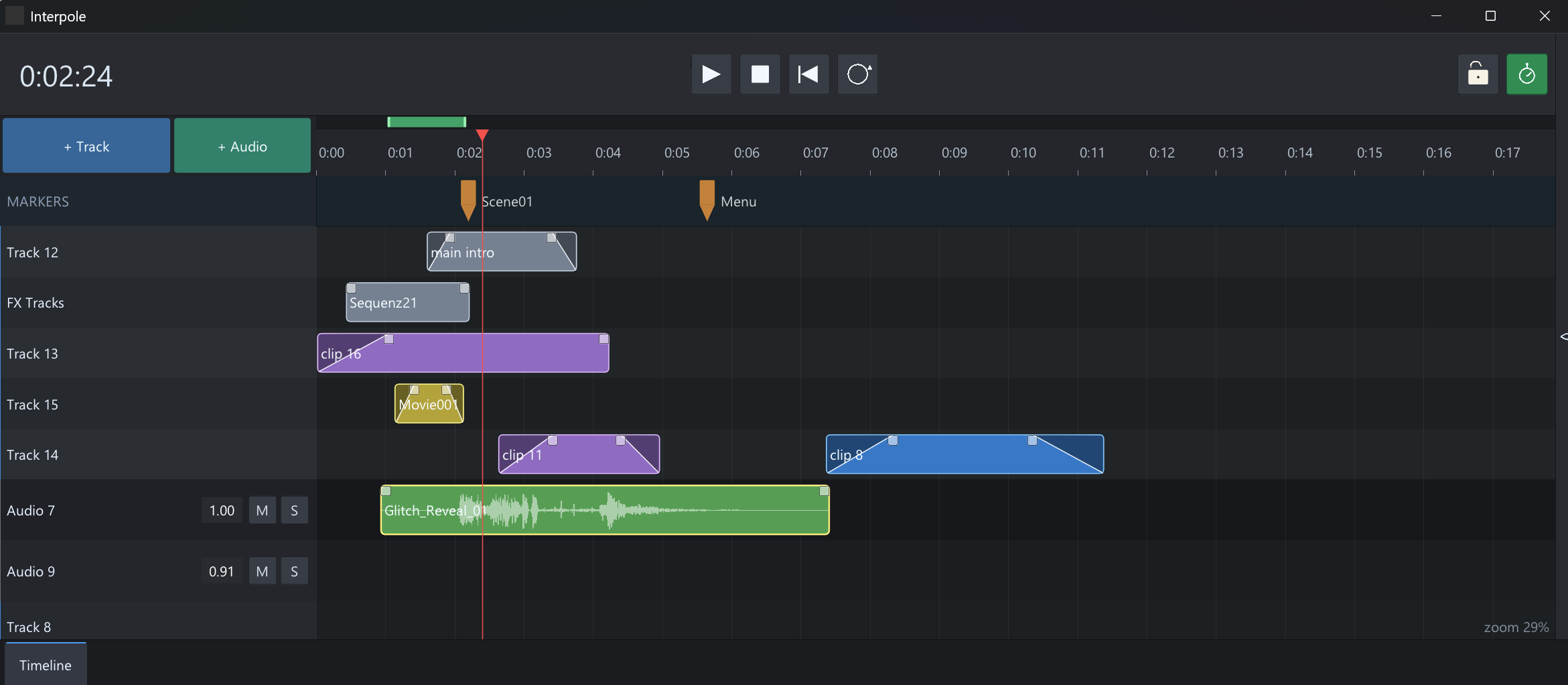
A Premiere-style clip timeline node for vvvv gamma: tracks on the left, a frame-based
clip area on the right, a scrubbable playhead, and a transport bar (play / stop /
rewind / loop). The timeline is authored in an ImGui editor rendered as a Skia ILayer and
is stored inside the .vl patch.
It is built on the proven plumbing of its sibling project VL.Automata (same author): the
ImGui-as-ILayer rendering, the DIPTopLeft space fix, and the "persist data in the patch"
technique are all carried over. See DEVNOTES.md for the why and the
vvvv-specific gotchas.
Layout
Interpole/
  VL.Interpole/
    VL.Interpole.csproj          net8.0-windows, refs VL.Core + VL.ImGui + VL.ImGui.Skia
    Properties/AssemblyInfo.cs   [assembly: ImportAsIs]  (so vvvv imports the node)
    NuGet.config                 nuget.org + vvvv-public-feed
    Engine/InterpoleData.cs      the document model (tracks / clips + colour + fades / playhead), JSON I/O
    Editor/InterpoleEditorWidget.cs  the timeline editor (ImGui DrawList)
    Nodes/InterpoleNode.cs       the [ProcessNode] exposed in gamma
  interpole_testbed.vl           scratch patch for trying the node
  README.md / DEVNOTES.md
Node
[ProcessNode(Name = "Interpole", Category = "Interpole")].
| direction | pin | type | meaning |
|---|---|---|---|
| in | Data |
string | the timeline as JSON, stored in the patch — leave unconnected; the node reads and writes it (see Persistence). You can still paste JSON in to load a timeline, or copy it out. |
| in | No UI Mode |
bool | when true, skip only the editor rendering (the ImGui frame + ToSkiaLayer update) and output a null Editor — flip on in a running/exported patch to reclaim the per-frame editor cost. Playback keeps running and all outputs keep updating (the playhead is advanced from the node's Update, not the render frame). Default false = UI on. |
| in | Play |
bool | transport, same as the ▶ button / Space. Fires on a rising edge (false→true) — wire a bang or toggle a bool. Starts playback (restarts from 0 if parked at the end). |
| in | Stop |
bool | transport (rising edge): halts playback and saves the playhead position. |
| in | Rewind |
bool | transport (rising edge): jumps the playhead to the start — frame 0, or the loop-in when Loop is on. |
| in | Loop |
bool | looping on/off — a two-way-bound state (not a bang): set the pin to drive the editor, and toggling Loop in the editor writes the pin back, so the pin and the on-screen Loop button always agree. Persists with the patch via the pin (same SetPinValue technique as Data). |
| in | Loop In |
int | start frame of the loop region. Applied whenever it (or Loop Out) changes, so it coexists with the on-screen loop ribbon (last edit wins). |
| in | Loop Out |
int | end frame of the loop region (half-open [Loop In, Loop Out)). An invalid/empty range (Loop Out <= Loop In, e.g. both 0) means loop the whole content. |
| in | Time |
int | seek target in frames — the frame the playhead jumps to when Set fires. Read only at that moment; changing Time on its own does nothing. Clamped >= 0. |
| in | Set |
bool | seek trigger, rising edge (false→true) like the other transport pins — wire a bang or toggle a bool. On the edge the playhead jumps to the current Time value (a programmatic scrub). Does not stop playback (if playing, it continues from the new frame); works in No UI Mode too. |
| in | Marker |
InterpoleMarker (enum) | a dropdown of the timeline's marker names, kept in sync with the marker lane. Selecting one does nothing on its own — it's the target for Jump. (Dynamic enum; app-global, so with several nodes it reflects whichever synced last.) |
| in | Jump |
bool | marker jump trigger, rising edge (false→true): on the edge the playhead seeks to the selected Marker's frame and starts playing from there. A named-cue convenience over Time/Set. |
| in | Active State |
string | follow an Automata state. Wire VL.Automata's GetActiveState → here. Whenever this changes to a new state whose name matches a marker, Interpole seeks to that marker and plays — so an Automata state activating drives the timeline. Exact name match; empty / no match = nothing. Kept a plain string on purpose, so Interpole needs no reference to VL.Automata and any source can drive it. |
| in | No Background |
bool | inspector-only (PinVisibility.Optional). When true the editor canvas is transparent (fill + ImGui window background dropped) so the renderer shows through. Default false = opaque. |
| in | Fps |
int | inspector-only (PinVisibility.Optional). The timeline's frame rate: it drives real-time playback (below) and the timecode display. The model stays in integer frames. Default 60; clamped >= 1. |
| in | Frame Step Playback |
bool | inspector-only (PinVisibility.Optional). Playback timing mode. Default false = real-time: the playhead advances by elapsed time × Fps, so one second of playback is one wall-clock second regardless of render rate. true = legacy: advance one frame per rendered frame (bound to the renderer's FPS). Independent of the stopwatch ruler toggle. |
| out | Editor |
ILayer (Skia) | the editor as a Skia layer — wire straight into a renderer. |
| out | Current Frame |
int | the playhead position in frames — the current time on the timeline (advanced by playback / scrubbing). |
| out | Is Playing |
bool | true while the timeline is playing (Play pressed, not yet stopped or run to the end). |
| out | Active Marker |
string | the name of the marker the playhead is on, or "" when on none. Chiefly for stop markers: while playback is halted on one this holds which marker stopped it, for as long as the playhead stays parked there. Other markers are reported too, but a plain marker shows only for the single frame the playhead sits on / crosses it during playback (treat it as a one-frame pulse). |
| out | Active Clip Name |
Spread<string> | per track (aligned by track order): the label of the clip covering the playhead, or "" in a gap. |
| out | Clip Frame |
Spread<int> | per track: the playhead's 0-based position within the active clip (playhead - clip.Start; 0 at its first frame, Length-1 at its last), or -1 in a gap. |
| out | Clip Length |
Spread<int> | per track: the active clip's total length in frames, or -1 in a gap. |
| out | Active Clip Progress |
Spread<float> | per track: the playhead's position within the active clip normalized to 0..1 — 0 at its first frame, 1 at its last (Clip Frame / (Clip Length − 1)); 0 in a gap and for a 1-frame clip. Aligned with the other per-track spreads. |
| out | Fade Gain |
Spread<float> | per track: the active clip's fade envelope at the playhead — 0..1, ramping through the fade-in/out and 1 in between; 0 in a gap. |
| out | Active Color |
Spread<Color4> | per track: the active clip's palette colour, or transparent (alpha 0) in a gap. |
| out | Upcoming Clip Names |
Spread<string> | per track (aligned by track order): the name of that track's next clip to play — for preloading — or "" if the track has none. Normally the soonest clip starting after the playhead; when looping it wraps, so a track with nothing left before Loop Out reports the clip the loop replays from its start (a looping timeline always looks ahead). |
| out | Audio |
Spread<AudioSignal> | the timeline's audio as a fixed stereo mix bus — every audio clip on every audio track, summed with its fades + gain and played in sync with the playhead. Wire straight into VL.Audio's engine / output. |
| out | Track Levels |
Spread<float> | per audio track (aligned by audio-track order, index 0 = the first TrackKind.Audio track): that track's current loudness, 0..~1 — an RMS meter of everything the track is playing (all clips summed, post fade, clip gain and track volume), with a fast attack and a smooth (~0.3 s) release, like a VU meter. 0 while the track is silent or playback is stopped. Standard tracks are not included. |
| out | Info |
InterpoleInfo | one-cable bundle of every value output above (Current Frame, Is Playing, Active Marker, the per-track track names, and the per-track spreads) as a single immutable record — route "the whole timeline state" on one wire and unpack only what you need with the GetTransport / GetActiveClips / GetUpcomingClips / GetTrack / GetActiveMarker / GetKeyframes splitter nodes. Costs one small record per frame; the spreads are shared by reference. (Audio and Track Levels are not bundled — they're audio-thread outputs and stay on their own pins.) |
A freshly dropped node seeds itself with Track 1 (two sample clips) + Track 2 so you see a working timeline immediately.
The node emits domain outputs (
Current Frame, and per-trackActive Clip Name/Clip Frame/Clip Length/Fade Gain/Active Color, evaluated at the playhead) — see the pin table above — so colours and fades are consumed downstream. The playhead can also be seeked from the patch: a rising-edgeSetpin jumps it to theTimepin's frame value (a programmatic scrub; changingTimealone does nothing).
Editor
Editor is already a Skia ILayer — the node wraps the ImGui widget with
VL.ImGui.ToSkiaLayer internally, so wire it straight into a renderer:
Interpole.Editor → Skia renderer / RenderWindow
No renderer setting needed — the node forces the layer into DIPTopLeft space
(VL.Skia's SetSpaceUpstream2), so rendering and mouse input work 1:1 from the top-left
even in the renderer's default Normalized Space.
Bands (top → bottom)
- Transport bar — timecode/frame readout on the left, Play ▶ / Stop ■ / Rewind ⏮ /
Loop ⟳ buttons centered, and a stopwatch toggle button on the right that switches the
ruler + readout between timecode (
M:SS/M:SS:FF, at theFpspin's rate) and raw frame numbers. Defaults to timecode (stopwatch on). - Ruler (frame numbers or timecode, per the stopwatch toggle) + top-left corner holding the + Track and + Audio buttons. A thin loop ribbon runs along the top of the ruler: a green bar with a grip at each end showing the loop region. Drag a grip to set loop-in / loop-out, drag the bar to slide the whole region, drag empty ribbon to draw a fresh one, Alt/Middle-click to clear it. When no region is authored the bar is faint and spans the whole content (the default loop range). The playhead is scrubbed by clicking the ruler below the loop strip.
- Marker lane — a lane just below the ruler (same height as a track) holding named points on the frame axis (global, not per-track), drawn as Unity-style pins in a chosen palette colour. A marker can carry one on-reach action: Stop (bright outline — halts playback) or Jump to another marker (chevron — seeks there and keeps playing). Double-click to create/edit, drag to move, Alt/Middle to delete; click a marker to edit it in the inspector.
- Clip lanes (right) aligned with the track-header column (left).
Inspector (right panel)
A collapsible inspector on the right edits the selected clip or marker — it starts collapsed; click the ▸/◂ strip at the far right to open/close it. When several clips are selected it shows a count and edits the primary (last-clicked) clip. Selecting a marker (click it) gives the panel over to that marker instead, with fields for its name, colour, frame, its on-reach action (stop or jump to marker), and a delete button. For a clip it shows editable fields:
- Name (text)
- Color (the 10-swatch palette)
- Start, Length, Fade In, Fade Out — shown in frames or seconds depending on the stopwatch (timecode) toggle; drag or Ctrl-click to type. Numeric edits clamp to the non-overlap rules, and each field edit is one undo step.
- for an audio clip an extra AUDIO block shows the file name (read-only), the In-point (s) trim (where in the file playback starts), and a per-clip Gain — see Audio tracks.
Interactions
Tracks (header column):
- + Track button, or double-click empty header area → add a track
- double-click a track header → rename it (inline)
- drag a track header → reorder the tracks
- Alt-click or Middle-click a track header → delete the track (and its clips)
- audio tracks carry, right of the name, a volume value and two letter buttons — M (mute,
lights red) and S (solo, lights yellow). Volume is a draggable
0..1number that scales the whole lane (multiplied into every clip's gain); drag it like any ImGui value, or double-click to type. Solo isolates — if any audio track is soloed, only soloed tracks are heard; mute always silences (and a muted / soloed-out track meters0). All three persist with the patch and are undoable.
Markers (the lane just below the ruler) — named points on the frame axis, global to the timeline:
- double-click empty marker-lane space → a modal asks for a name, a colour (the shared clip palette), and an on-reach action — stop playback or jump to marker (mutually exclusive) — then places the marker (Cancel adds nothing)
- double-click a marker → re-open that modal to edit its name / colour / action
- drag a marker → move it in time (hold Shift to snap to clip edges / the playhead)
- Alt-click or Middle-click a marker → delete it
- a stop marker (bright outline) halts playback as the playhead reaches its frame — like pressing Stop there; press Play again to continue past it.
- a jump marker (chevron pointing the seek direction) seeks to another marker and keeps playing
when reached. A backward target (loop-back) repeats forever until something else moves the
playhead — a stop marker, an
Active Statechange,Set/Jump, or Rewind. The target is stored by reference, so it follows the target marker as you move or rename it. - markers with neither action are just cues. The pin's fill is always the marker's chosen palette colour.
- markers are undoable (Ctrl+Z/Y), persist in the
Datapin, and populate theMarkerenum pin so the patch canJumpto one (seek + play)
Clips (lanes) — clips in a track can never overlap; all edits clamp to neighbours:
- click a clip → select it (editable in the right-side inspector); Shift/Ctrl-click a clip → add/remove it from the selection; drag an empty lane → marquee-select every clip the box touches (hold Shift/Ctrl to add to the current selection); click an empty lane → deselect
- Ctrl+C / Ctrl+V copy/paste the whole selection at the playhead — the earliest clip lands on the playhead and the rest keep their relative track + time; each pasted clip is trimmed to the gap on its track so it never overlaps
- Del / Backspace → delete every selected clip
- double-click empty lane → add a clip there (on an audio track this opens a file picker — see Audio tracks)
- drag a clip body → move it in time; drag a selected clip → move the whole selection together; drag up/down onto another track → move the clip(s) to that track (only when the whole selection fits there without overlapping — otherwise it stays put and just slides in time). Clips can only move between tracks of the same kind — audio clips stay on audio tracks and standard clips on standard tracks (the same restriction applies to paste)
- drag a clip's left/right edge → resize it (min length 1 frame; resize stays single-clip)
- hold Shift while moving/resizing → snap the clip edge to other clips' edges/fades, frame 0, or the playhead (a cyan guide marks the snap)
- drag a clip's top-left / top-right handle inward → set the fade-in / fade-out (frames); the fade shows as a ramp triangle. Snug in the corner = no fade. The handles sit in the top corners; the rest of each edge stays resize
- double-click a clip's label → rename it (inline); a 10-colour palette appears below the field — click a swatch to colour the clip (the choice is saved when the rename commits)
- double-click elsewhere on a clip → open that clip's keyframe editor page (see below). Audio clips have no keyframes, so a double-click always renames them
- Alt-click or Middle-click a clip → delete it
Loop region (the ribbon along the top of the ruler):
- drag an end grip → set loop-in / loop-out; drag the bar → slide the whole region; drag empty ribbon → draw a fresh region from the click; hold Shift while dragging → snap to clip edges/fades, frame 0, or the playhead (cyan guide)
- Alt-click or Middle-click the ribbon → clear the region (back to the whole-content default)
- B → set the loop in to the playhead, N → set the loop out to the playhead (After-Effects-style; the other end holds, nudged only to keep the range valid)
- also settable from the patch via the
Loop In/Loop Outinput pins (last edit wins between pins and ribbon). The region persists in the document but, like the playhead, is not part of undo/redo
Playhead & view:
- click / drag in the ruler → move the playhead (snaps to whole frames). Hold Shift for After-Effects-style snapping — the playhead snaps to the nearest clip start/end or fade handle (and frame 0), and turns cyan while snapped
- Space, or the on-screen Play ▶ button, → toggle play / stop. The Play button acts as a toggle (press it again to stop) and turns green while playing so its state is visible at a glance
- Play advances the playhead in real time (
Fpsframes per second by default; see theFrame Step Playbackpin for the legacy per-render-frame mode) — pressing Play while parked at the end restarts from 0 (or the loop-in when looping); Loop wraps the playhead within the loop region ([Loop In, Loop Out), or the whole content when unset); Rewind jumps to the start (frame 0, or the loop-in when looping); Stop halts and saves the position. While playing, if the playhead scrolls out of view the timeline auto-pages to keep it visible (jumping one page at a time, playhead at the page's left edge) - while playing the editor plays, it doesn't edit — clip/track/marker/keyframe editing is locked; only Space / transport / zoom / playhead-scrub respond. Stop to edit again. This is what lets playback stay cheap: while playing the static UI is cached to an image and only the playhead + timecode are redrawn each frame (see DEVNOTES → Rendering performance), so a large editor window no longer stutters the rest of vvvv. Editing is fully live again the moment you stop.
- mouse wheel over the lanes → zoom the time axis (around the cursor)
- right-drag → pan the view (time + tracks)
- stopwatch button (transport bar, right) → toggle the ruler + playhead readout between timecode and frame numbers (display only — the model stays in frames)
History:
- Ctrl+Z undo, Ctrl+Y / Ctrl+Shift+Z redo — covers structural edits (add/remove/
move/resize/rename of tracks & clips). Playhead position is left untouched by undo/redo. This is
the editor's own history, separate from vvvv's undo (the
Data-pin autosave stays out of it).
All units are integer frames; the stopwatch toggle only changes how the ruler and
readout are labelled (timecode is derived from the inspector-only Fps pin, default 60).
Audio tracks
Besides standard (abstract) clip tracks, the timeline has audio tracks that play real sound files
in sync with the playhead, mixed internally and emitted on the Audio output pin.
- Add an audio track with the + Audio button in the top-left corner (next to + Track). Audio tracks are drawn a little taller and slightly darker so they read apart from standard tracks.
- Add an audio clip by double-clicking an empty spot on an audio track — a file picker opens
(WAV / MP3 / …); the chosen file becomes a clip sized to its duration (at the
Fpsrate), clamped to the gap. The clip is labelled with the file name and defaults to a green colour. WAV loads cheapest; compressed formats decode lazily. - The waveform is drawn inside the clip (a min/max envelope that follows zoom and the trim). To keep
playback cheap only the selected or hovered audio clip renders its waveform; while a file is still
decoding it shows
loading…, and a missing file shows! missing file. - Trim the audio without moving it on the timeline by dragging the clip's left edge — that advances the file in-point (a proper NLE head-trim), and the waveform shifts to match. You can also set the in-point precisely in the inspector's AUDIO block.
- Each audio clip has its own Gain (inspector) and the usual fade-in / fade-out handles; the fade envelope shapes the audio too. Copy/paste carries the file, in-point and gain.
- Per-track mix controls live in the track header (right of the name): a draggable volume
0..1that scales the whole lane, and the M (mute) / S (solo) buttons. Volume multiplies into every clip's gain; solo isolates (any soloed track mutes the rest); mute always silences. All three persist and are undoable. - Wire it up: connect the node's
Audiooutput (a fixed stereoSpread<AudioSignal>) into VL.Audio's engine / output. Per-audio-track loudness is onTrack Levels(a post-fade, post-gain, post-volume VU meter). Audio keeps playing in No UI Mode (the editor render is skipped, not the mixer).
Paths are stored absolute for now, so moving the patch to another machine can break audio-file references (relative-to-patch paths are a planned improvement). Audio clips have no keyframes, so they never open a keyframe page.
Keyframe editor (per-clip float tracks)
Any clip can carry float tracks — named parameters animated with keyframes (After-Effects
style) — edited on a per-clip page. A tab bar along the bottom switches pages: [Timeline]
plus one tab per opened clip (colour diamond + name + ✕ to close). Open a clip's page by
double-clicking the clip anywhere but its label (adds its tab and jumps in), or with the
inspector's Edit Keyframes button. Press Escape to leave the page and drop back to the
Timeline (the tab stays open).
Audio clips have no keyframes — they never get a tab. Click a tab to switch, ✕ to close it.
Switching pages (the tab bar and Escape) also works while playing — starting playback on a
clip page never traps you there; you can jump back to the Timeline and keep playing.
A clip page is the same view as the timeline — same time axis (zoom / scroll), ruler, loop ribbon, markers, playhead and transport — only the header column and lanes are swapped for the clip's float tracks. The clip's own span is tinted in its colour and the timeline outside it is dimmed, so you always see which part of the timeline you're editing inside.
Float tracks (header column) — behave like the timeline's track headers:
- + Float Track button in the corner → add a track. Each row shows a dim 0-based index, a
name, a small K button, and a draggable value (the index matches the order
GetKeyframesuses, so you can tell which track is which downstream). - double-click a track name → rename it (inline)
- drag a track header → reorder the tracks
- Alt-click / Middle-click a track's header → delete it
- K button → add a keyframe at the playhead with the track's current value — so you can key a value without first nudging it. Dim / inert when the playhead is outside the clip or already on a keyframe (it never stacks keys on the same frame).
Keyframes (lanes; each marker's shape shows its interpolation type):
- With the playhead inside the clip, change a track's value → a keyframe is created at the playhead; if the playhead is already on a keyframe (value field turns amber) the edit updates that keyframe. Or press the header's K button to drop a keyframe at the current value without changing it. New keys start Linear; held before the first / after the last key.
- Click a marker → select it; Ctrl-click → add/toggle; drag an empty lane → marquee select (Shift/Ctrl additive). Selected keyframes are bright with a blue ring.
- Drag a marker → move it in time; a multi-selection drags together; hold Shift to snap the grabbed key to clip edges / the playhead / other keyframes (cyan guide). The group can't move before the clip start.
- Right-click a keyframe → interpolation menu (Linear / Step / Ease In / Ease Out / Easy Ease / Auto Bezier). Applies to the whole selection if you right-click a selected key, else to just that one. The marker shape reflects the choice: diamond (linear), square (step), ◄ (ease in), ► (ease out), hourglass (easy ease), circle (auto bezier). Eases are a fixed strength (no handles); a segment is shaped by the left key's out side and the right key's in side.
- Alt/Middle-click a marker, or Del / Backspace on the selection → delete. Ctrl+C / Ctrl+V copy / paste at the playhead (earliest key on the playhead, offsets kept, same track index).
- Shift-scrub the playhead → it snaps to keyframes too.
- All keyframe edits are undoable (Ctrl+Z/Y) and persist in
Data, like the rest of the doc.
Read the animated values back in the patch with the GetKeyframes node: give it Info + a
clip name and it outputs two aligned spreads — the clip's track names and their current
values (sampled at the playhead). First clip wins on a duplicate name.
Persistence (Data pin)
The timeline lives on the Data input pin as JSON and is saved inside the .vl
patch — no external file. Leave Data unconnected: the node reads it to load the
timeline and writes the serialized document back into it on edits, via the vvvv solution API
(ISolution.SetPinValue, without recompiling or adding an undo step). This is the gamma
equivalent of beta's "save to a hidden pin" (VL.Audio.VST persists its state chunk the same
way). Because it's a real pin you can copy the JSON out or paste one in.
The playhead is part of the document, but playback-driven changes are not saved every frame (that would hammer the autosave) — only manual scrubs, Stop and Rewind persist it. The view (pan + zoom) is saved too, so the timeline reopens where you left it — across a reload and a full vvvv restart. See DEVNOTES.
Dev loop (local gamma)
dotnet build -c Debug(orRelease) →VL.Interpole/bin/Debug/net8.0-windows/VL.Interpole.dll.- In gamma, reference the built
VL.Interpole.dll(or the.csproj). - Drop the Interpole node (category
Interpole). It seeds a sample timeline and stores it onData— no file to set up. - Wire
Editorstraight into a renderer / RenderWindow to open the editor (no renderer Space change needed). Author the timeline; it's saved with the patch. [ProcessNode]classes hot-reload on rebuild.
Status
Built, clean (0 warnings). On-screen verification in gamma is ongoing — that's where iteration
happens. [ProcessNode] hot-reloads on rebuild.
Done:
- Tracks — add / rename / delete.
- Clips — add / move / resize / rename / delete, non-overlapping (neighbour-clamped); drag between tracks (single clip or whole selection, when it fits); a 10-colour palette (picked from the rename field); per-clip fade-in/out via top-corner handles (ramp triangles).
- Selection — click, Shift/Ctrl-click, or marquee (drag an empty lane); group drag moves all selected clips together (incl. across tracks); Del/Backspace deletes the selection.
- Inspector — a collapsible right-side panel edits the (primary) selected clip's name, colour, and start/length/fades (frames or seconds per the ruler mode).
- Clipboard — Ctrl+C / Ctrl+V copy/paste the whole selection at the playhead (relative track + time preserved).
- View — right-drag pan, wheel zoom (around the cursor), playhead auto-follow while playing (and on Rewind). Pan + zoom are persisted with the document (survive reload and a vvvv restart).
- Transport — Play / Stop / Rewind / Loop, via the on-screen buttons (the Play button toggles
play/stop and glows green while playing), Space (= play/stop),
or the input pins:
Play/Stop/Rewindare rising-edge bangs, andLoopis a two-way-bound state that stays in sync with the on-screen Loop button (set the pin to drive the editor; toggle in the editor and the pin follows). Real-time playback (Fps-based, delta-time), with a hidden Frame Step Playback legacy mode; Play-while-parked-at-end restarts from 0. - Loop region — a ribbon along the top of the ruler defines
[Loop In, Loop Out): drag the end grips / the bar / empty ribbon (Shift-snapping), Alt/Middle-click to clear, B / N to set in / out at the playhead; also driven by theLoop In/Loop Outinput pins (last edit wins). Unset = loop the whole content. Playback wraps within the region. - Ruler / readout — timecode ⇄ frames stopwatch toggle (timecode derived from
Fps), timecode on by default. - Undo / redo — editor-local, structural edits only, Ctrl+Z / Ctrl+Y / Ctrl+Shift+Z.
- Persistence — the whole timeline lives on the
Datapin, saved inside the.vlpatch. - Domain output pins —
Current Frame,Is Playing,Active Marker(the name of the marker the playhead is on — chiefly the stop marker that halted playback,""otherwise), and per-track (alignedSpreads)Active Clip Name,Clip Frame(0-based position within the active clip,-1in a gap),Clip Length(active clip's length in frames,-1in a gap),Fade Gain(0..1, evaluated at the playhead),Active Color(palette colour of the active clip), andUpcoming Clip Names(that track's next clip to play, for preloading — wraps around the loop region while looping). This is what makes the authored colours/fades actually do something downstream. - Seek from the patch — a rising-edge
Setpin jumps the playhead to theTimepin's frame value (a programmatic scrub).Timeis read only whenSetfires; changing it alone does nothing. The seek doesn't stop playback and works in No UI Mode too. - Markers — named points on the frame axis in a lane below the ruler (global, not per-track),
drawn as Unity-style pins in a chosen palette colour. Double-click to create (a modal asks name
- colour + an on-reach action) or edit, drag to move, Alt/Middle to delete. A marker's action is
stop (bright outline — halts playback) or jump to another marker (chevron — seeks there and
keeps playing; a backward target loops forever until something else moves the playhead), mutually
exclusive. Markers are undoable and persist in
Data; they populate theMarkerenum pin, and a rising-edgeJumppin seeks to the selected marker and plays from there.
- colour + an on-reach action) or edit, drag to move, Alt/Middle to delete. A marker's action is
stop (bright outline — halts playback) or jump to another marker (chevron — seeks there and
keeps playing; a backward target loops forever until something else moves the playhead), mutually
exclusive. Markers are undoable and persist in
- Follow an Automata state — an
Active Statestring input: wire VL.Automata'sGetActiveStateinto it, and whenever the active state changes to one whose name matches a marker, Interpole seeks to that marker and plays. This is where the two plugins meet — decoupled by design (a plain string, no cross-plugin reference), so any string source can drive it. - One-cable
Infooutput — anInterpoleInforecord bundling all the value outputs (Current Frame, Is Playing, Active Marker, the per-track track names, and the per-track spreads) so a patch can route the whole timeline state on a single wire, then unpack with theGetTransport/GetActiveClips/GetUpcomingClips/GetTracksplitter nodes. Mirrors VL.Automata'sAutomataInfo. Audio stays on its own pin. - Single-track split (
GetTrack) — picks one track by name out ofInfoand outputs its active-clip values as scalars (not spreads):Active Clip Name,Clip Frame,Clip Length,Clip Progress,Fade Gain,Active Color. The per-track equivalent ofGetActiveClipsfor a single named track.Trackis matched exactly (first match wins); an unknown/empty name — or a track whose playhead is in a gap — yields the "nothing" values (""/-1/-1/0/0/ transparent), soClip Length == -1signals "no active clip / no such track". Uses the per-track track names now carried inInfo. - Active marker split (
GetActiveMarker) — unpacks just theActive MarkerfromInfo(the marker the playhead is on,""otherwise) plus a derivedOn Markerbool. - Keyframe editor — per-clip float tracks animated with keyframes (AE-style), edited on
per-clip pages reached from a bottom tab bar (
[Timeline]+ a tab per opened clip; double-click a non-audio clip's body to open, Escape to leave, ✕ to close; page-switching also works while playing). A clip page reuses the whole timeline view (axis / ruler / loop / markers / playhead / transport) and just swaps in the clip's tracks, with the clip's span highlighted and the outside dimmed. Add tracks (each header shows a 0-based index, name + draggable value, and a K button that keys the current value at the playhead without changing it — never stacking a key on an existing one); their headers mirror the timeline's (double-click to rename, drag to reorder, Alt/Middle to delete); change a track's value at the playhead to create/update a keyframe; select (click / Ctrl / marquee), move (drag, group + Shift-snap), delete (Alt/Middle / Del), copy/paste (Ctrl+C/V at the playhead), and right-click for an interpolation type (Linear / Step / Ease In / Ease Out / Easy Ease / Auto Bezier, AE per-side model; the marker shape shows the type — diamond / square / ◄ / ► / hourglass / circle) — all snapping-aware, undoable, and persisted. - Keyframe values split (
GetKeyframes) — looks a clip up by name inInfoand outputs its float-track names and current values (sampled at the playhead) as two aligned spreads. First clip wins on a duplicate name; unknown/empty name → empty spreads. - Audio tracks — + Audio track kind; double-click an empty audio lane opens a file picker
and drops a clip sized to the file; waveform display (selected/hovered clip), left-edge head-trim
(advances the file in-point), per-clip gain + fades, and per-track volume
0..1/ Mute / Solo in the header. Summed into a stereo mix on theAudiopin (wire to VL.Audio) with a per-audio-trackTrack LevelsVU; plays in No UI Mode too. (File paths are absolute for now.) - Pins —
Data/No UI Mode/Play/Stop/Rewind/Loop/Loop In/Loop Out/Time/Set/Marker/Jump/Active Statein,Editor/Current Frame/Is Playing/Active Marker/Active Clip Name/Clip Frame/Clip Length/Active Clip Progress/Fade Gain/Active Color/Upcoming Clip Names/Audio/Track Levels/Infoout; inspector-onlyNo Background,Fps,Frame Step Playback.
Not done yet (see DEVNOTES → Next steps):
- DPI pixel-lock — the editor renders 2× on 200% Windows scaling (shared with Automata).
- Nice-to-haves — ripple/push on cross-track drop (today it's strict exact-fit); a crisp large timecode-readout font (currently the readout is drawn at the base font size — see DEVNOTES).
| Product | Versions Compatible and additional computed target framework versions. |
|---|---|
| .NET | net8.0-windows7.0 is compatible. net9.0-windows was computed. net10.0-windows was computed. |
-
net8.0-windows7.0
- VL.Audio (>= 1.9.19)
- VL.ImGui (>= 2025.7.4)
- VL.ImGui.Skia (>= 2025.7.4)
NuGet packages
This package is not used by any NuGet packages.
GitHub repositories
This package is not used by any popular GitHub repositories.