LyiarOwl.AnimationPlayer
0.4.0
dotnet add package LyiarOwl.AnimationPlayer --version 0.4.0
NuGet\Install-Package LyiarOwl.AnimationPlayer -Version 0.4.0
<PackageReference Include="LyiarOwl.AnimationPlayer" Version="0.4.0" />
<PackageVersion Include="LyiarOwl.AnimationPlayer" Version="0.4.0" />
<PackageReference Include="LyiarOwl.AnimationPlayer" />
paket add LyiarOwl.AnimationPlayer --version 0.4.0
#r "nuget: LyiarOwl.AnimationPlayer, 0.4.0"
#:package LyiarOwl.AnimationPlayer@0.4.0
#addin nuget:?package=LyiarOwl.AnimationPlayer&version=0.4.0
#tool nuget:?package=LyiarOwl.AnimationPlayer&version=0.4.0
🎬 AnimationPlayer
About this module
✨ This module is engine-agnostic, which means that it should work properly with MonoGame, FNA, Unity (as a plugin), or any other framework/engine!
🤖 This module was inspired by Godot's AnimationPlayer, which means that the way you use it should feel similar to Godot's AnimationPlayer.
🎯 The goal of this module is to make easy to animate almost anything by using keyframes that call functions over time.
☕ The flow is simply this:
- Create an AnimationPlayer
- Create an Animation and add it to the AnimationPlayer
- Add keyframes to the animation
- Play the animation.
⭐ How to install?
Simply add the package to your MonoGame project:
dotnet add package LyiarOwl.AnimationPlayer

Keyframes
This module has 3 types of keyframes: IntervalKeyframe, InterpolationKeyframe and PauseKeyframe:
- IntervalKeyframe: Is a common keyframe that just execute and have a defined interval.
- InterpolationKeyframe: Interpolates a value from a point to another.
- PauseKeyframe: Pauses the animation until a condition becomes
true.
How to use
Initializing
Before anything, make sure to call AnimationPlayerCore.Update once and globally:
using LyiarOwl.AnimationPlayer;
...
public class Game1 : Game {
    ...
    protected override void Update(GameTime gameTime) {
        AnimationPlayerCore.Update(gameTime.ElapsedGameTime);
        // or
        float dt = (float)gameTime.ElapsedGameTime.TotalSeconds;
        AnimationPlayerCore.Update(dt);
        ...
    }
    ...
}
Now we can begin.
Creating the AnimationPlayer
To create the AnimationPlayer is very simple actually:
private AnimationPlayer _animationPlayer;

protected override void Initialize() {
    _animationPlayer = new AnimationPlayer();
}

protected override void Update(GameTime time) {
    /* make sure to call AnimationPlayerCore.Update
    before everything! */

    _animationPlayer.Update();
}
The AnimationPlayer uses GameTime internally, which is provided by the AnimationPlayerCore class. In this way, you don't need to worry about passing a gameTime argument to the Update method of your AnimationPlayer.
IntervalKeyframe
I think that the best way of showing you what this module can do is presenting examples:
Setup
Spritesheet used (created by Ansimuz):

using LyiarOwl.AnimationPlayer;

...
private Texture2D _spriteSheet;
private Rectangle _clipRect;
...

protected override void Initialize() {
    _graphics.PreferredBackBufferWidth = 640;
    _graphics.PreferredBackBufferHeight = 640;
    _graphics.ApplyGraphics();

    ...
}

protected override void LoadContent() {
    ...
    _spriteSheet = Content.Load<Texture2D>("player-run");
    _clipRect = new Rectangle(0, 0, 32, 38);
}

protected override void Draw(GameTime gameTime) {
    Vector2 position = new Vector2(300f);
    Vector2 origin = _clipRect.Size.ToVector2() * 0.5f;

    _spriteBatch.Begin(samplerState: SamplerState.PointClamp);

    _spriteBatch.Draw(
        _spriteSheet,
        position,
        _clipRect,
        Color.White,
        0f,
        origin,
        3f,
        SpriteEffects.None,
        0f
    );

    _spriteBatch.End();

    ...
}
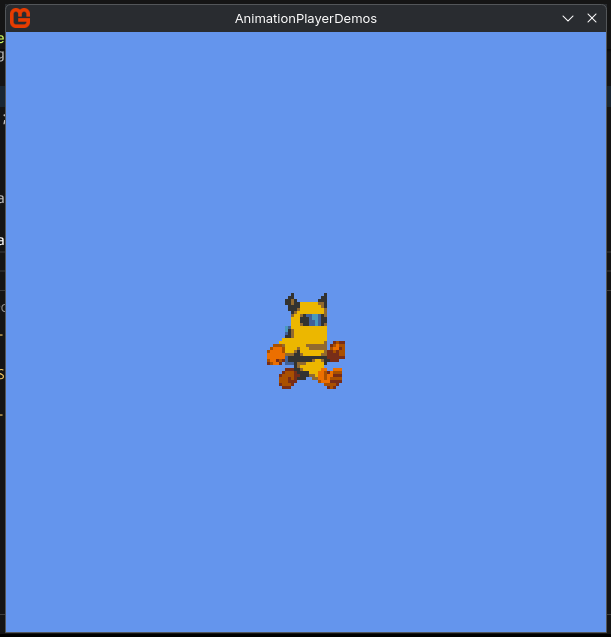
Animating the sprite
...
private AnimationPlayer _animPlayer;

...
protected override void Initialize() {
    ...
    _animPlayer = new AnimationPlayer();
    ...
}

protected override void LoadContent() {
    ...
    _animPlayer.Add(
        new Animation(
            name: "run",
            keyframes: [
                new IntervalKeyframe(
                    () => _clipRect.X = 0,
                    begin: TimeSpan.FromSeconds(0.0),
                    end: TimeSpan.FromSeconds(0.1)
                ),
                new IntervalKeyframe(
                    () => _clipRect.X = _clipRect.Width,
                    begin: TimeSpan.FromSeconds(0.1),
                    end: TimeSpan.FromSeconds(0.2)
                ),
                new IntervalKeyframe(
                    () => _clipRect.X = _clipRect.Width * 2,
                    begin: TimeSpan.FromSeconds(0.2),
                    end: TimeSpan.FromSeconds(0.3)
                ),
                new IntervalKeyframe(
                    () => _clipRect.X = _clipRect.Width * 3,
                    begin: TimeSpan.FromSeconds(0.3),
                    end: TimeSpan.FromSeconds(0.4)
                ),
                new IntervalKeyframe(
                    () => _clipRect.X = _clipRect.Width * 4,
                    begin: TimeSpan.FromSeconds(0.4),
                    end: TimeSpan.FromSeconds(0.5)
                ),
                new IntervalKeyframe(
                    () => _clipRect.X = _clipRect.Width * 5,
                    begin: TimeSpan.FromSeconds(0.5),
                    end: TimeSpan.FromSeconds(0.6)
                ),
            ],
            duration: TimeSpan.FromSeconds(0.6),
            loop: AnimationLoop.Loop
        )
    );

    _animPlayer.Play("run");
    ...
}

protected override void Update(GameTime gameTime) {
    AnimationPlayerCore.Update(gameTime.ElapsedGameTime);
    _animPlayer.Update();
    ...
}
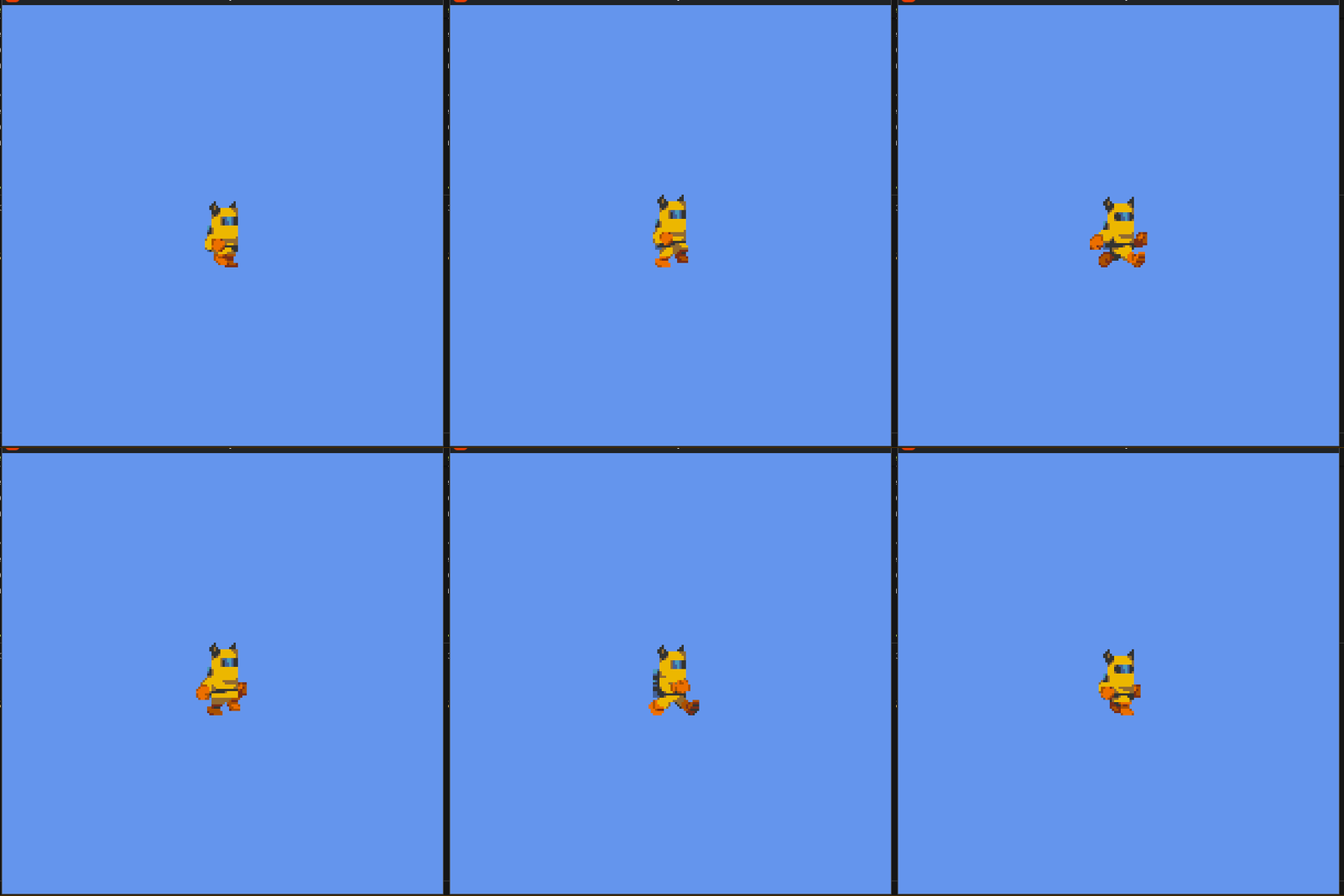
- Creating the
AnimationPlayerwithinInitializeorLoadContentdoesn't matter because the animator doesn't depends on theGraphicsDevice. - Is completely safe to call
Playwithin theUpdatemethod.- The animation will not restart if it is already playing (unless you call
Resetexplicitly).
- The animation will not restart if it is already playing (unless you call
AutoDistribute
Note that the interval between all the keyframes follow an incremental pattern (0.0 .. 0.1, 0.1 .. 0.2, 0.2 .. 0.3 and so on). In this case you can use the method AutoDistribute to distribute the keyframes according with the duration of the animation:
...
_animPlayer.Add(
    IntervalKeyframe.AutoDistribute(
        new Animation(
            name: "run",
            keyframes: [
                new IntervalKeyframe(
                    () => _clipRect.X = 0
                ),
                new IntervalKeyframe(
                    () => _clipRect.X = _clipRect.Width
                ),
                new IntervalKeyframe(
                    () => _clipRect.X = _clipRect.Width * 2
                ),
                new IntervalKeyframe(
                    () => _clipRect.X = _clipRect.Width * 3
                ),
                new IntervalKeyframe(
                    () => _clipRect.X = _clipRect.Width * 4
                ),
                new IntervalKeyframe(
                    () => _clipRect.X = _clipRect.Width * 5
                ),
            ],
            duration: TimeSpan.FromSeconds(0.6),
            loop: AnimationLoop.Loop
        )
    )
);
...
The result will be the exact same as before.
By the way, if you change the duration of the animation during its
creation, the method AutoDistribute will automatically adjust the begin and end of all the keyframes accordingly with that duration.
⚠️ API change notice: In versions <= 0.1.1, the method now called
AutoDistributewas previously namedSortKeyframesByDuration.If you're following older examples, update the method name accordingly.
💡 If your animation has only one frame, you still need to set its duration to a value greater than
0.0; otherwise, the animation will never play.You must also set the keyframe’s
BeginandEndto cover the full animation duration (or simply useAutoDistribute).
Playing the animation backwards
The play methods accepts a second parameter called backwards, if true, the animator will start to play the animation from the end to the beginning.
There is no RESET animation
Despite of this module being very inspired by Godot's AnimationPlayer, there is no RESET animation like exists in there.
That is, the last keyframe will always be the last state of everything that changed when the onUpdate callback of that keyframe was called:
Spritesheet used (created by Zerie):

new Animation(
    name: "attack",
    keyframes: [
        new IntervalKeyframe(
            () => _clipRect.X = 0
        ),
        new IntervalKeyframe(
            () => _clipRect.X = _clipRect.Width
        ),
        new IntervalKeyframe(
            () => _clipRect.X = _clipRect.Width * 2
        ),
        new IntervalKeyframe(
            () => _clipRect.X = _clipRect.Width * 3
        ),
        new IntervalKeyframe(
            () => _clipRect.X = _clipRect.Width * 4
        ),
        new IntervalKeyframe(
            () => _clipRect.X = _clipRect.Width * 5
        ),
    ],
    duration: TimeSpan.FromSeconds(0.6),
    loop: AnimationLoop.NoLoop // <= not looping (default)
)
AnimationLoop.NoLoopis the default option, therefore you can omit the lineloop: AnimationLoop.NoLoop.
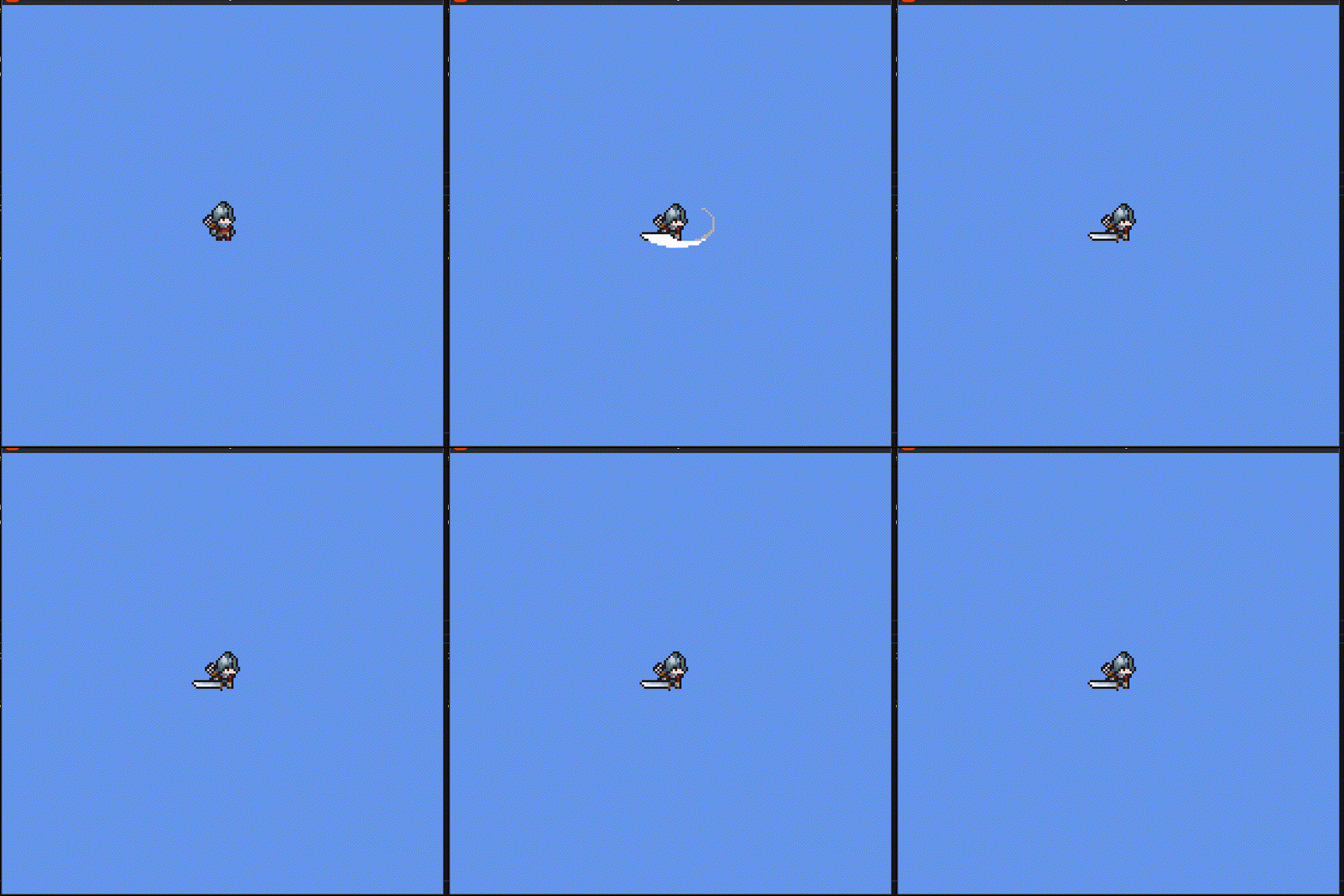
Note that the changes of the last keyframe remains even after the animation end.
This is actually an expected behavior, since the animation call ordinary functions like any other, but in specific moments (controlled by time).
In this case, you might want to reset something after the last keyframe ends:
new Animation(
    name: "attack",
    keyframes: [
        ...
        new IntervalKeyframe(
            onEnter: null,
            onUpdate: () => _clipRect.X = _clipRect.Width * 5,
            onExit: () => _clipRect.X = 0;
        ),
    ],
    ...
)
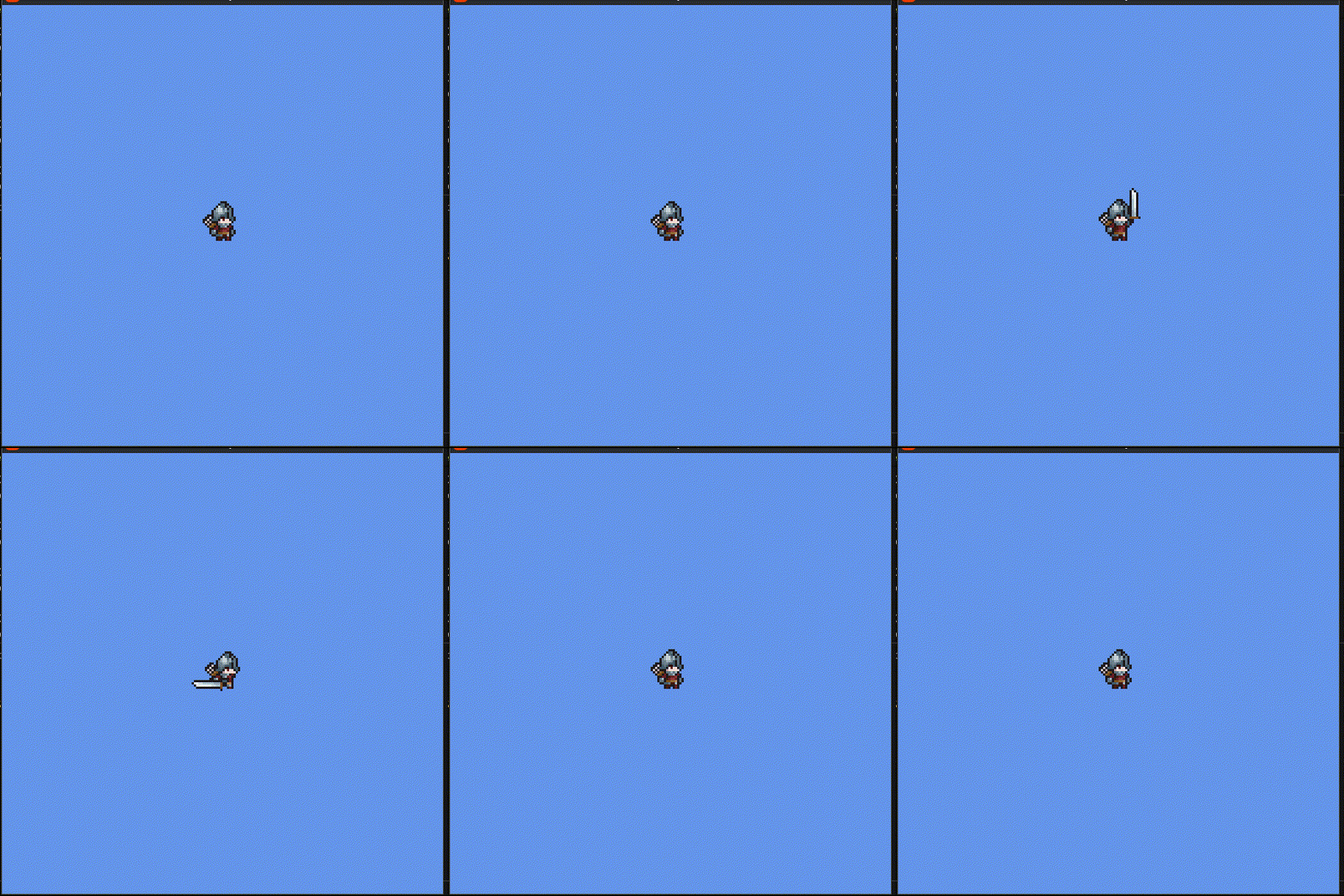
Run Once
The onUpdate callback run just once and at the exact moment as the onEnter (or when the keyframe begins). If by some reason you need that the update callback be called while the keyframe is active, set the argument runOnce to false:
onEnter: runs only once at the beginning of the keyframe.onUpdate: (default) runs only once at the beginning of the keyframe, but ifrunOnceis set tofalse, it will run until the keyframe ends.onExit: runs only once at the end of the keyframe.
InterpolationKeyframe
Setup
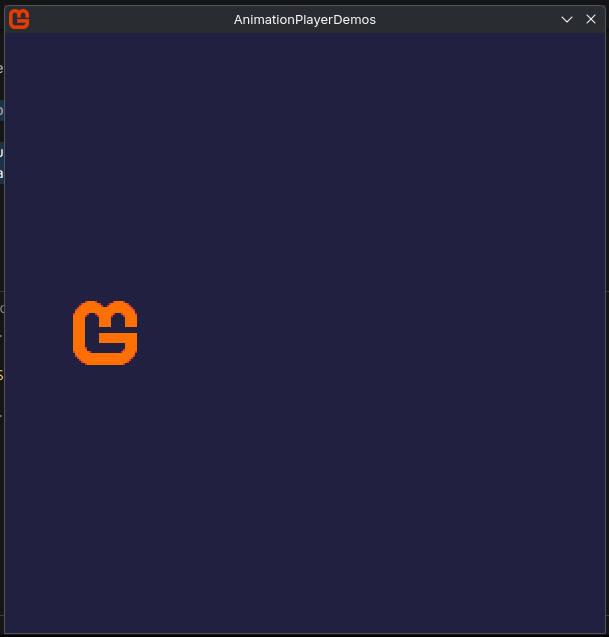
Sprite used (created by me)

I created this pixelated version of the MonoGame's logo, not the logo itself! 😅
using LyiarOwl.AnimationPlayer;

...
private Vector2 _position = new Vector2(100f, 300f);
private Texture2D _texture;
private AnimationPlayer _animPlayer;
...

public Game1() {
    ...

    IsFixedTimeStep = true;
    TargetElapsedTime = TimeSpan.FromSeconds(1.0 / 60.0);
}

...

protected override void LoadContent() {
    ...

    _texture = Content.Load<Texture2D>("monogame-icon");
    _animPlayer = new AnimationPlayer();
}

protected override void Update(GameTime gameTime) {
    AnimationPlayerCore.Update(gameTime.ElapsedGameTime);
    _animPlayer.Update();
}

protected override void Draw(GameTime gameTime) {
    GraphicsDevice.Clear(new Color(32, 32, 64));

    Vector2 origin = _texture.Bounds.Size.ToVector2() * 0.5f;
    _spriteBatch.Begin(samplerState: SamplerState.PointClamp);

    _spriteBatch.Draw(
        _texture,
        _position,
        null,
        Color.White,
        0f,
        origin,
        2f,
        SpriteEffects.None,
        0f
    );

    _spriteBatch.End();

    ...
}
Moving the sprite
new Animation(
    name: "move",
    keyframes: [
         new InterpolationKeyframe(
            value => _position.X = value,
            from: _position.X,
            to: 500f,
            begin: TimeSpan.FromSeconds(0.0),
            end: TimeSpan.FromSeconds(2.0),
            type: InterpolationType.Linear // default (this line can be ommited)
        )
    ],
    duration: TimeSpan.FromSeconds(2.0),
)
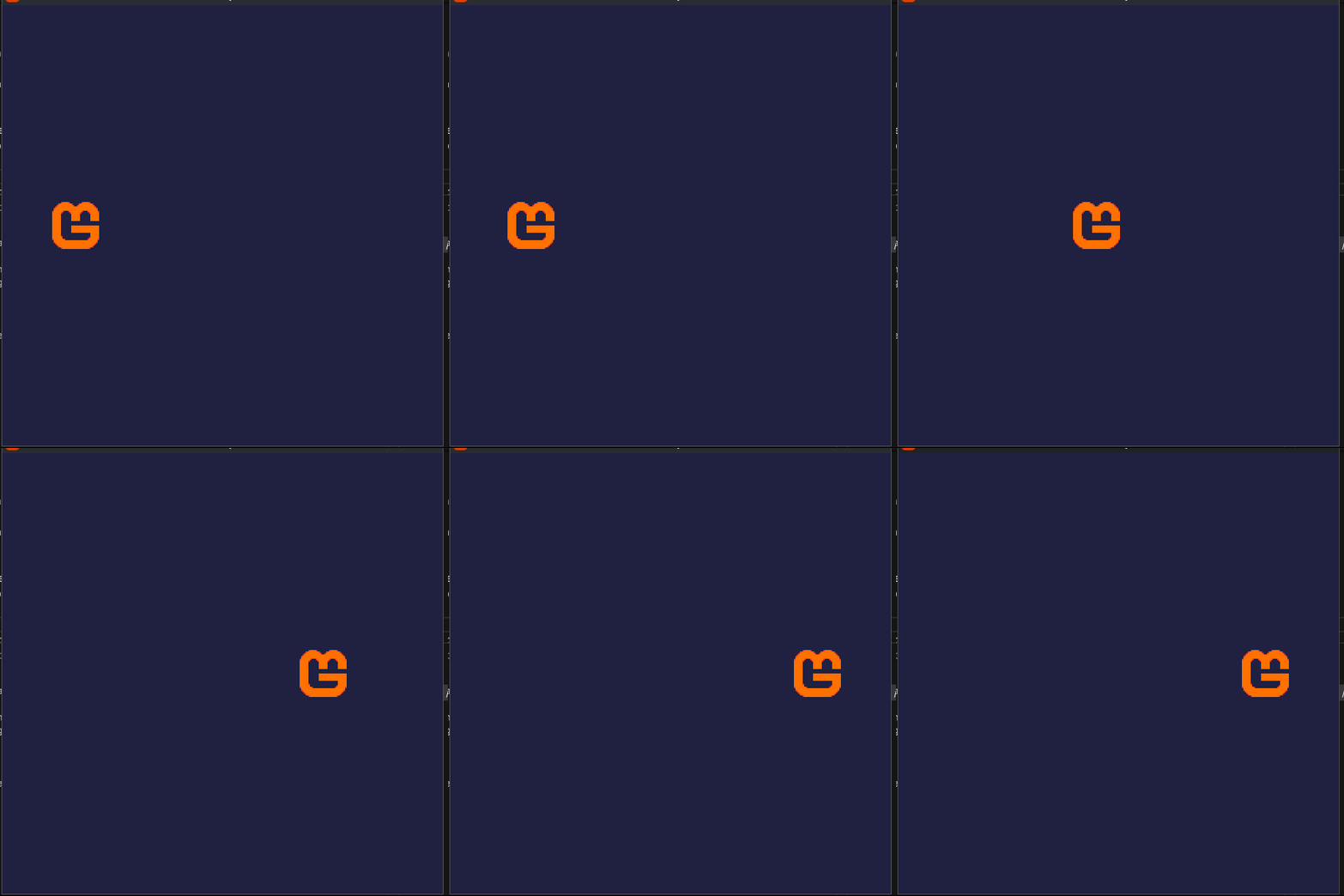
This keyframe will take the value in from (100) and will interpolate it until it get to to (500). The result of this interpolation over time is return through the argument value:
Types of Interpolation
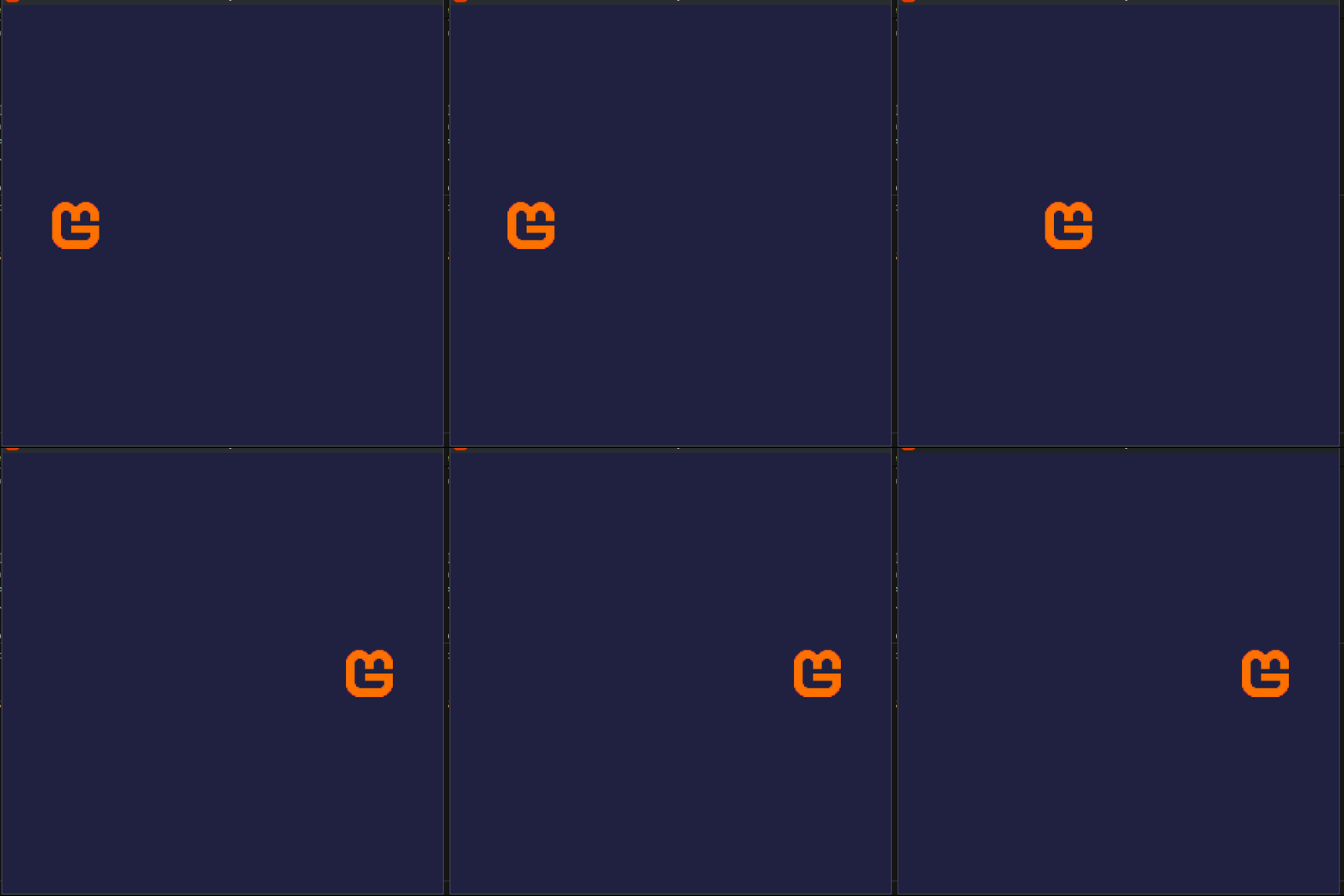
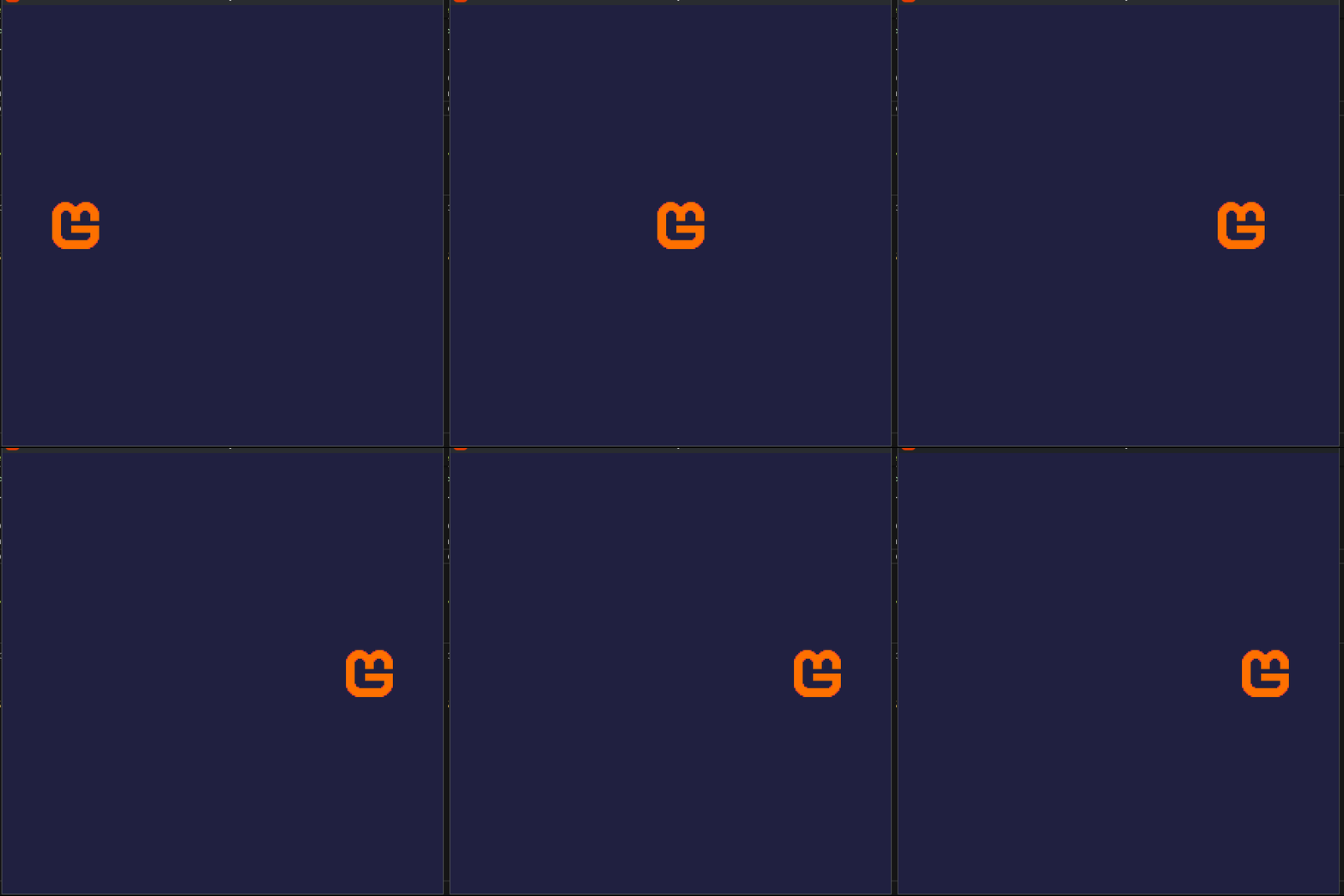
This keyframe accepts 4 types of interpolation:
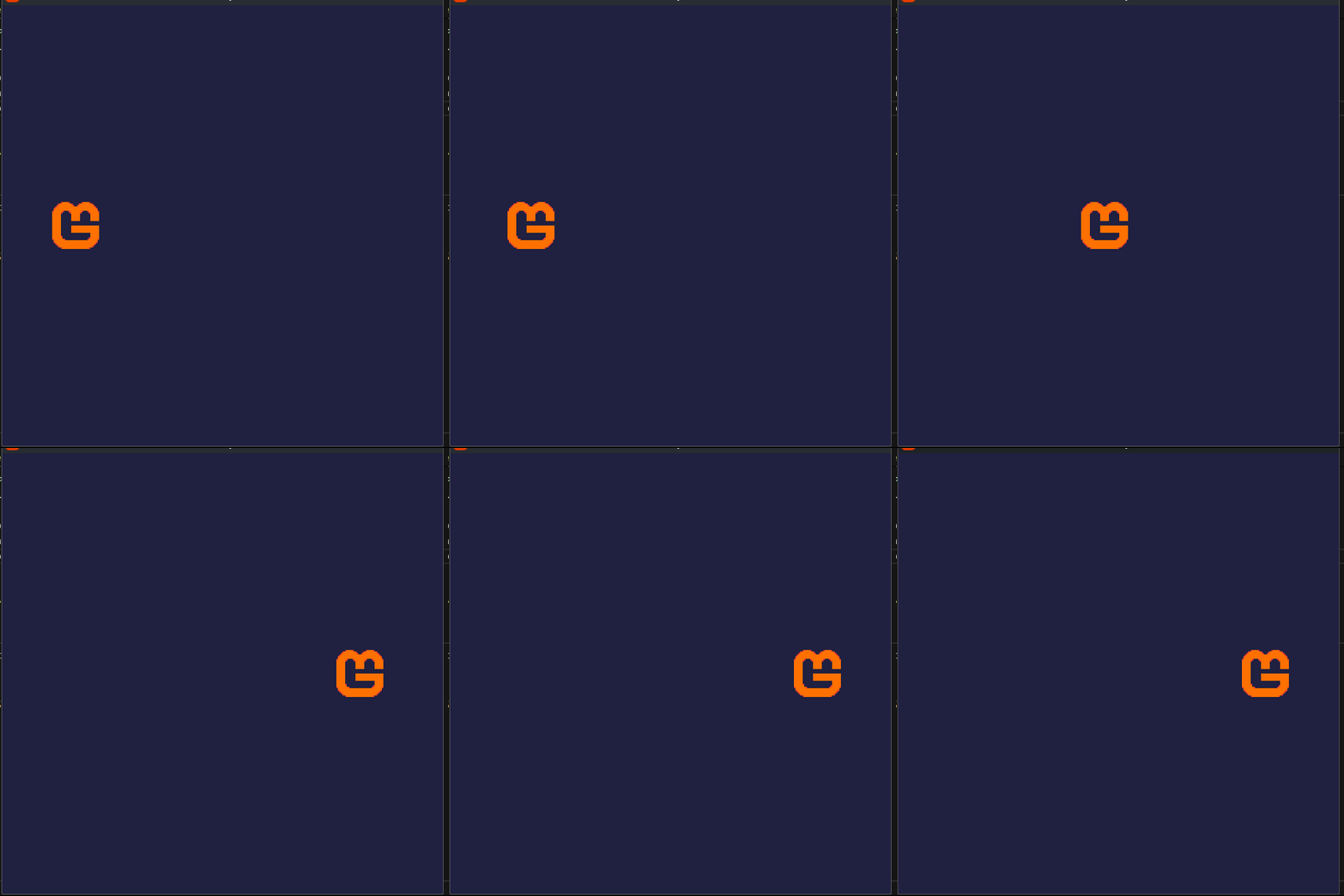
InterpolationType.Linear(default): you already see it above.InterpolationType.EaseIn:InterpolationType.EaseOut:InterpolationType.EaseInOut:
Types of loop
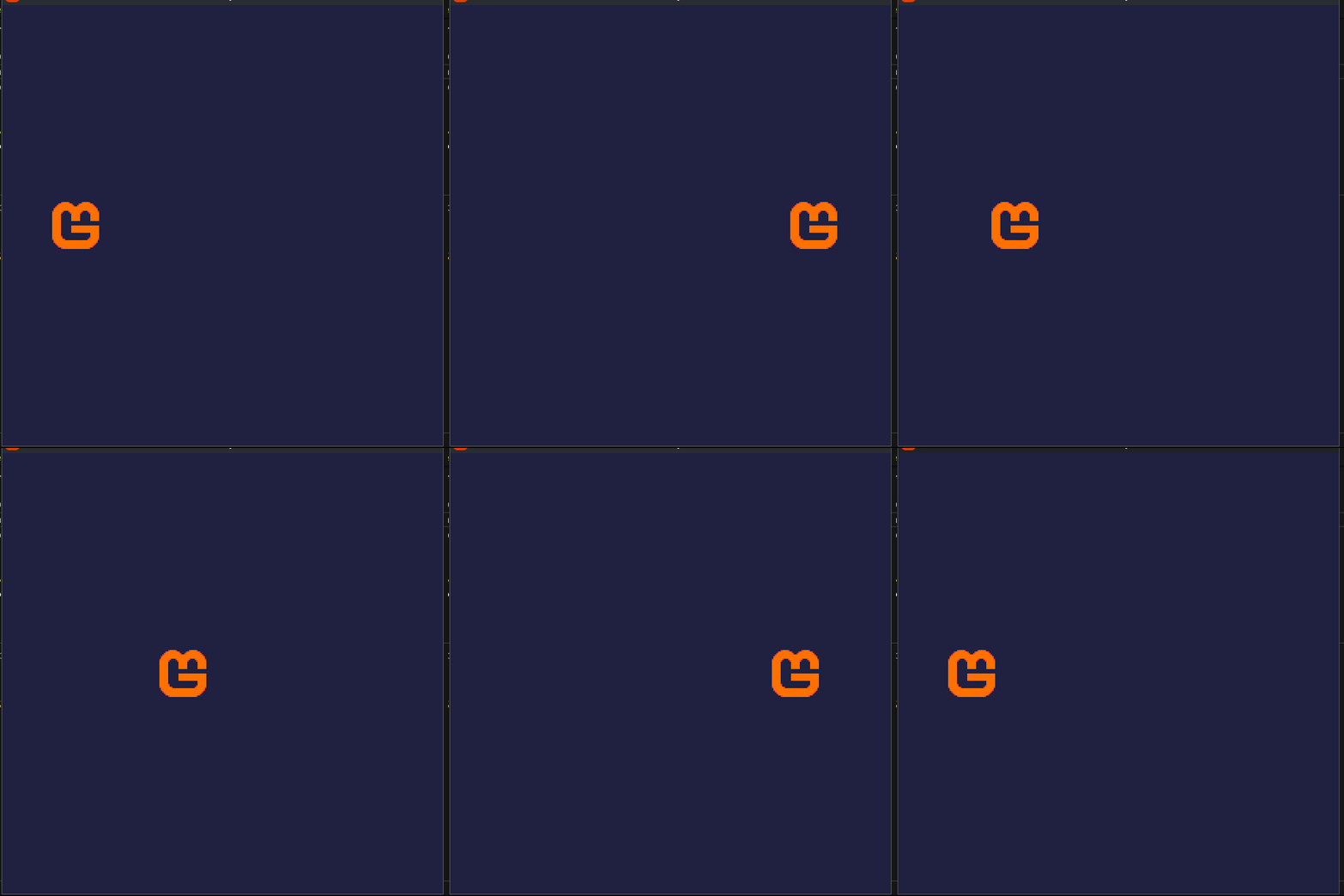
AnimationLoop.NoLoop(default): you already see it before.AnimationLoop.Loop: you already see it before.AnimationLoop.PingPong:
PauseKeyframe
Setup:
using LyiarOwl.AnimationPlayer;
...

private Texture2D _spriteSheet;
private Rectangle _clipRect;
private AnimationPlayer _animPlayer;
private bool _startToAttack;
private bool _attack;

...
protected override void LoadContent() {
    ...
    _spriteSheet = Content.Load<Texture2D>("Soldier-Attack01");
    _clipRect = new Rectangle(0, 0, 100, 100);

    _animPlayer.Add(
        new Animation(
            name: "attack",
            keyframes: [
                new IntervalKeyframe(...),
                new IntervalKeyframe(...),
                new IntervalKeyframe(
                    () => _clipRect.X = _clipRect.Width * 2,
                    begin: TimeSpan.FromSeconds(0.2),
                    end: TimeSpan.FromSeconds(0.3)
                ),

                new PauseKeyframe(
                    onUpdate: null,
                    condition: () => _attack,
                    begin: TimeSpan.FromSeconds(0.25),
                    end: TimeSpan.FromSeconds(0.3)
                ),

                new IntervalKeyframe(
                    () => _clipRect.X = _clipRect.Width * 3,
                    begin: TimeSpan.FromSeconds(0.3),
                    end: TimeSpan.FromSeconds(0.4)
                ),

                new IntervalKeyframe(...),
                new IntervalKeyframe(...),
            ],
            duration: TimeSpan.FromSeconds(0.6),
        )
    );
    ...
}

protected override void Update(GameTime gameTime) {
    AnimationPlayerCore.Update(gameTime);
    _animPlayer.Update();

    var kbstate = Keyboard.GetState();
    if (kbstate.IsKeyDown(Keys.Space) && !_startToAttack)
    {
        _startToAttack = true;
        _animPlayer.Play("attack");
    }

    if (kbstate.IsKeyDown(Keys.F) && !_attack)
    {
        _attack = true;
    }

    ...
}
Note that the begin of the PauseKeyframe was set to start at 0.25, that is, between the end of the previous keyframe and the begin of the next, this was intentional, you can for sure set the begin of this keyframe to exactly 0.2.
Also the order of the keyframes doesn't really matter, you can move the PauseKeyframe to the end of the array and it will still play after the second keyframe.
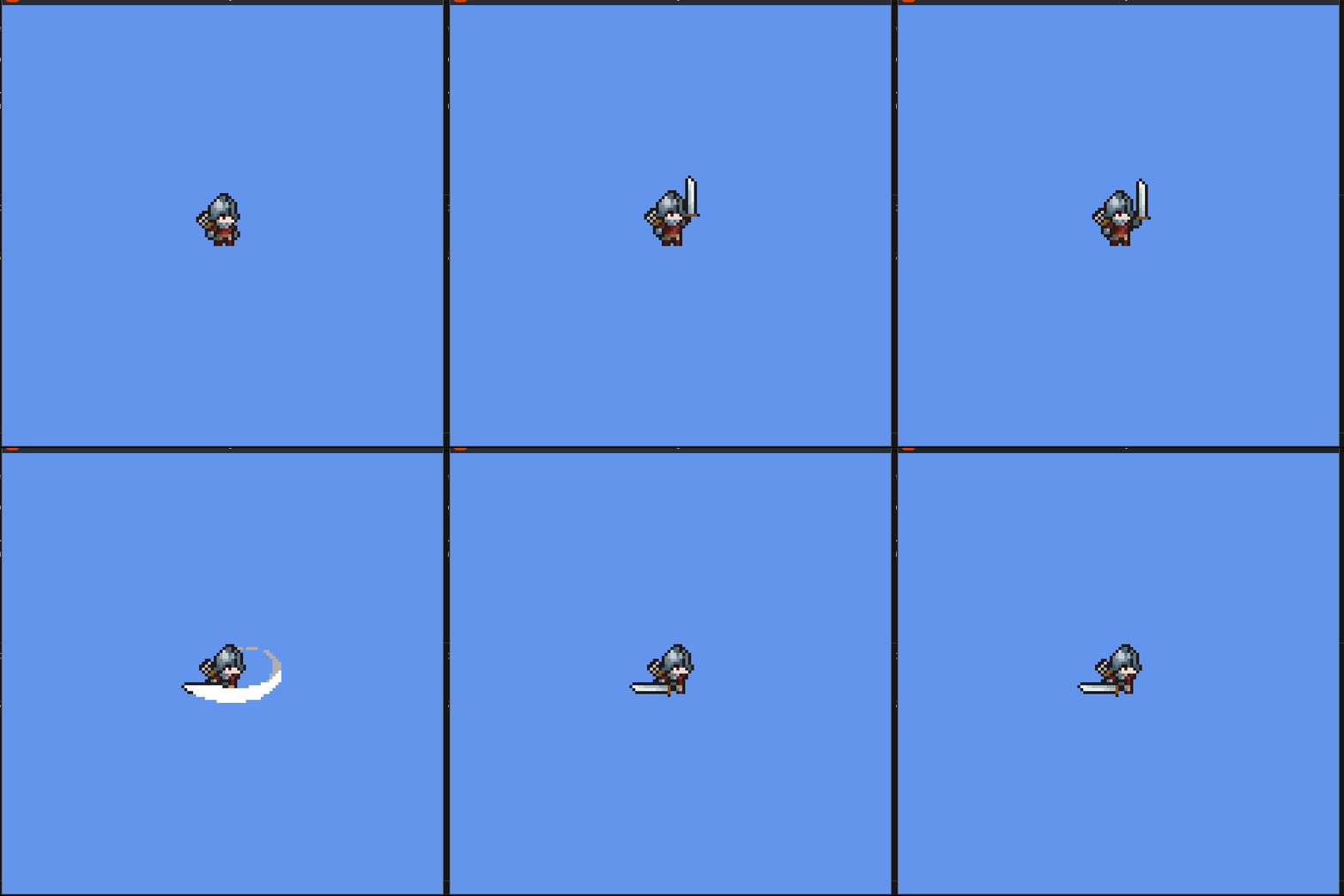
The idea above is:
- When pressing the Spacebar the animation will begin, but it will stop when the
PauseKeyframebe reached. - When you press F the
_attackattribute becomestrue, therefore, the condition is satisfied, therefore, the animation can continue.
Honestly, during my tests I didn't find any useful moment to use this kind of Keyframe yet, but might you have one, so... I hope you enjoy it.
🥳 Finally
I really hope this module is useful to you, if you have any problems using it you can open an issue in this repository or even contact me via:
- @Lyiar_u (on X)
- "LyiarOwl.cs" (My personal Discord)
- MonoGame Discord Server (@ me in there)
| Product | Versions Compatible and additional computed target framework versions. |
|---|---|
| .NET | net5.0 was computed. net5.0-windows was computed. net6.0 was computed. net6.0-android was computed. net6.0-ios was computed. net6.0-maccatalyst was computed. net6.0-macos was computed. net6.0-tvos was computed. net6.0-windows was computed. net7.0 was computed. net7.0-android was computed. net7.0-ios was computed. net7.0-maccatalyst was computed. net7.0-macos was computed. net7.0-tvos was computed. net7.0-windows was computed. net8.0 was computed. net8.0-android was computed. net8.0-browser was computed. net8.0-ios was computed. net8.0-maccatalyst was computed. net8.0-macos was computed. net8.0-tvos was computed. net8.0-windows was computed. net9.0 was computed. net9.0-android was computed. net9.0-browser was computed. net9.0-ios was computed. net9.0-maccatalyst was computed. net9.0-macos was computed. net9.0-tvos was computed. net9.0-windows was computed. net10.0 was computed. net10.0-android was computed. net10.0-browser was computed. net10.0-ios was computed. net10.0-maccatalyst was computed. net10.0-macos was computed. net10.0-tvos was computed. net10.0-windows was computed. |
| .NET Core | netcoreapp2.0 was computed. netcoreapp2.1 was computed. netcoreapp2.2 was computed. netcoreapp3.0 was computed. netcoreapp3.1 was computed. |
| .NET Standard | netstandard2.0 is compatible. netstandard2.1 was computed. |
| .NET Framework | net461 was computed. net462 was computed. net463 was computed. net47 was computed. net471 was computed. net472 was computed. net48 was computed. net481 was computed. |
| MonoAndroid | monoandroid was computed. |
| MonoMac | monomac was computed. |
| MonoTouch | monotouch was computed. |
| Tizen | tizen40 was computed. tizen60 was computed. |
| Xamarin.iOS | xamarinios was computed. |
| Xamarin.Mac | xamarinmac was computed. |
| Xamarin.TVOS | xamarintvos was computed. |
| Xamarin.WatchOS | xamarinwatchos was computed. |
-
.NETStandard 2.0
- No dependencies.
NuGet packages
This package is not used by any NuGet packages.
GitHub repositories
This package is not used by any popular GitHub repositories.